Whether you’re using a custom bot or one you found online, adding a bot to your channel is super simple. Here’s how to do it in five easy steps:
- Open your Telegram channel
- Tap the channel name at the top
- Tap Administrators → Add Admin
- Search for your bot’s @username and select it
- Choose its permissions and tap Save (Add Admin on mobile)
A bot can only join a channel as an administrator. There’s no such thing as a regular bot member in a channel, which is why every route below goes through the Administrators menu.
And once it’s in, your bot sees your posts but nothing from your subscribers, because subscribers can’t post in a channel. Their comments live in the channel’s linked discussion group, not in the channel itself.
If you prefer a full walkthrough with screenshots, keep reading 👇
Step-by-Step: Add your Telegram bot to your channel
The quickest way to add a bot is through your channel’s Administrators menu. It works on both desktop and mobile. Only the buttons sit in slightly different places, so jump to the version for your device:
- How to add a bot to your Telegram channel on desktop
- How to add a bot to your Telegram channel on mobile
How to add a bot to your Telegram channel on desktop
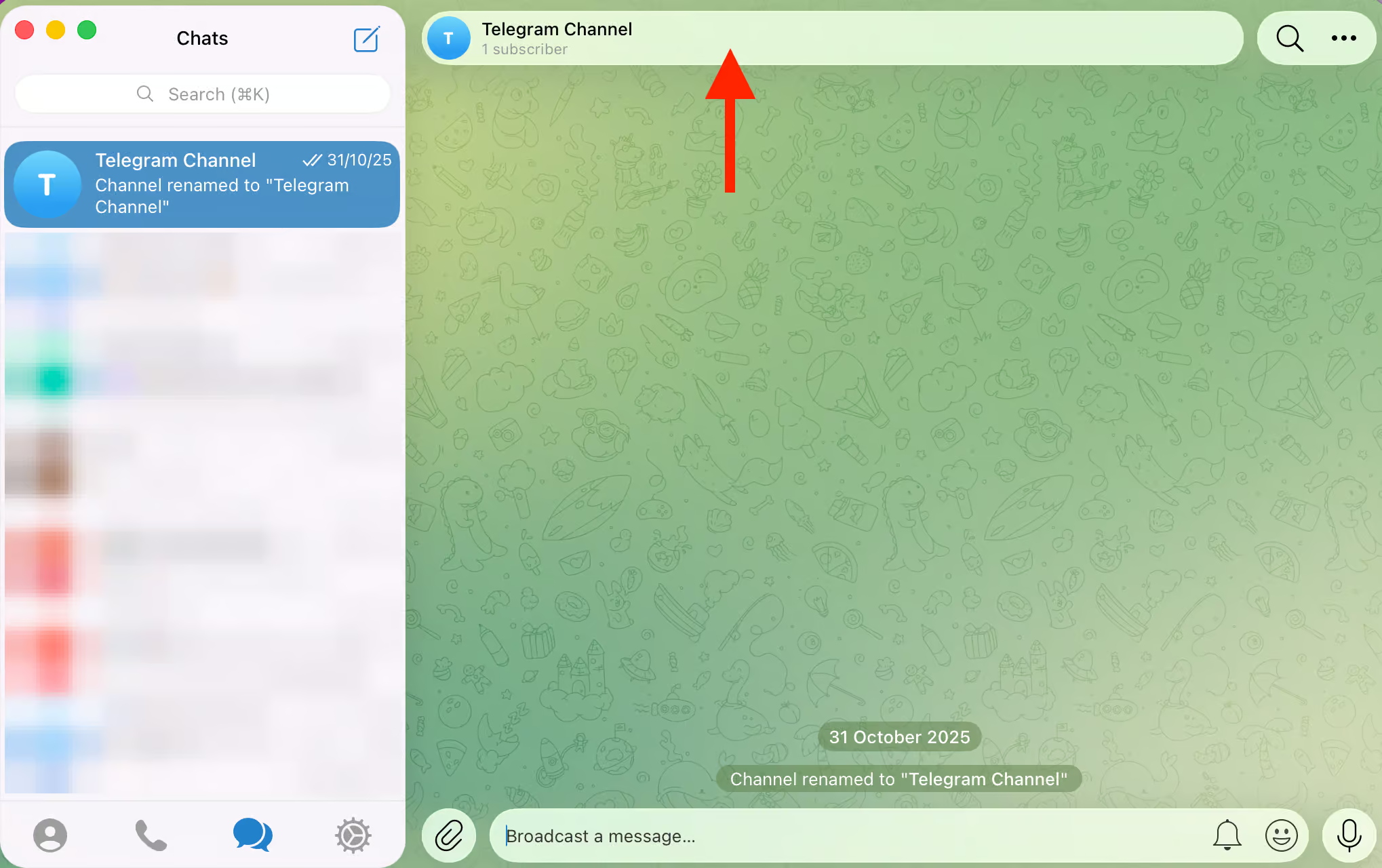
The first step is to open your channel and click on the channel name at the top:
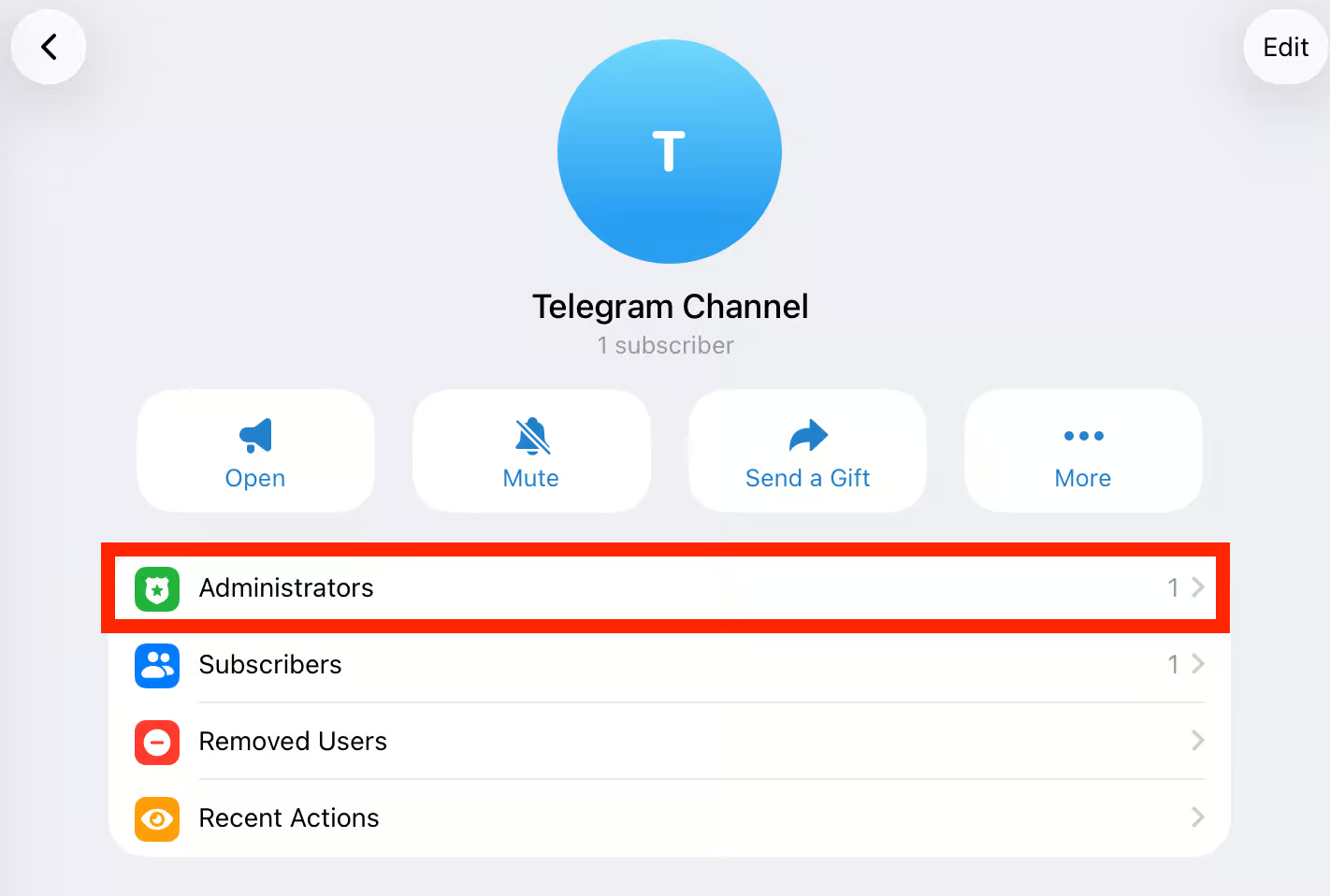
In the channel info, click on Administrators:
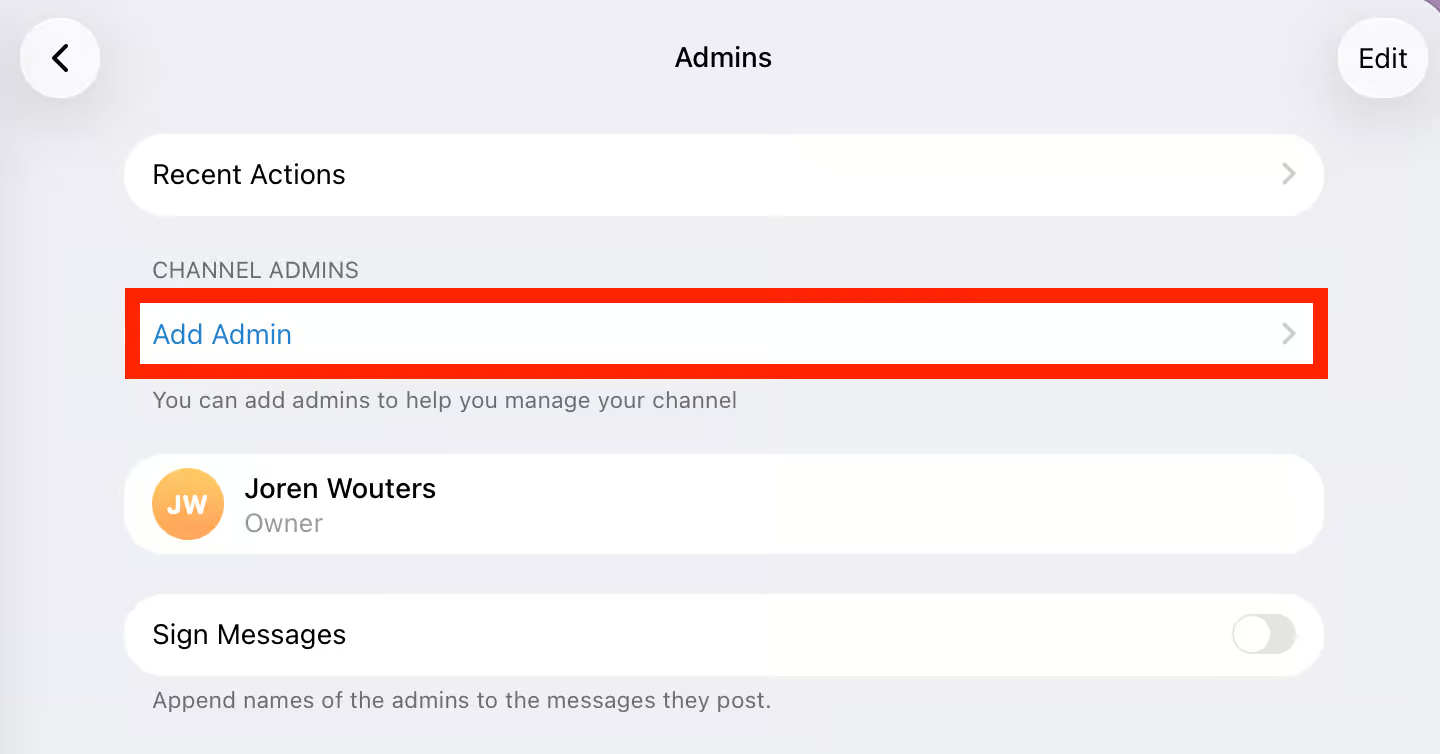
Next, click on Add Admin:
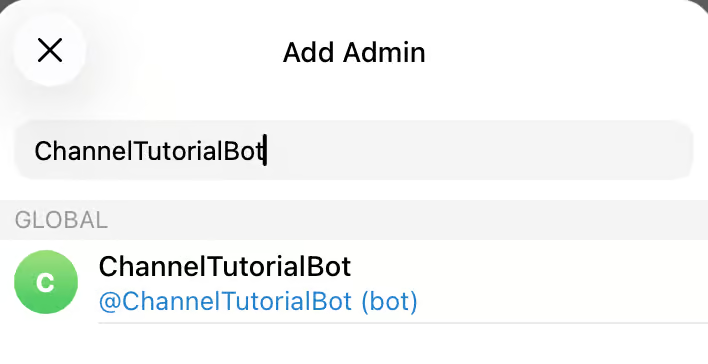
Now type your bot’s exact username, including the “bot” at the end, and select it:
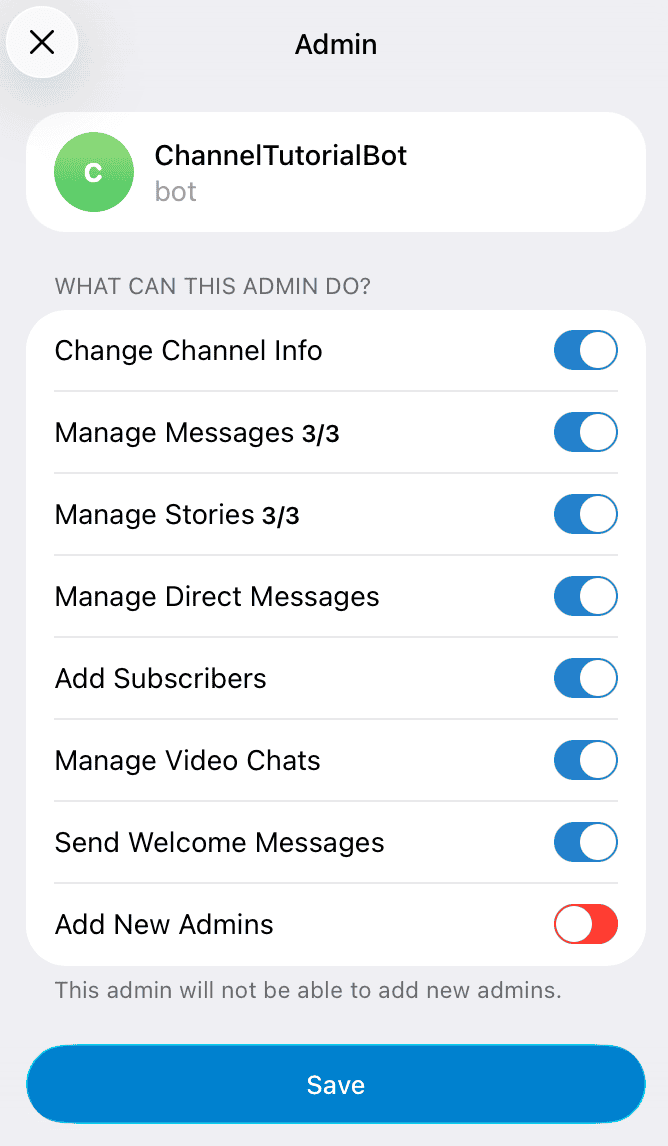
Telegram then shows what the bot is allowed to do. Switch on only the permissions your bot needs and click on Save:
How to add a bot to your Telegram channel on mobile
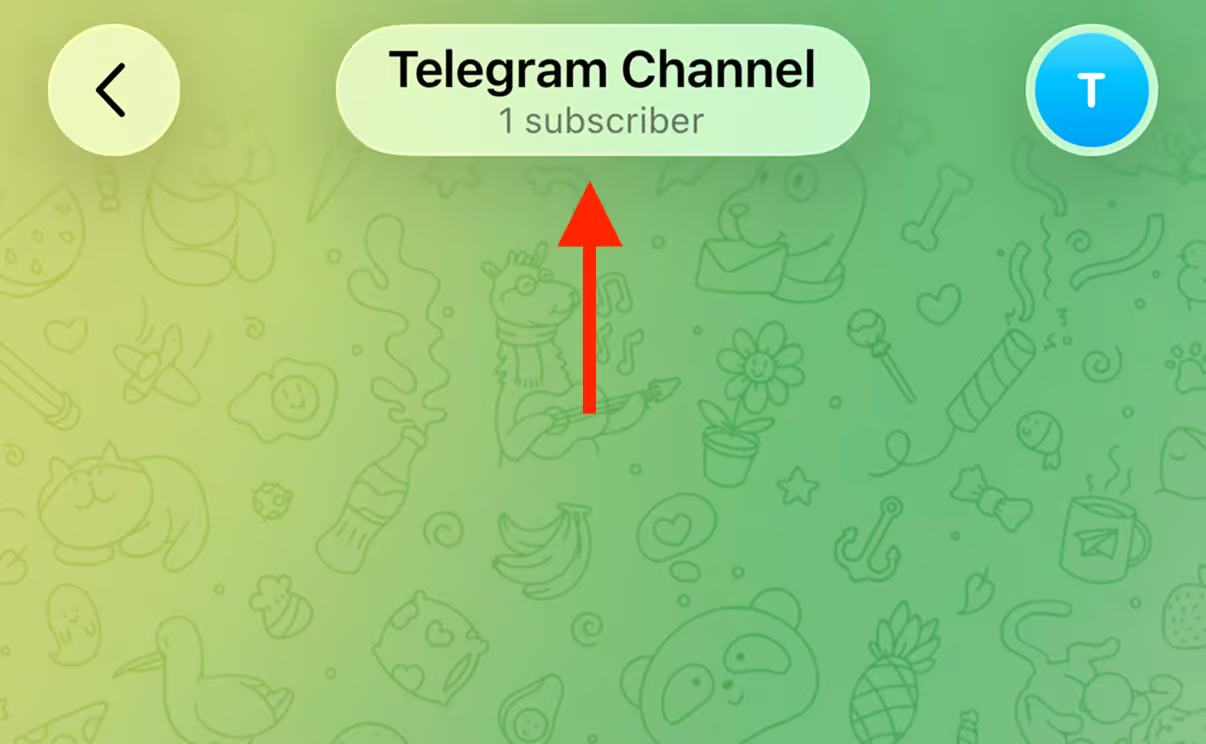
On your phone, open the channel and tap the channel name at the top:
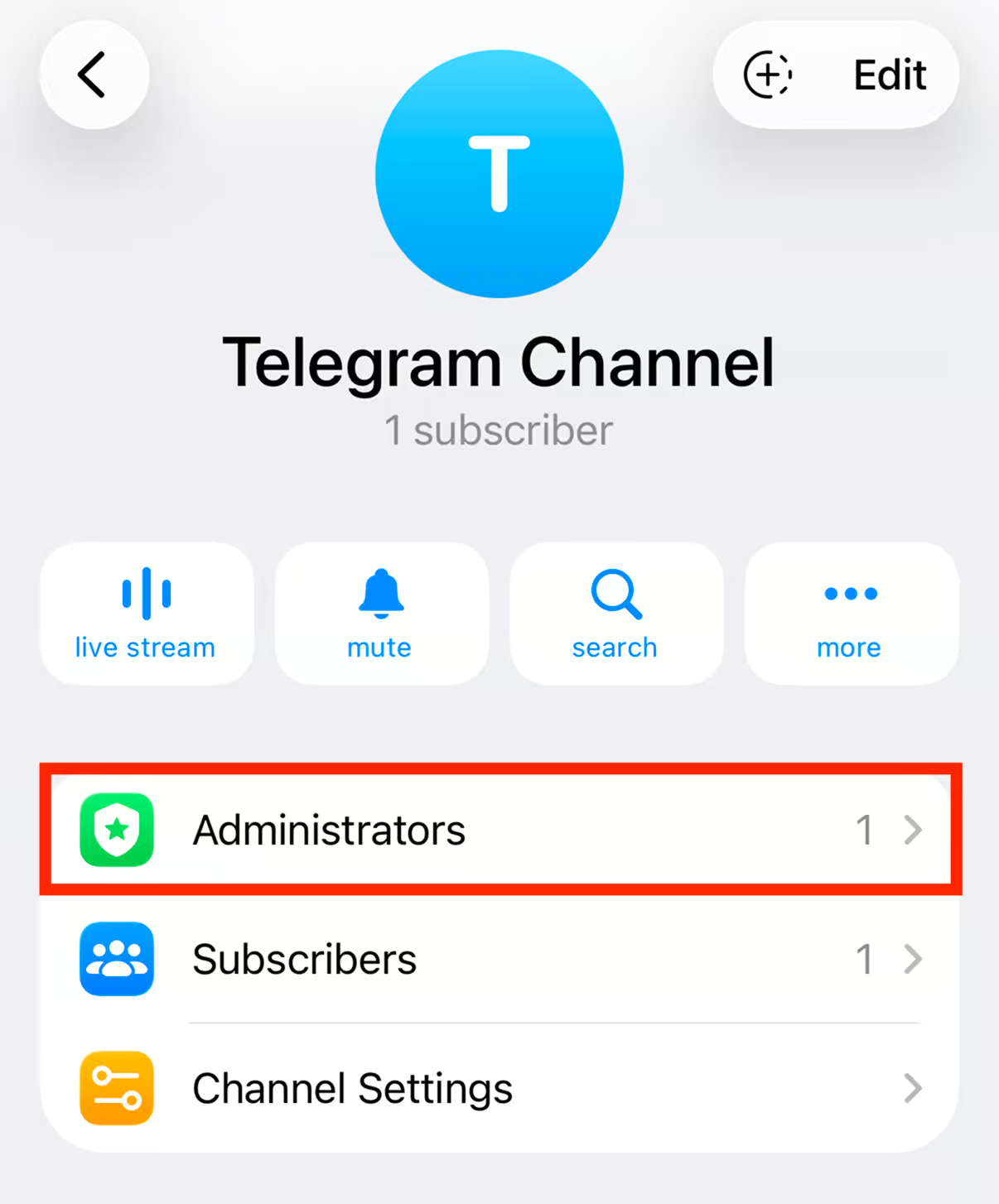
In the channel info, tap Administrators:
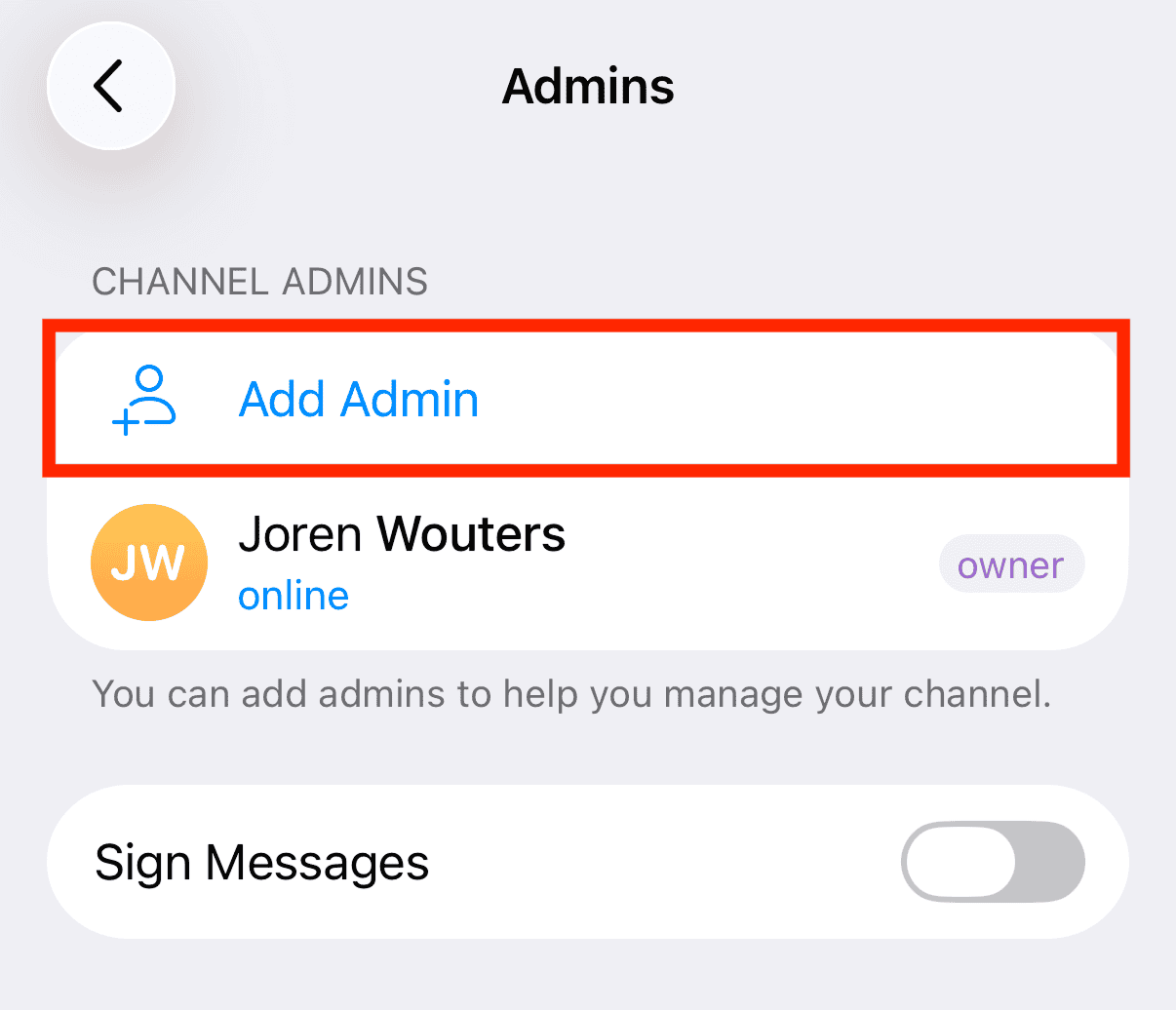
After that, tap Add Admin:
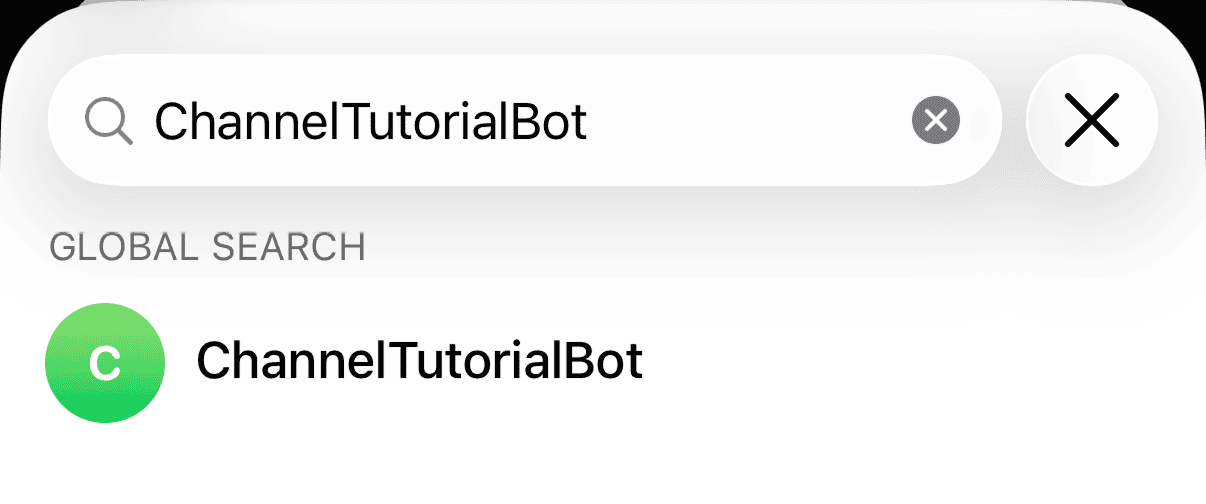
Search for your bot’s exact username and select it:
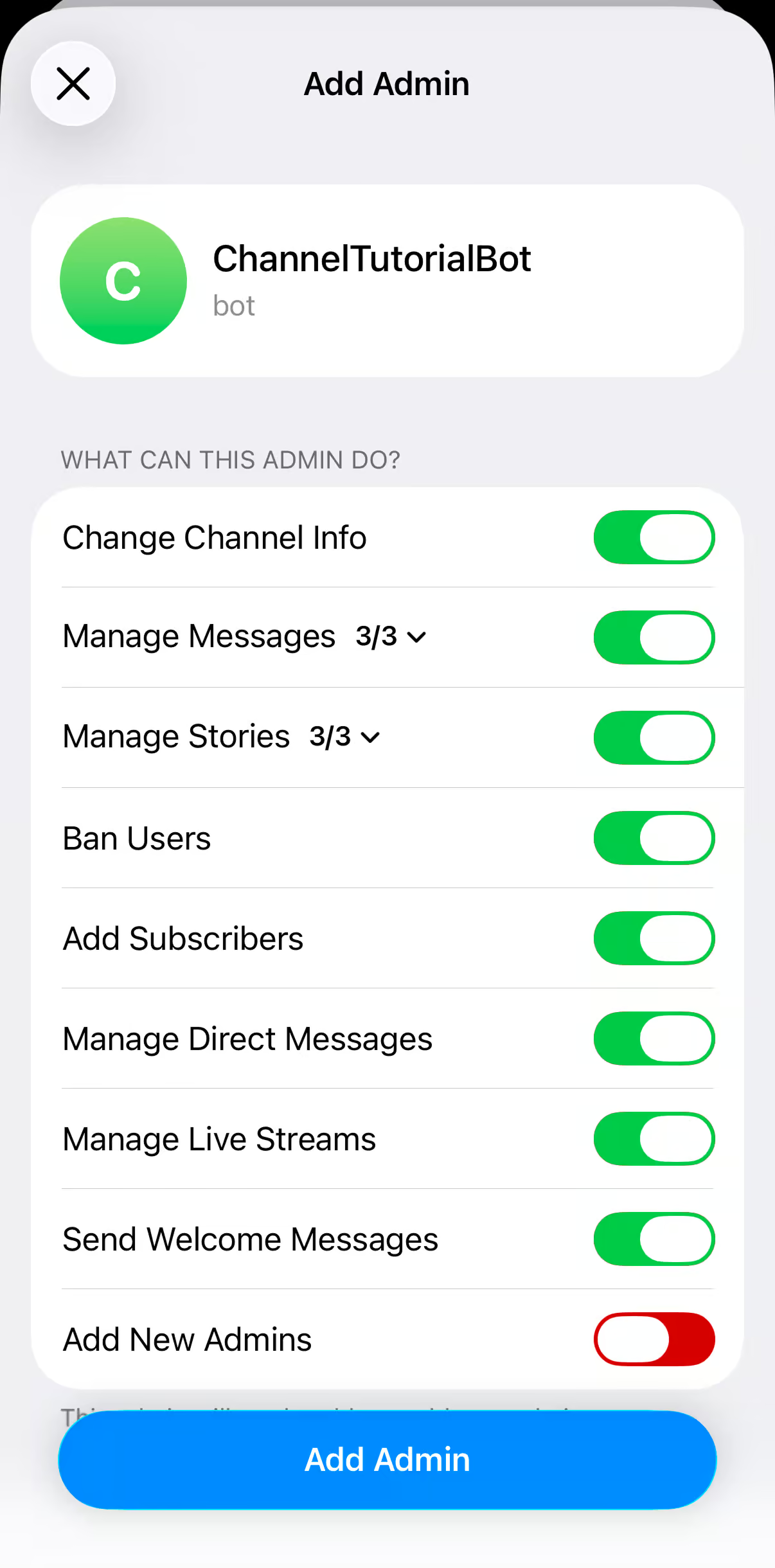
Choose its permissions and tap Add Admin:
And that’s it! Your bot is now an admin of your channel.
Which permissions to give your bot
Here’s the rule to remember: a bot can only publish in your channel if it’s an admin with Post Messages switched on. In the Bot API, that’s the can_post_messages permission, and without it every post your bot tries to send gets rejected.
In the app, Post Messages sits inside Manage Messages, together with editing and deleting. Tap the arrow next to Manage Messages to switch each one on or off.
Don’t switch every permission on unnecessarily, though. Give your bot only what its job needs:
- Post Messages and Edit Messages for reposting and scheduling content. This is the pair most bots need
- Delete Messages only if the bot removes posts made by other admins. Post Messages already lets it delete its own posts
- Ban Users only if the bot removes subscribers who break your rules
- Add Subscribers only if the bot manages who gets into your channel, like the paid channel bot in the example below
- Manage Direct Messages only if the bot answers your channel’s direct messages
- Add New Admins stays off. A bot with this permission can make other accounts admins of your channel, and nothing in this guide needs it
The rest, like Change Channel Info and Manage Stories, can stay off unless your bot’s job needs them.
Other ways to add a bot to your channel
You can also start from the bot itself. Open the bot’s profile, tap Add to Group or Channel and pick your channel. You land on the same admin rights screen as above, so the result is exactly the same.
The Subscribers menu works too, but the bot still needs admin rights afterwards, so the Administrators route takes fewer taps.
Why do you want to add a bot to a Telegram Channel?
A Telegram bot in a channel can save you tons of time and effort. It can automatically perform tasks, so you don’t have to do them manually. For example, it can:
- Automatically repost content from websites, socials or newsletter
- Manage your existing subscribers, like removing inactive members or people who break your rules
- Schedule channel posts at optimal times
- Approve or decline suggested posts from your subscribers, including paid ones
- Answer your channel’s direct messages, where you can charge a Stars fee per message (this needs the can_manage_direct_messages permission)
- Moderate the comments in your linked discussion group, including paid comments
Don’t have a bot yet? Start by creating your own Telegram bot first.
Want to compare your options first? Here are the best chatbot platforms that can post to your Telegram channel.
Bot not working in your channel? Here’s how to fix it
My bot can’t post in the channel
Your bot is missing the Post Messages permission. Open your channel’s Administrators list, select the bot and switch Post Messages on under Manage Messages. The change works right away, so you don’t need to remove the bot and add it again.
Telegram can’t find my bot when I search for it
Every bot’s username ends in “bot”, so search for the exact username, including that ending. If it still doesn’t show up, check the spelling: send /mybots to BotFather, and it lists the exact username of every bot you own.
My bot joined the channel, but it doesn’t do anything
That’s because it’s in a channel, not a group. Your bot receives the posts you publish, but your subscribers can’t send messages in a channel, so there’s nothing from your audience for it to reply to. If you want a bot that talks with people, read how bots work in Telegram groups.
Real-World Example: Automating Access to a Paid Telegram Channel
For one of my clients, we set up a simple but powerful automation using a Telegram bot I built.
Here’s how it worked:
- They had two Telegram channels: one free and one paid.
- In the free channel, we teased content from the paid channel (like previews and highlights).
- Users in the free channel could tap a link to interact with a Telegram bot.
- The bot provided a payment link.
- Once payment was completed, the bot would automatically add the user to the paid channel.
This automation made their sales funnel completely hands-free and saved my client hours of manual work.
Your Next Step
And that’s how you add a Telegram bot to a Telegram channel!
Want to go further with Telegram automation?
Learn how to add a bot to a Telegram group. This is similar to a channel, but ideal for interactive communities:
Or if you still need to get started with your bot, check out our Telegram chatbot tutorial to build your own bot:
Frequently Asked Questions
Why can’t I find my bot when I search for it in my channel?
Search for the exact @username, including the “bot” at the end. It also helps to open a chat with the bot and press Start first. If it still doesn’t appear, check the exact username in BotFather, as explained in the troubleshooting section.
Can a bot manage more than one Telegram channel?
Yes. You can add the same bot to as many channels as you like, with different permissions in each one. The bot tells your channels apart by their channel ID.
How do I find my Telegram channel ID?
The easiest way is @userinfobot, a free bot that shows the ID of any user, group or channel. Search for it in Telegram and open it:
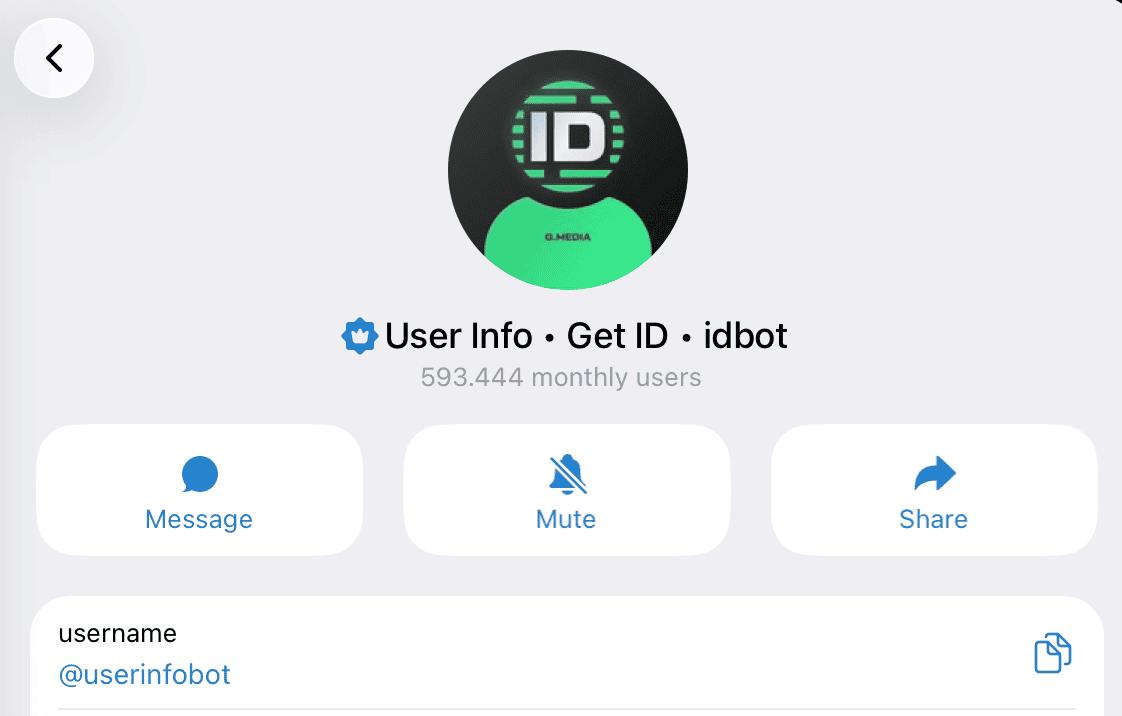
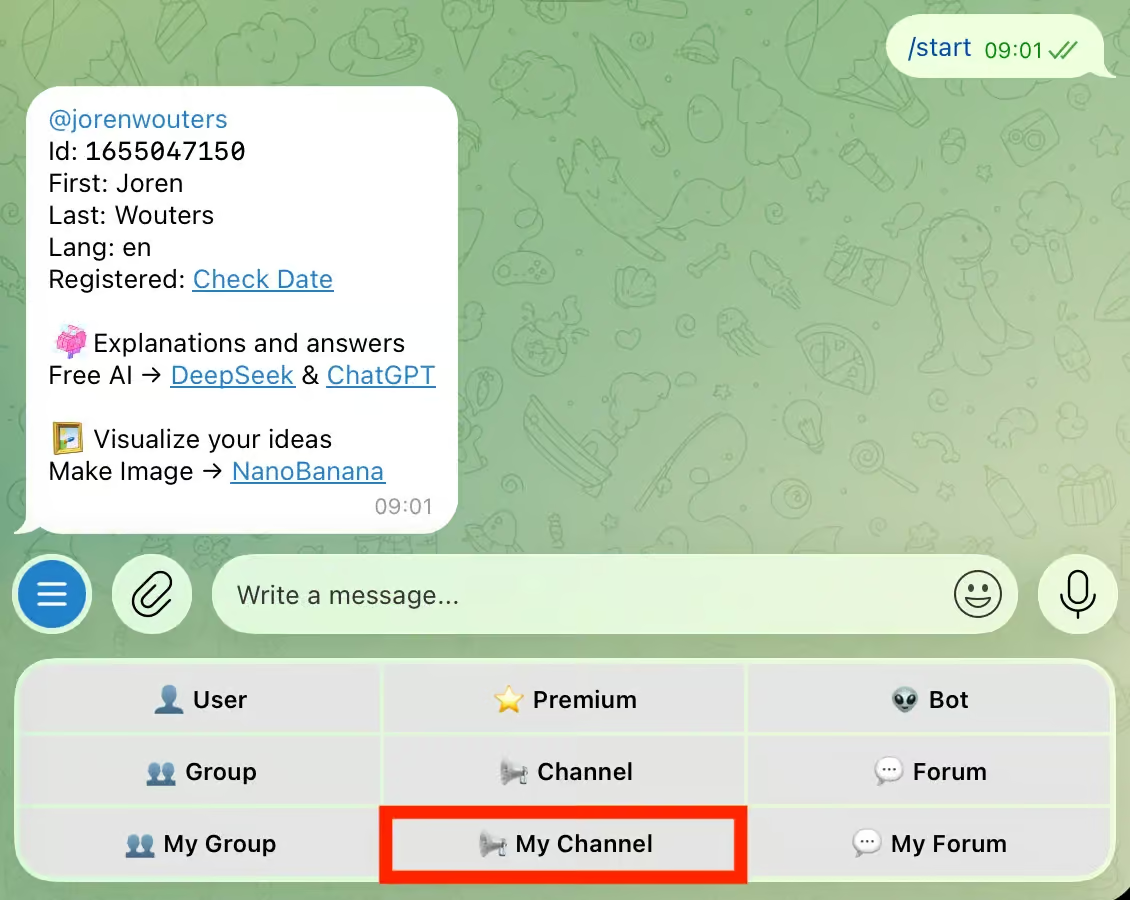
Press Start, then tap My Channel in the menu under the chat:
Next, choose the channel you want the ID of:

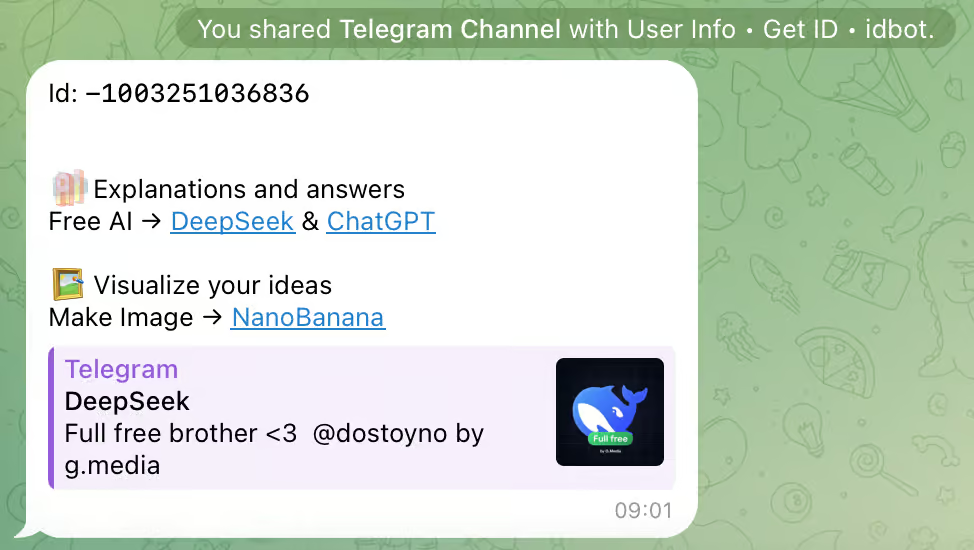
The bot then replies with your channel ID, which always starts with -100:
Can a bot manage comments on my channel posts?
Yes, but not from inside the channel. Comments live in your linked discussion group, so you add the bot to that group as well and give it its own admin rights there.