By Joren Wouters • Updated on
Now that you know what WhatsApp broadcasts are, let’s see them in action.
Here are two examples of businesses using them to engage fans and customers:
Fred Again: Reaching Fans Directly with Broadcasts
Fred Again is one of the biggest names in electronic music today. All his shows sell out instantly and he has over 13 million monthly listeners on Spotify.
Instead of relying only on platforms like Spotify or email, he created a direct line to fans on WhatsApp.
Whenever he drops new music, fans who opted in get a personal WhatsApp message. It feels like Fred is messaging them 1-on-1, but it’s actually a broadcast sent to thousands.
That’s powerful — especially since WhatsApp messages have a 98% open rate (compared to ~20% for email). Fred is using this higher engagement to drive streams, build hype, and stay connected to millions of listeners.

Parlai: Keeping Language Learners Engaged
Parlai is an AI-powered language buddy that works in WhatsApp.
When users sign up, they first answer onboarding questions. These include what language they want to learn and when they want to practice.
Then, Parlai uses broadcasts to send reminders, fun prompts, or even songs. This helps bring inactive learners back.
This turns learning into a personal, ongoing conversation. And because it’s on WhatsApp, users open the messages instantly and respond naturally.

Pro Tip: To see how other businesses use WhatsApp automation, check out this post:
There are two ways you can send WhatsApp broadcasts:
- With the WhatsApp Business App (using broadcast lists)
- Or with the WhatsApp Business API (using chat tools like Manychat)
Both let you send WhatsApp messages in bulk, but they work differently.
The choice usually comes down to three factors:
- How many people you want to reach
- Whether you want automation and integrations
- How much you’re willing to spend
Here’s a quick comparison between the two options:
| Name | WhatsApp Business App | WhatsApp Business API |
|---|---|---|
| Max recipients | 256 per list | Unlimited |
| Who you can reach | Only contacts who saved your number | Anyone who opted in |
| Personalization | ||
| Automation & Integrations | ||
| Analytics | ||
| Cost | Free | Paid per message sent |
And here’s a quick cheatsheet to help you decide between the WhatsApp Business App and the Business API:
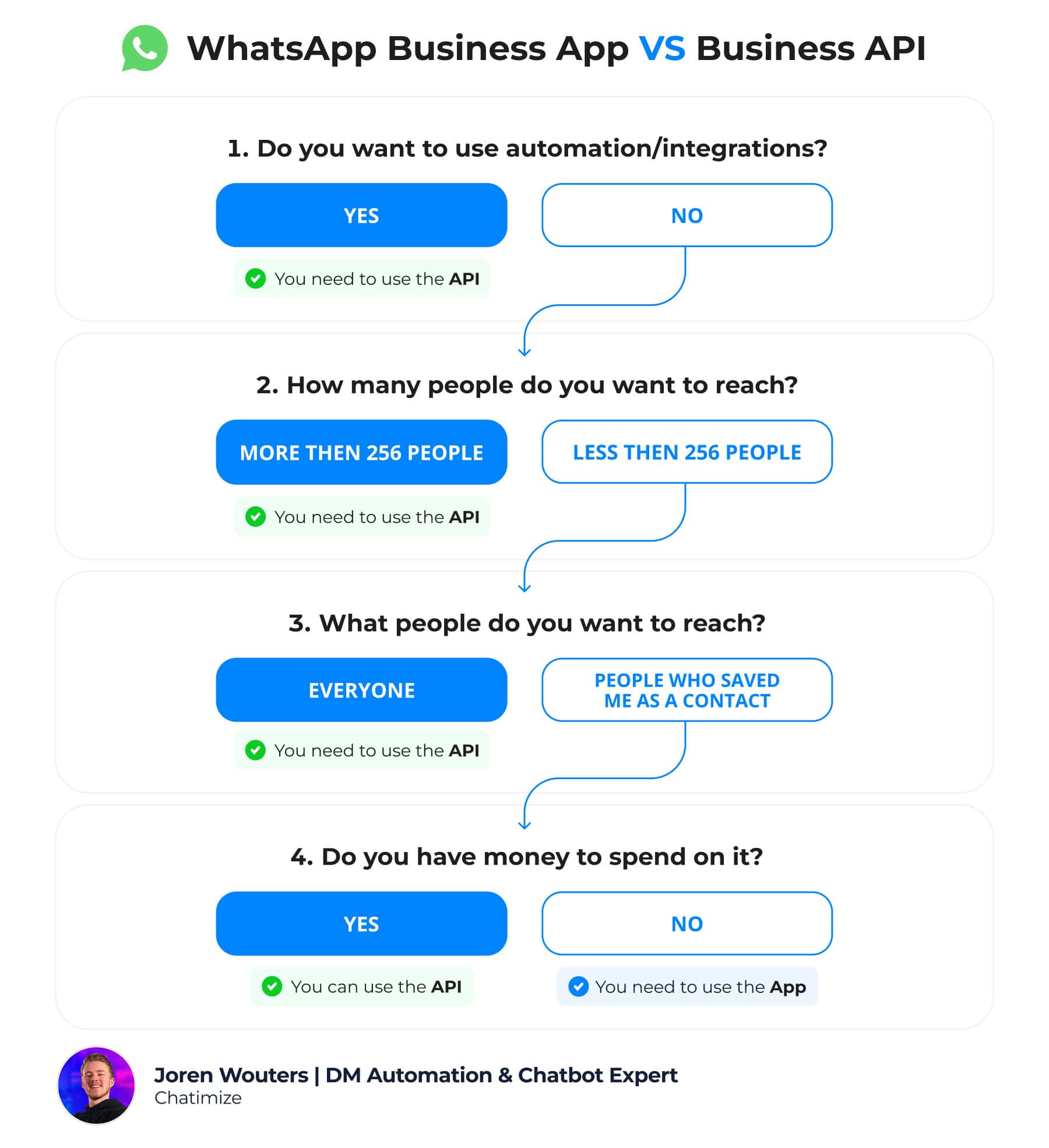
So just click on one of the buttons below to learn how to send WhatsApp broadcasts:
It’s super simple to send WhatsApp broadcasts with the WhatsApp business App. It only takes a few steps:
The first step is to create your broadcast list in WhatsApp.
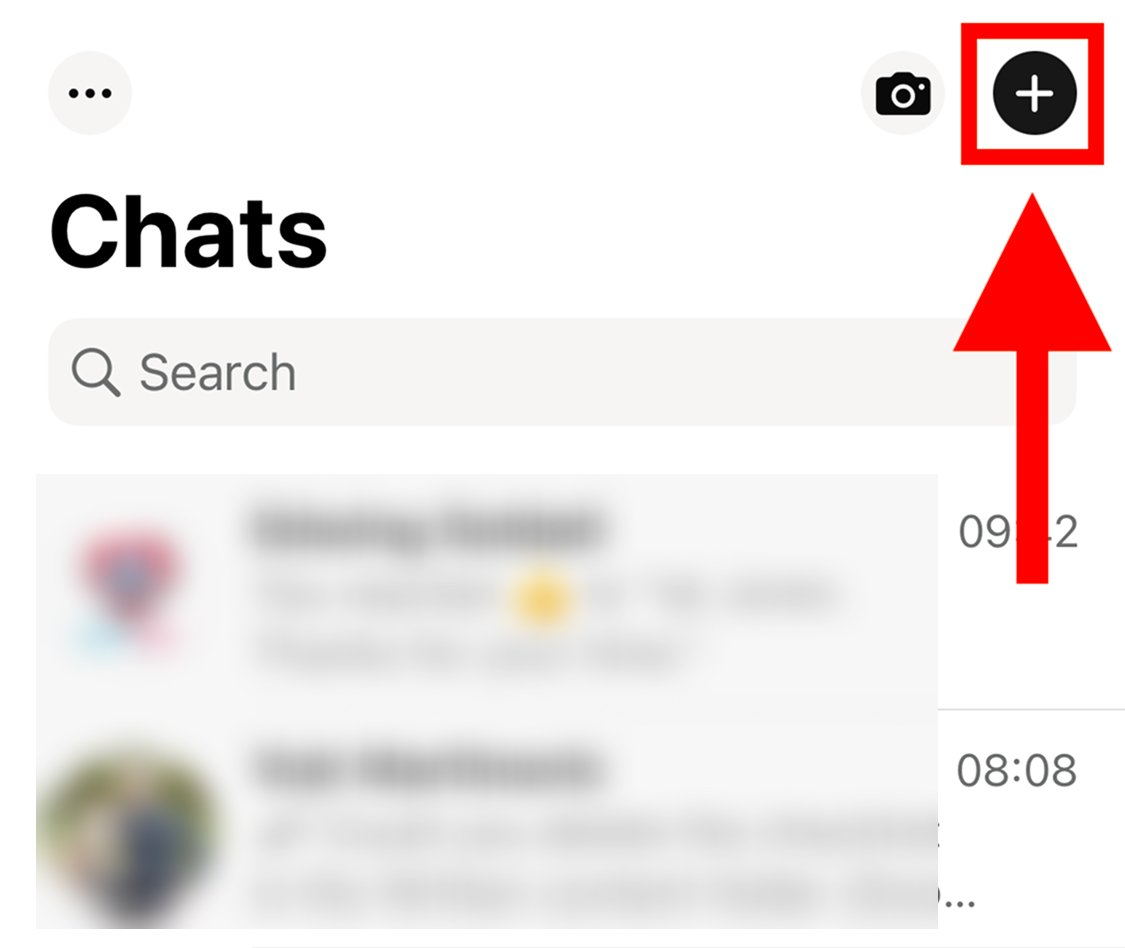
To do that, open the WhatsApp business app and click on the + icon (top-right):
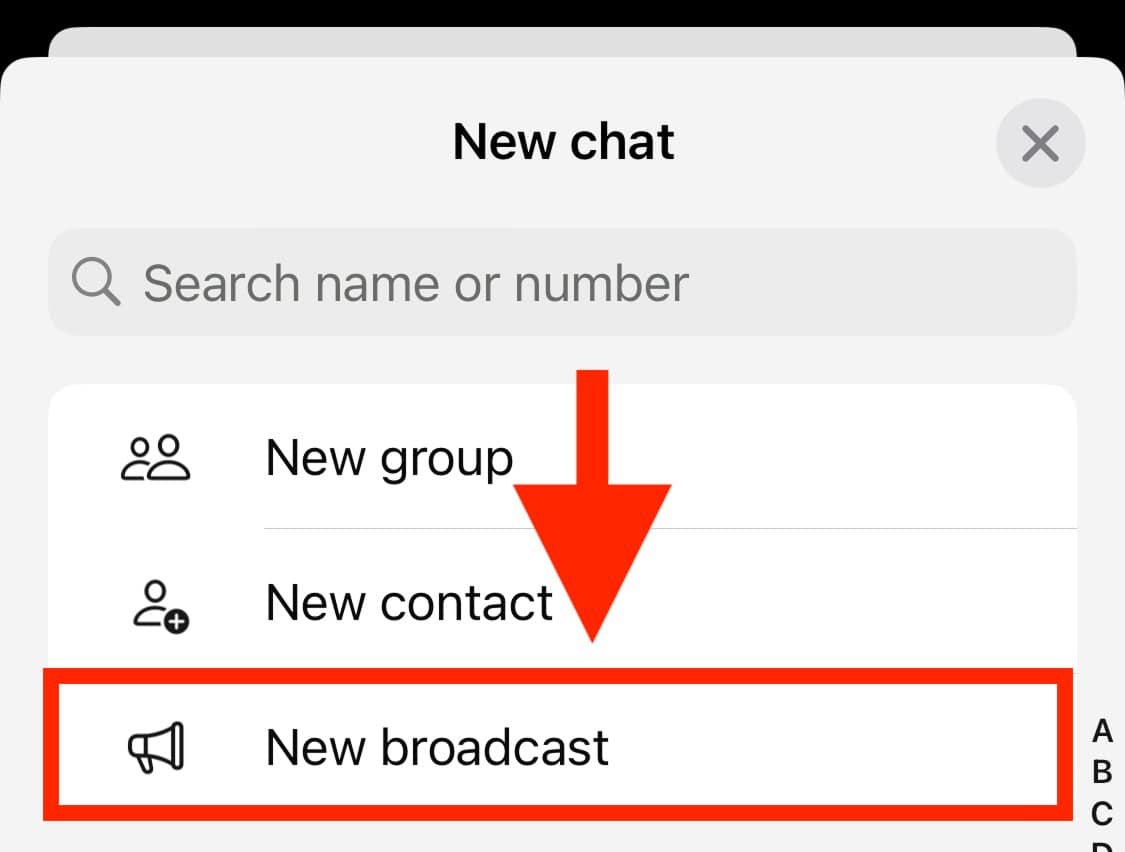
Then, click on New broadcast:
And add the people you want to send the broadcast to:
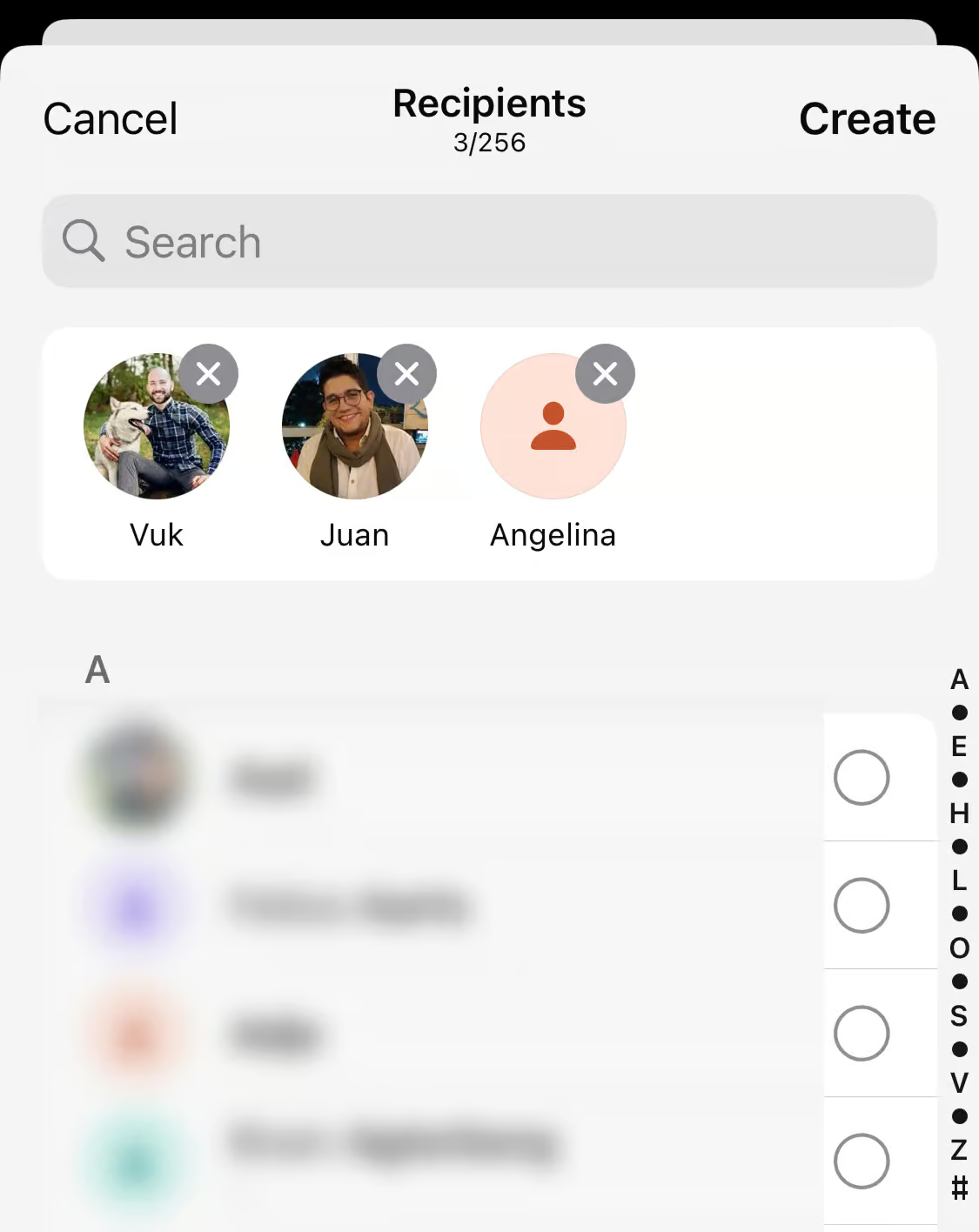
Once you’ve selected the recipients of the broadcast, just type your message and send it:
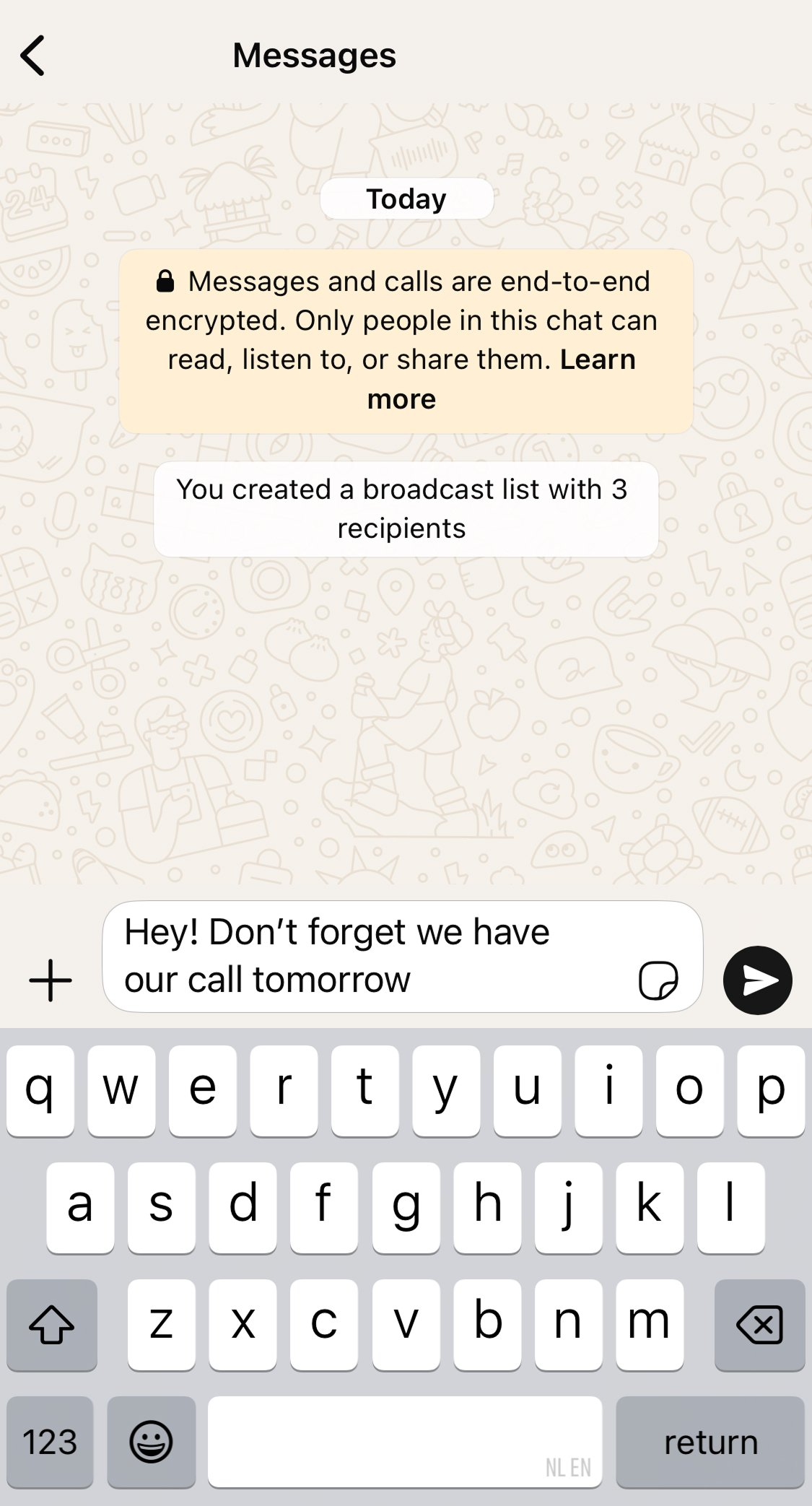
That’s it! Now the WhatApp broadcast is sent to all the people on the list!

Step 1: Create a Free Manychat Account and Connect It to WhatsApp
The first step is to create a free Manychat account, which is one of the best WhatsApp automation platforms on the market.
In fact, I’ve used it for almost all my clients over the last 6 years. I use it because it’s:
- Easy-to-use: If you don’t have any experience with WhatsApp automations, you can get started right away
- 100% Meta-Approved: So we can use them without the risk of getting banned
- Cheap: Manychat offers a free plan and its paid plan already starts at $15 per month
Just click the button below to create a free Manychat account (and get my discount code for 1 month of the Pro plan for free):
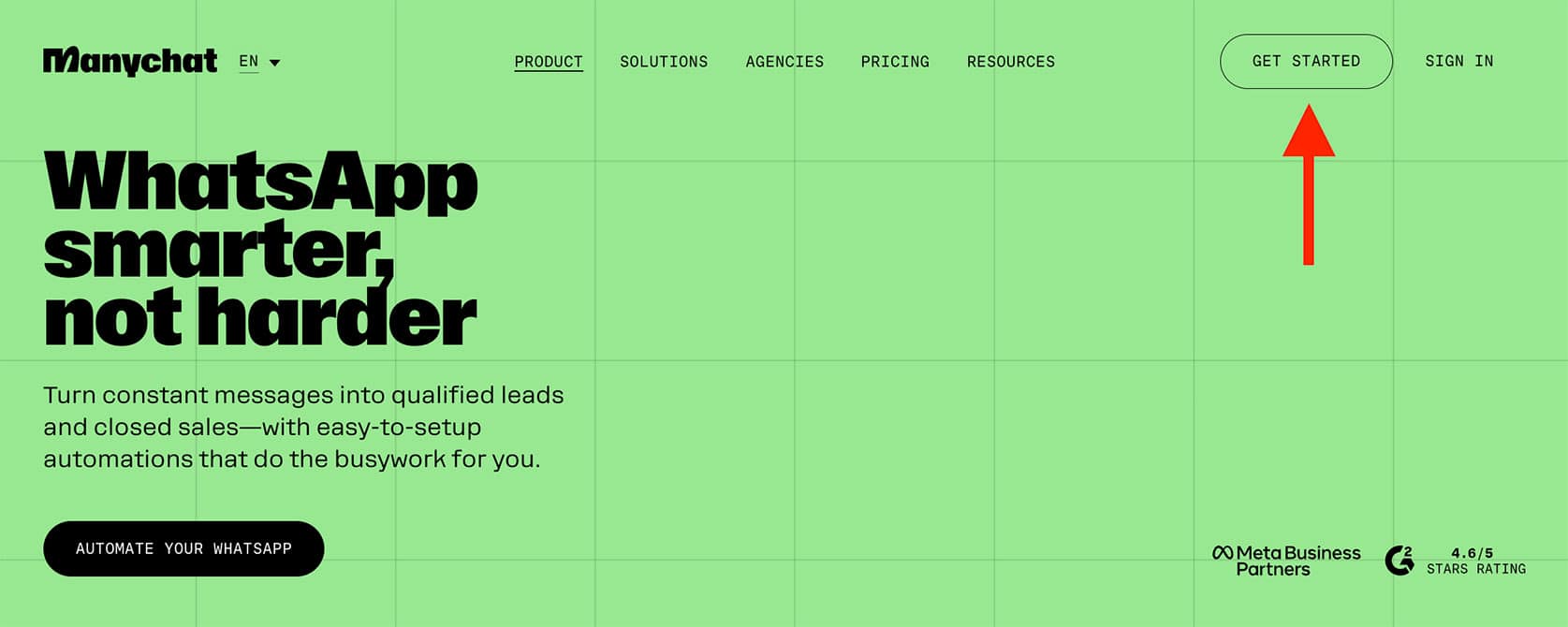
Then, click on Get started Free:
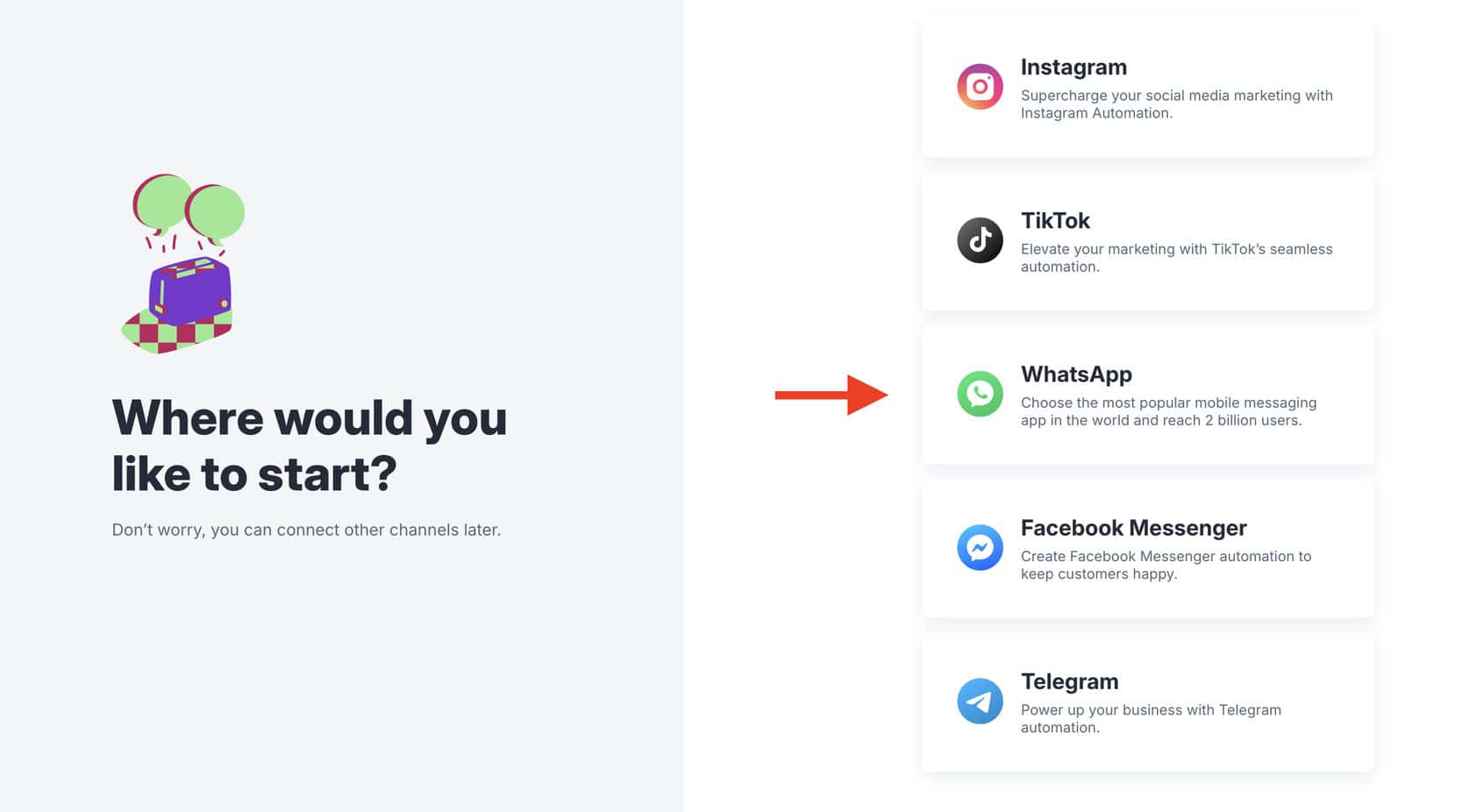
Choose for WhatsApp:
And log in with your Facebook account:
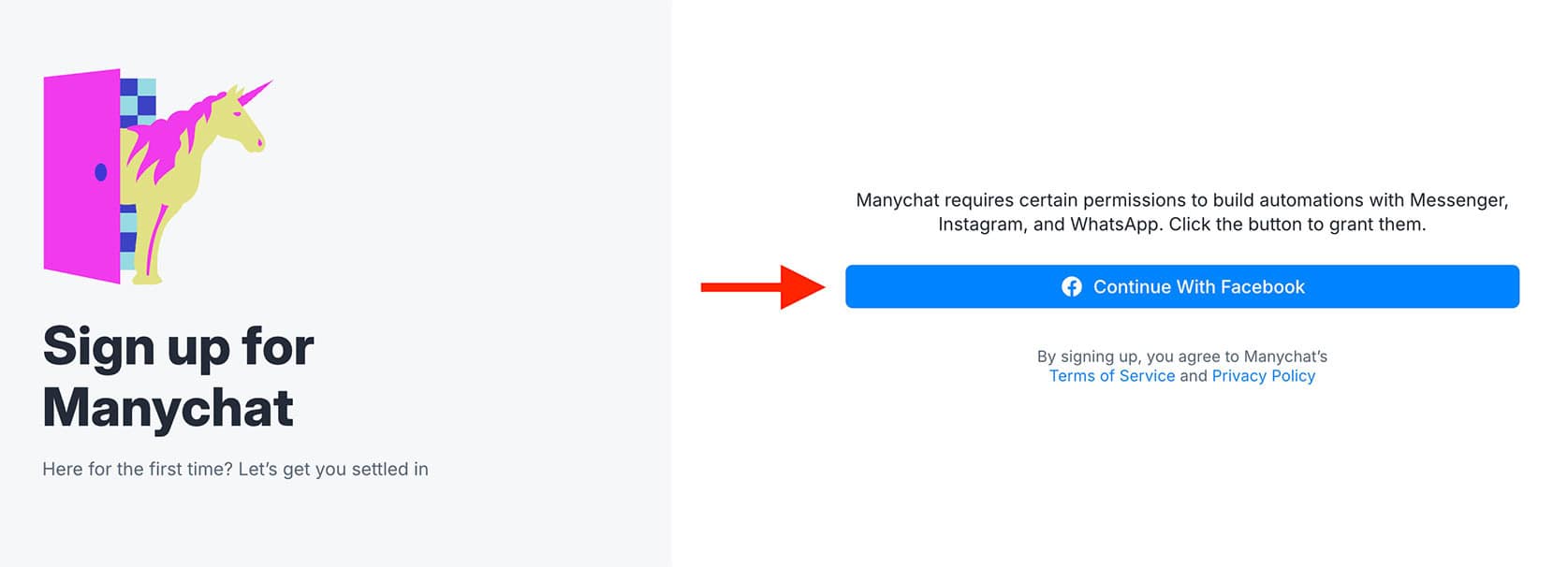
Once you are logged in with Facebook, your Manychat account gets automatically created.
Once you have done this, the next step is to buy a phone number and connect Manychat to that phone number.
Here’s a quick tutorial on how to do that:

Step 2: Verify your Meta Business
If you want to send WhatsApp broadcasts with the WhatsApp Business API, your Meta Business needs to be verified.
Learn here how you can verify your Meta Business:

Step 3: Import WhatsApp Contacts into Manychat (optional)
The next step is to decide to whom you want to send your WhatsApp broadcast.
If you have used Manychat before, you can just go to Contacts and search for the people you want to send the message to:
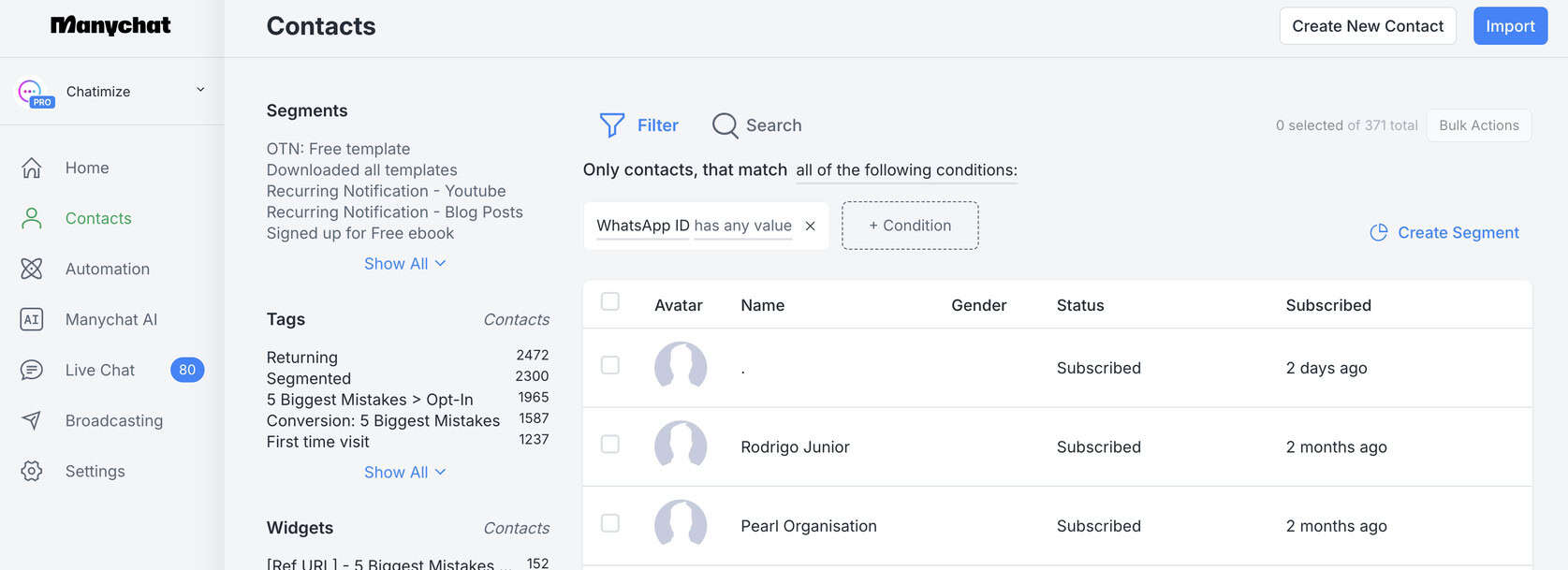
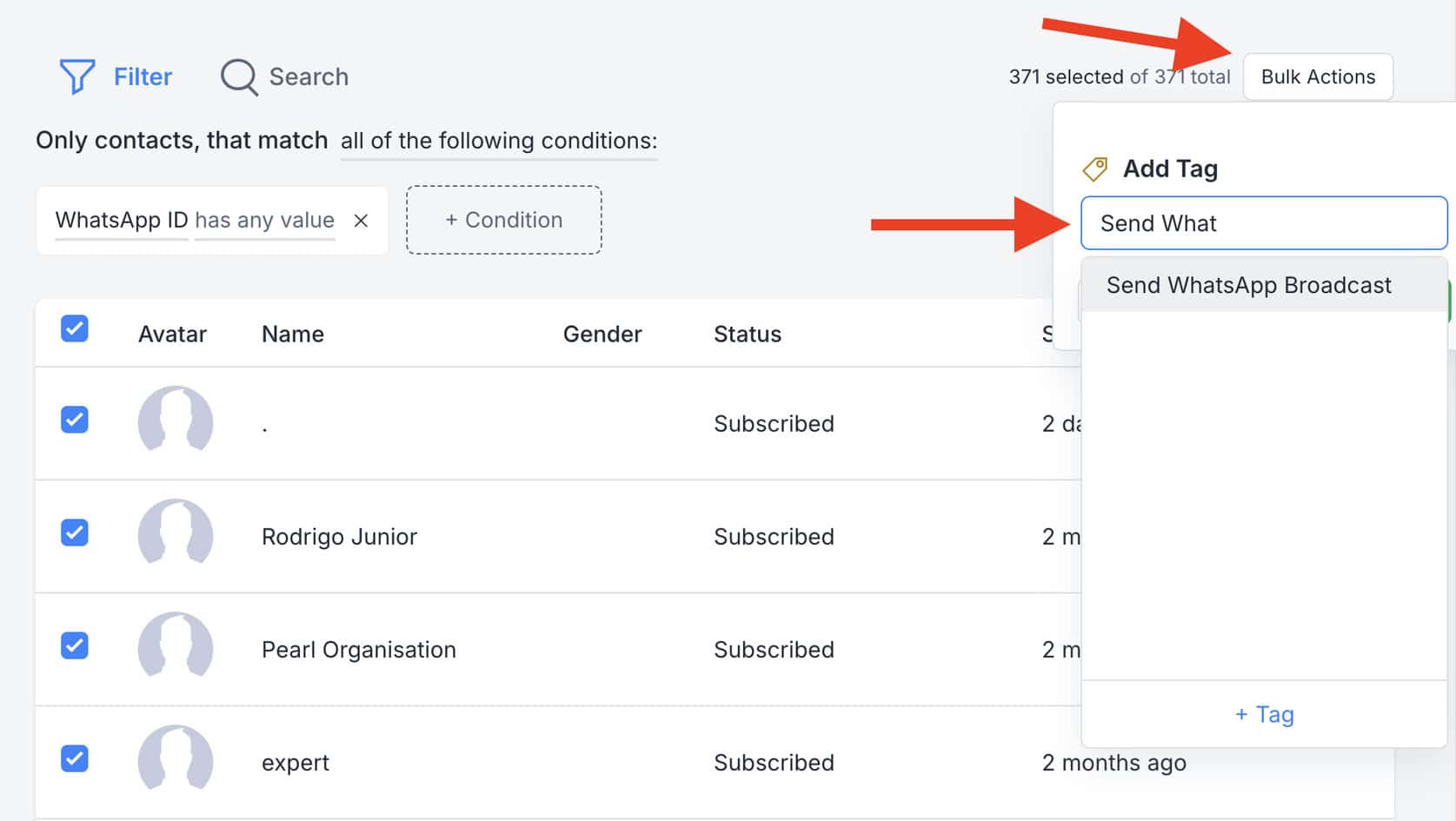
And then, you should add a tag to everyone you want to send the WhatsApp broadcast to:
If you’re new to Manychat and have phone numbers to broadcast, you can upload them easily.
You can just create a simple CSV file, like I did here.

Next, click on Import.

Select the CSV file you want to import and confirm you have permission to add them into Manychat:
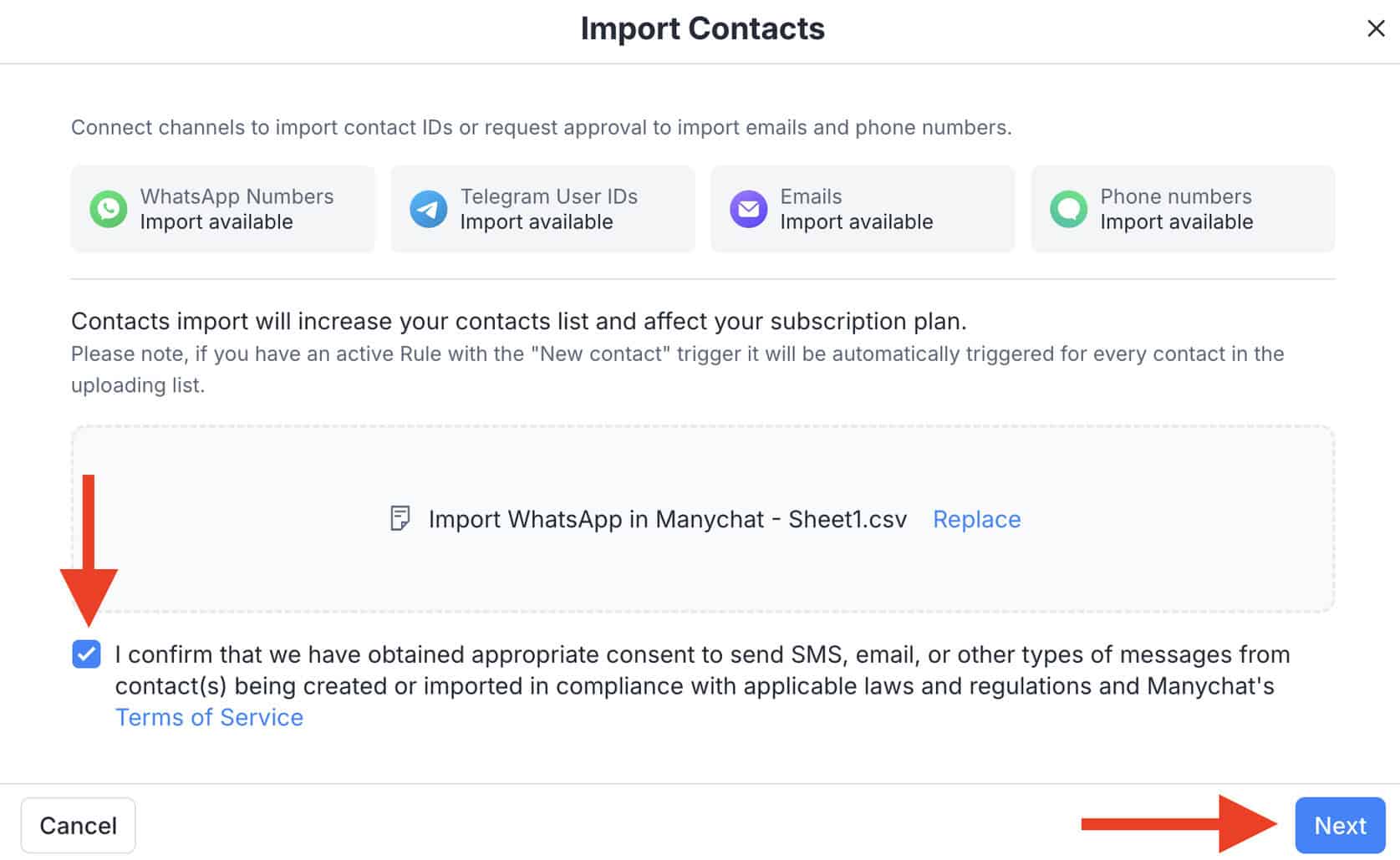
And determine how you want to map the fields of your CSV to the fields in Manychat:
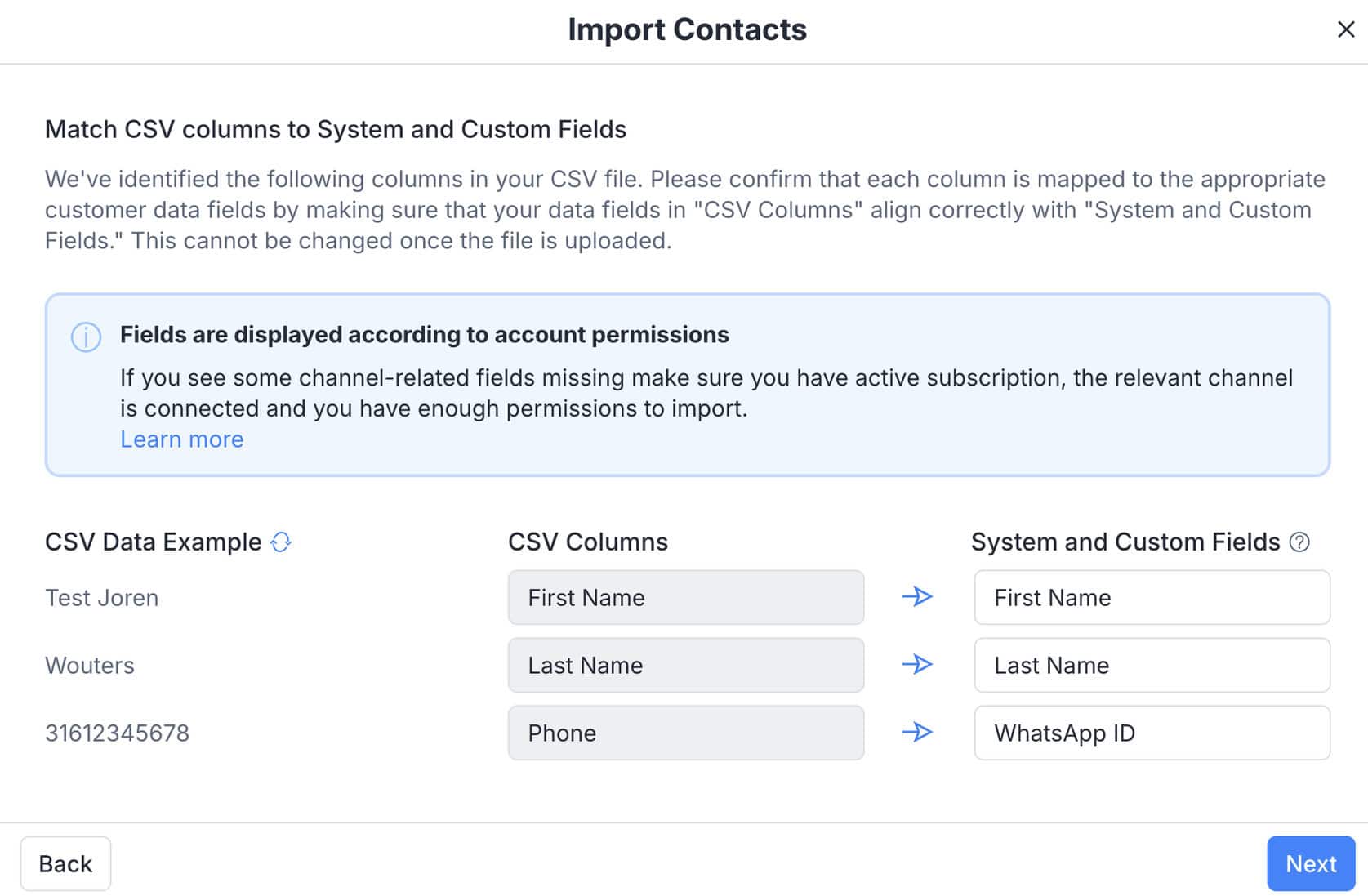
So the First Name column in my CSV will be mapped to the First Name field in Manychat.
Manychat will then ask if you want to add a certain tag, so we can add the tag we created before and click on Import:
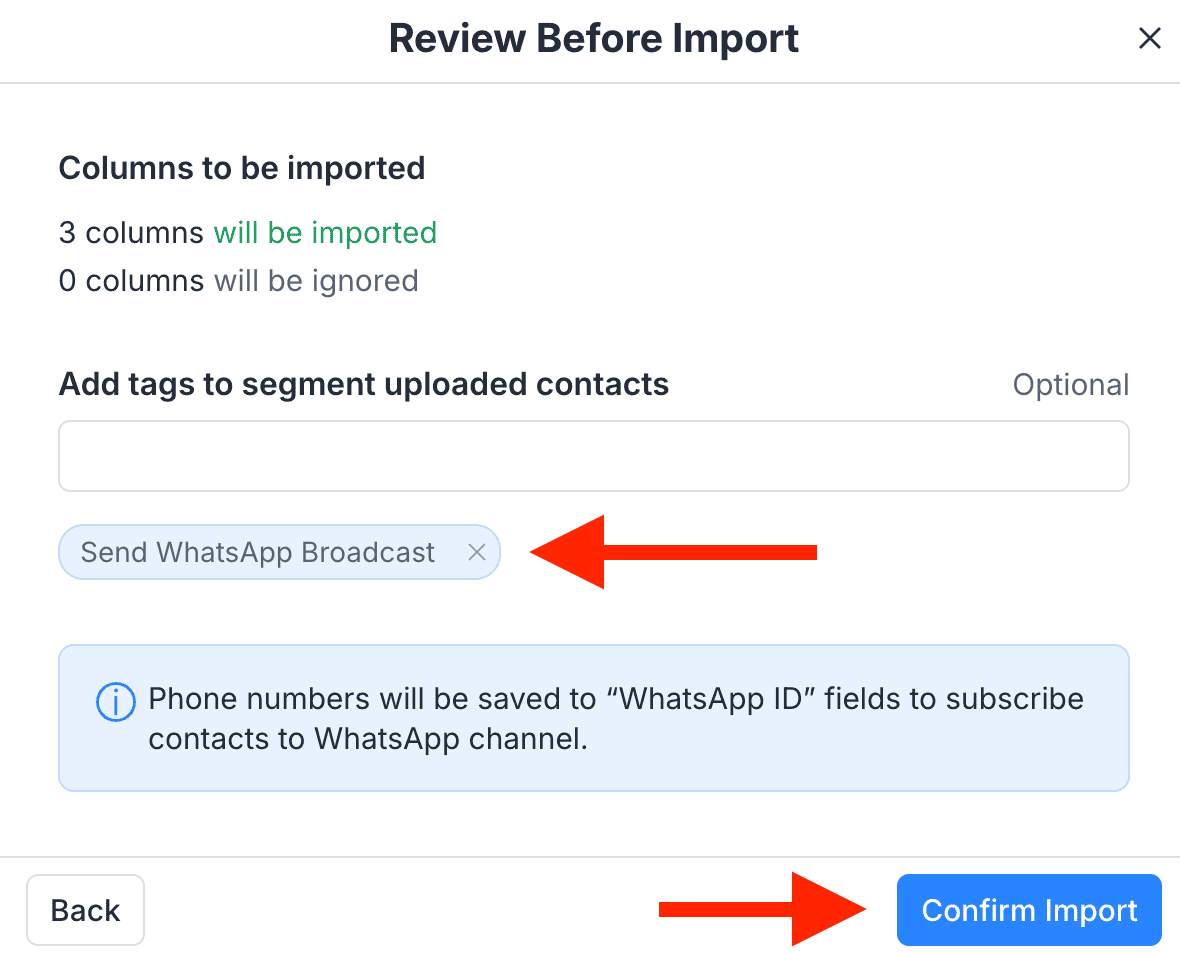
And now you’ve imported the WhatsApp contacts from your CSV file!
Important: You must have explicit permission to message your contacts, whether they’re already in Manychat or imported from your eCommerce store.
Sending broadcasts without consent can get your WhatsApp account banned. Always make sure users have opted in.
Step 4: Create a WhatsApp Message Template and Write the Message
Now that you have the contacts you want to send a message to, you can determine what message you want to send.
To send this message, we use WhatsApp Message Templates. This is a special type of message that lets us send WhatsApp broadcasts.
Here is a detailed tutorial on WhatsApp Message Templates:

But for now, just keep in mind that we need to use these.
In Manychat, go to Settings and click on WhatsApp.
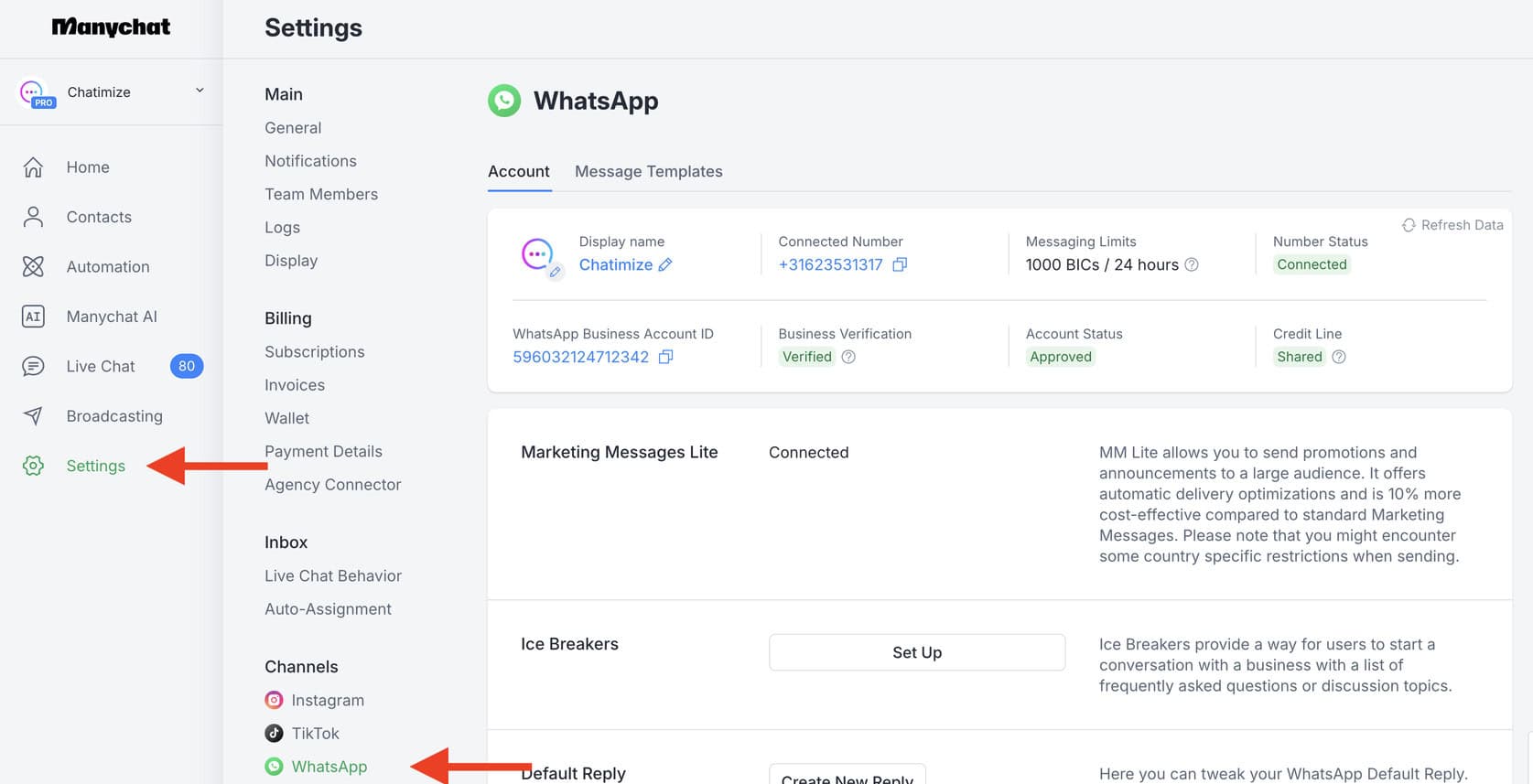
Next, click on Message Templates and add a new one.
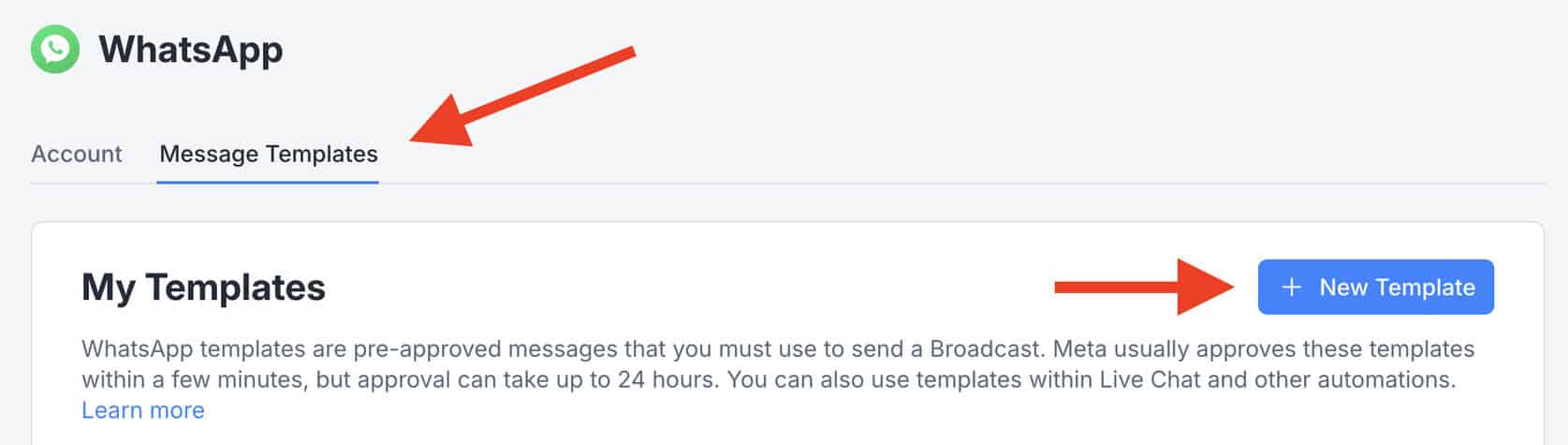
So, let’s say, you are an eCommerce company, and you want to send a message to everyone that is a loyal customer.
You want to thank them for being one of your loyal customers and give them a 50% coupon code.
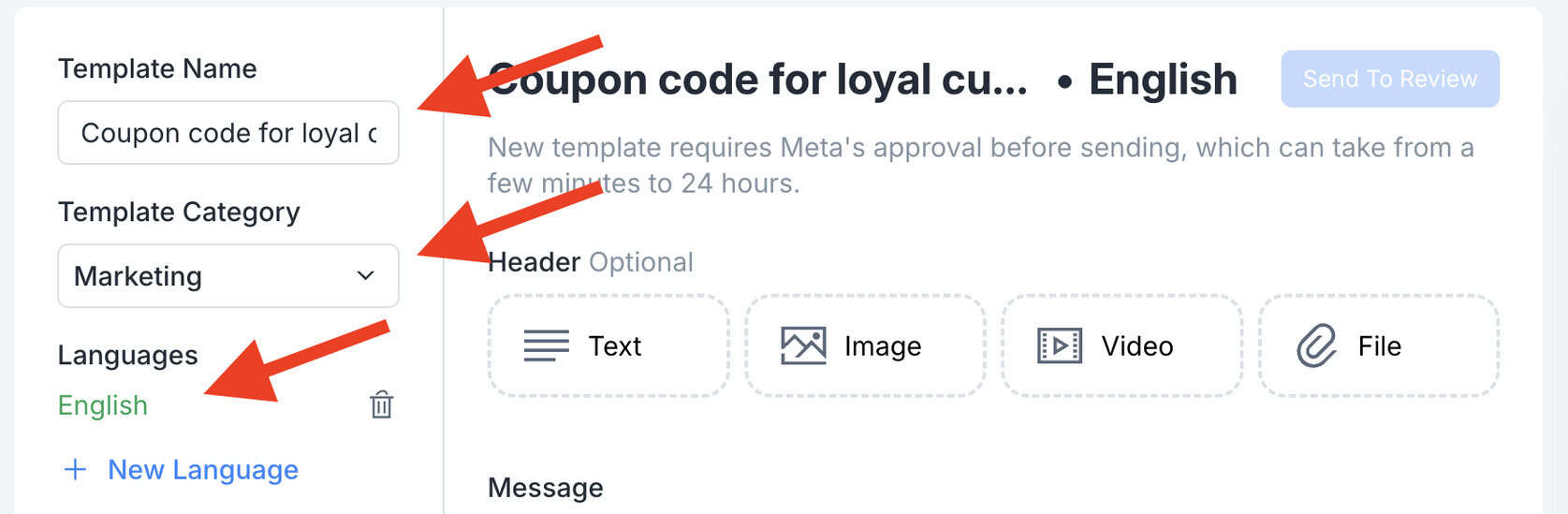
So, the template name will be Coupon Code for loyal customers. The template category is Marketing and the language is English:
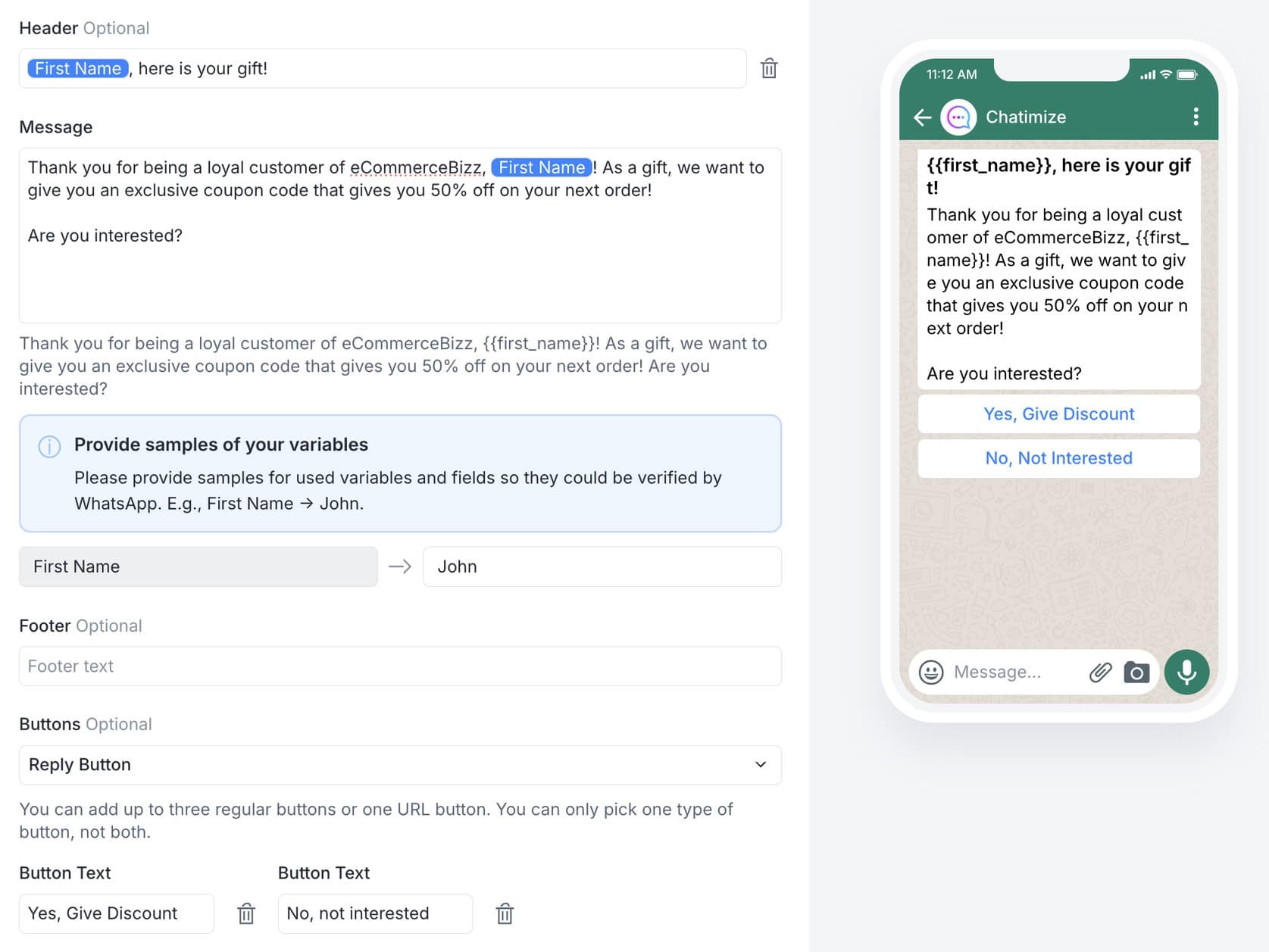
Then, determine the contents of the message. You can use a text, image, video, or file in the header.
For now, I will just go with the text. And set it to:
{{first_name}}, here is your gift!
Thank you for being a loyal customer of eCommerceBizz, {{first_name}}! As a gift, we want to give you an exclusive coupon code that gives you 50% off on your next order!
Are you interested?
And we can also add buttons to this message. These can be Regular Buttons or URL buttons.
Regular Buttons trigger other WhatsApp messages. URL buttons directly go to your website.
For now, I will go with the Regular buttons:
Yes, Give Discount
No, Not Interested
And once you have done that, you need to click on Send to Review.
This will send the message template to WhatsApp.
Because WhatsApp is strict with broadcasts, they need to approve your Message Template before you can send it.
So that means that someone from WhatsApp will look at your message and determine if it matches their rules. On average, this takes between 1-2 business days.
Step 5: Send the WhatsApp Broadcast with Manychat
Once you have done this and your Message Template is approved, you can actually send the broadcast inside Manychat.
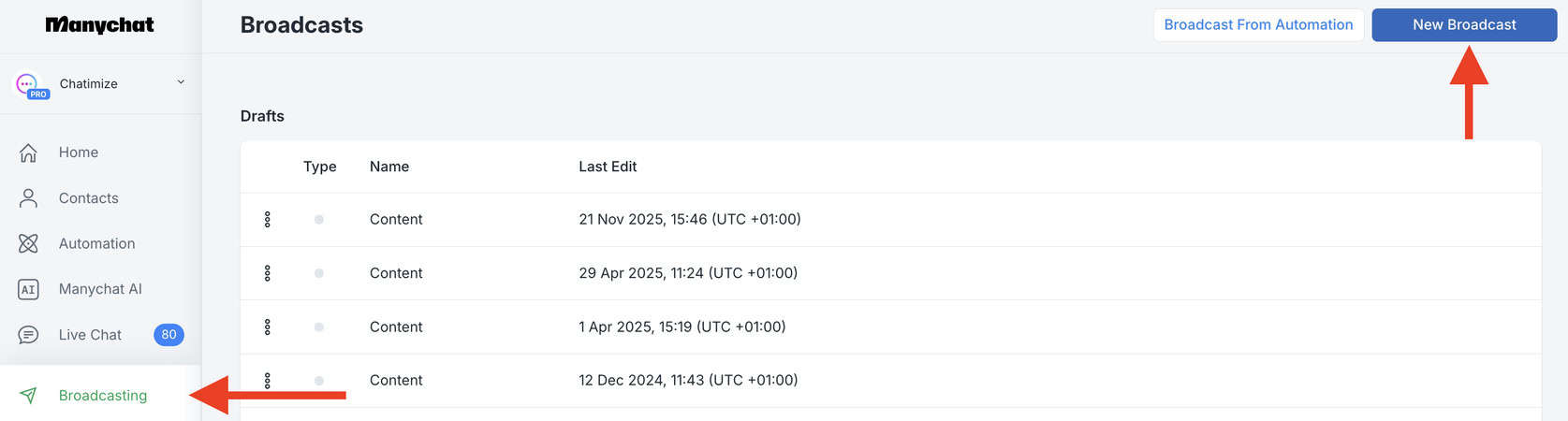
In Manychat, go to Broadcasting and click on New Broadcast in the top-right corner:
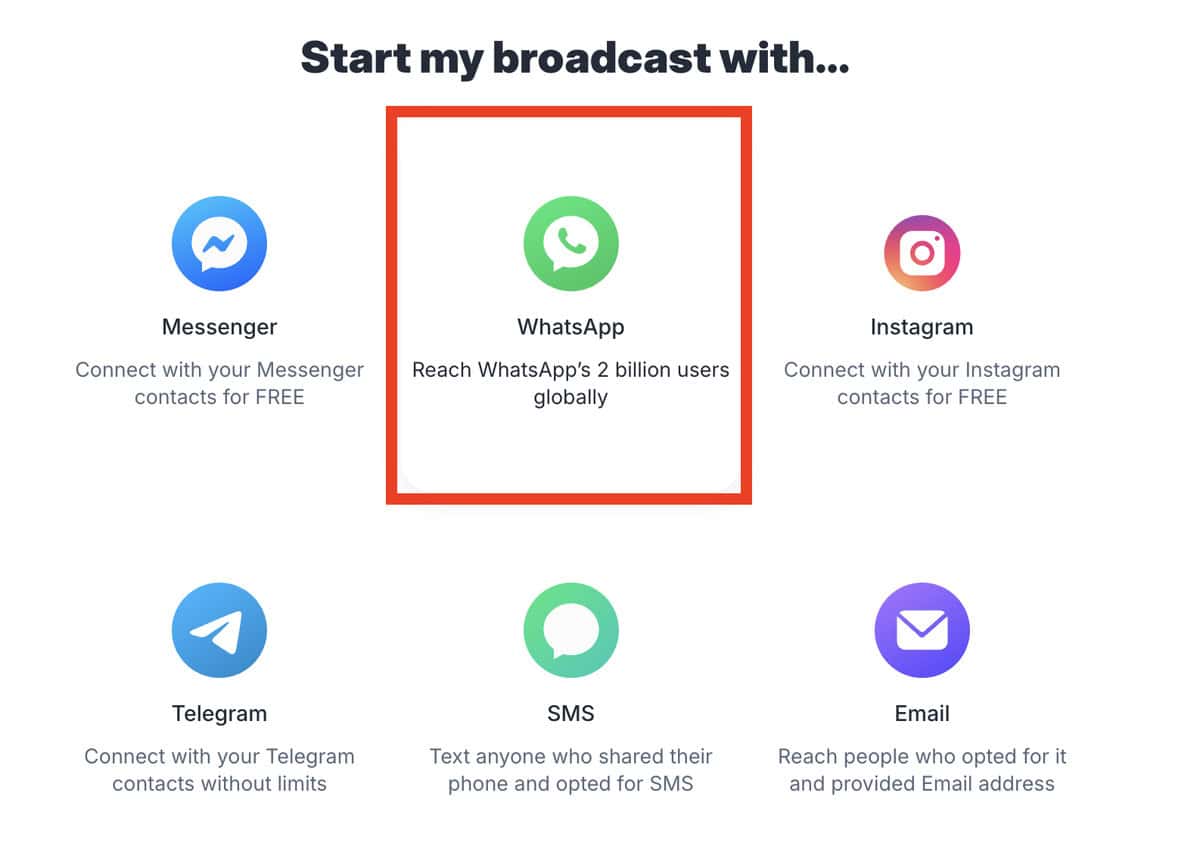
Choose WhatsApp:
And select your WhatsApp Message template as your first message:
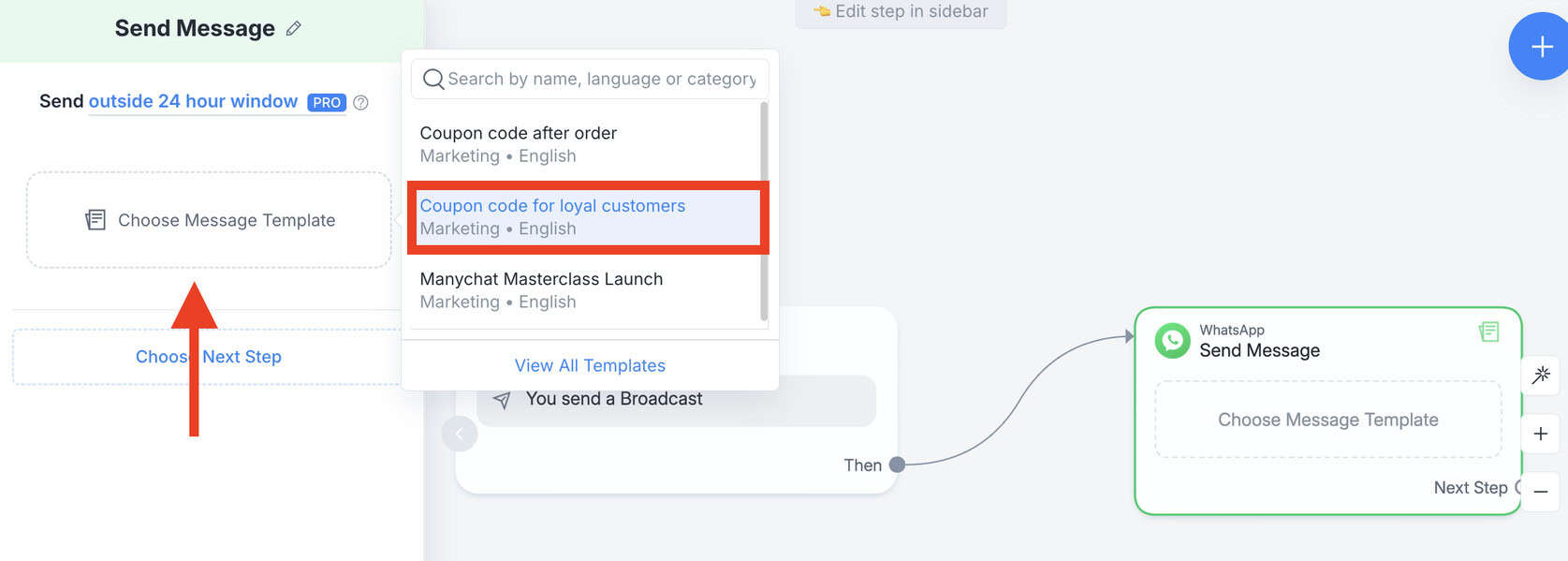
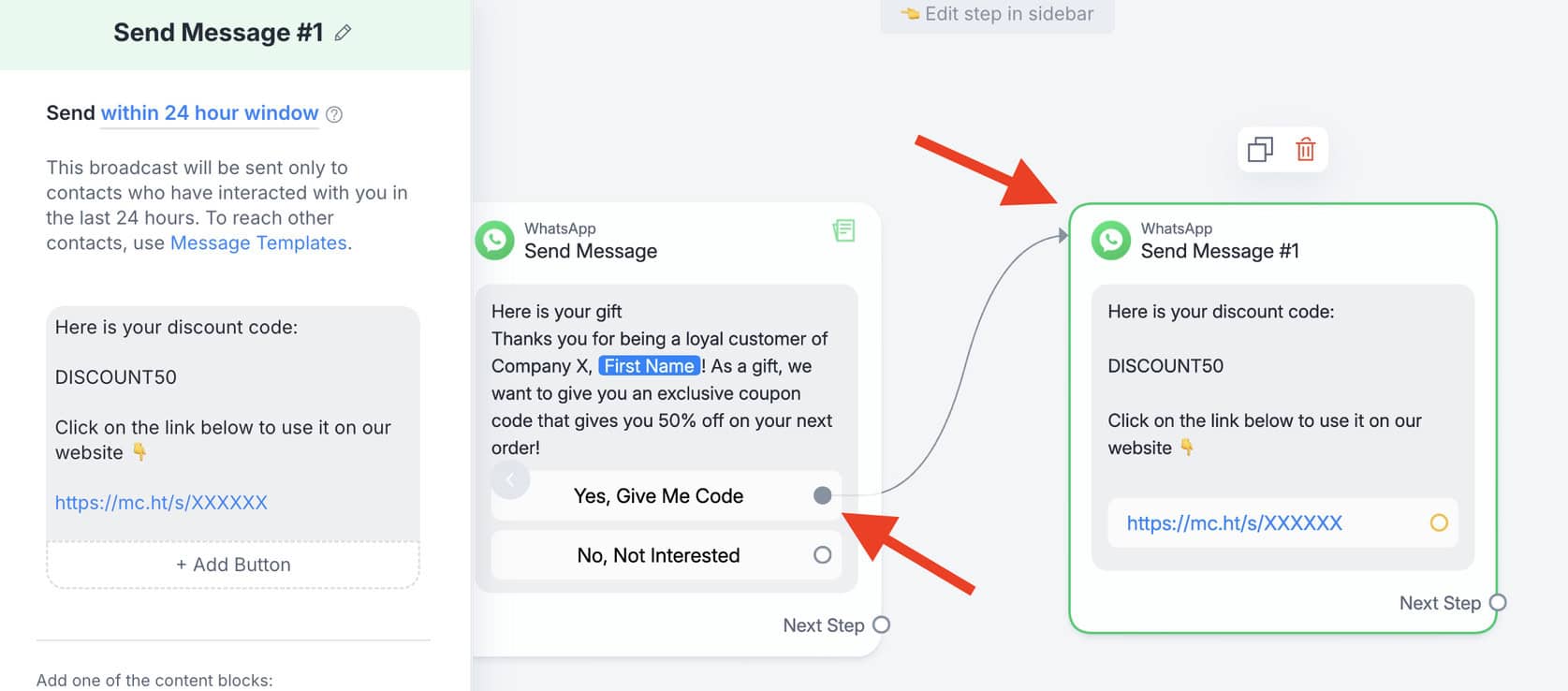
Next, connect the first button to another message:
Here is your discount code:
DISCOUNT50
Click on the link below to use it on our website 👇
https://chatimize.com
And connect the Not Interested button to another message:
Allright, no worries!
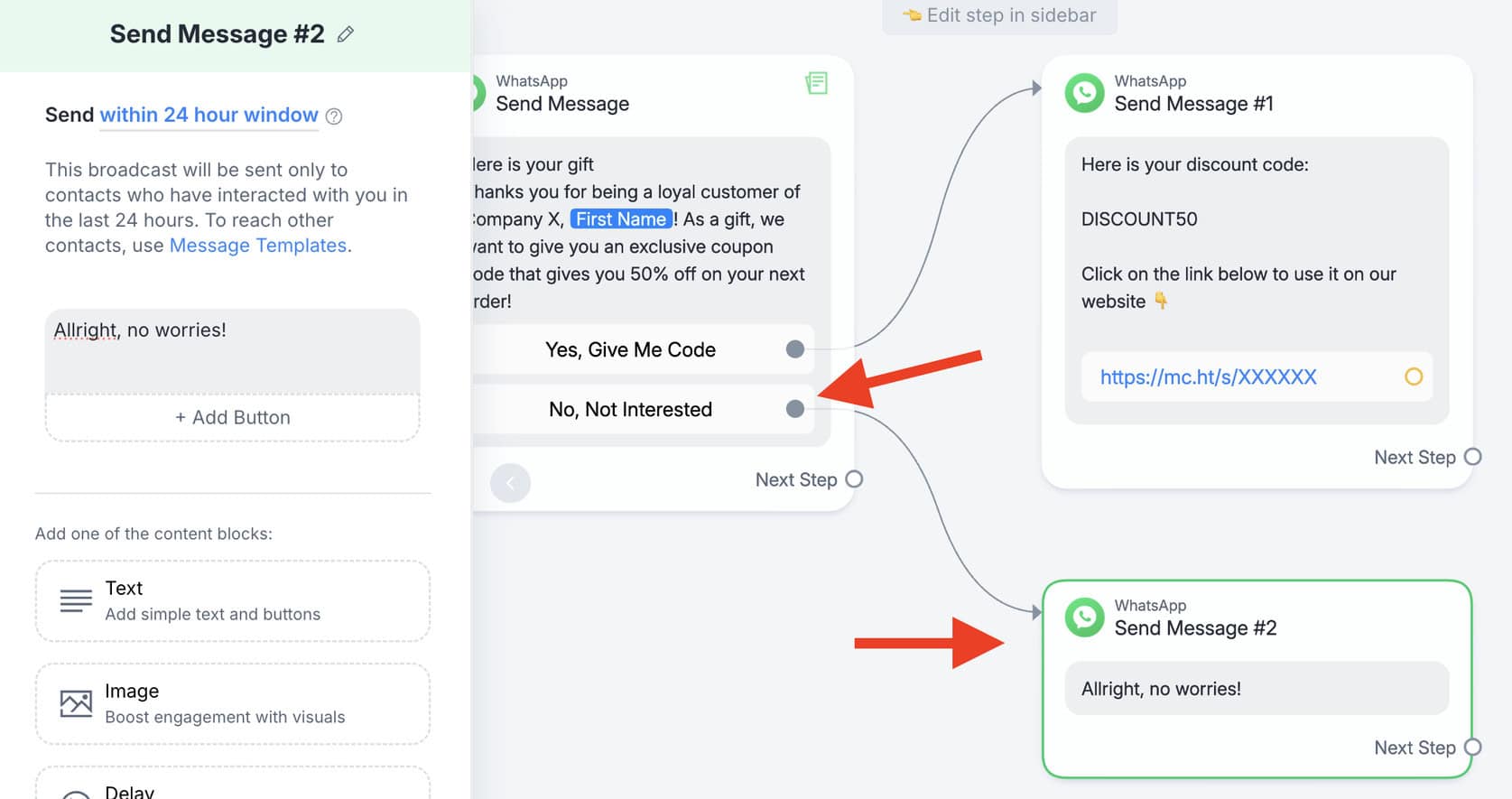
So, this will be the content of the broadcast.
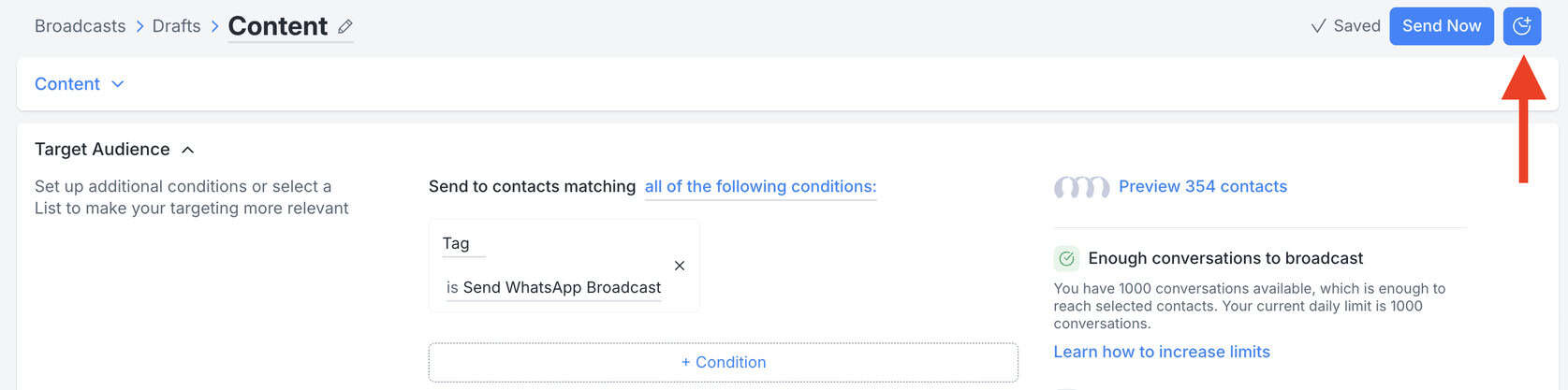
And then we can determine our target audience. So here, we can filter on our audience by adding conditions.
And since we added a tag at the beginning of our contacts, we also need to filter on that tag here:
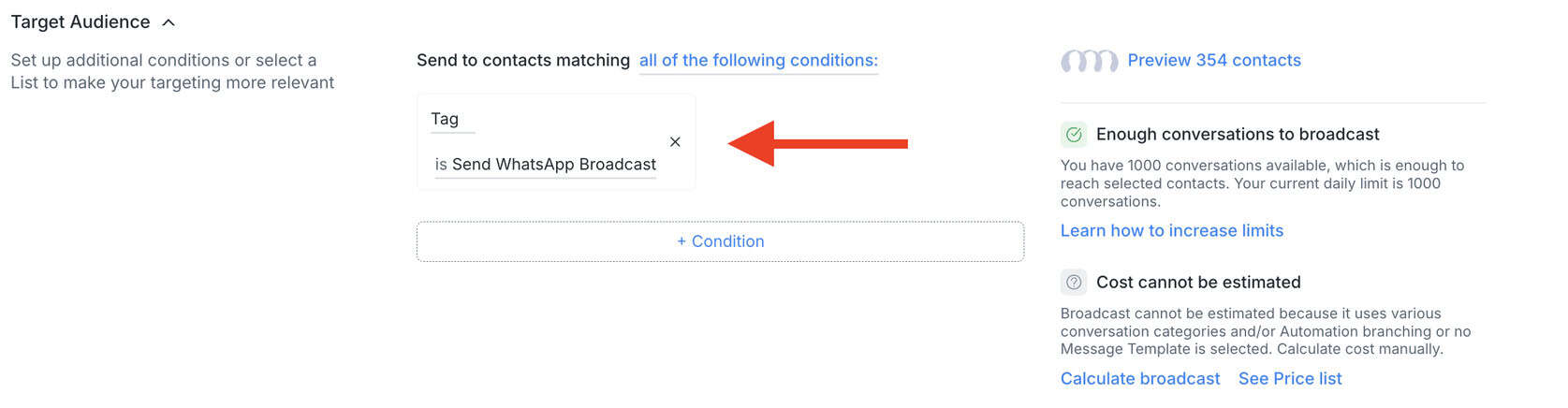
On the right side, you can see what contacts will receive your broadcast.
And then, you can determine whether you want to send it now or if you want to schedule it for the future.
So if you want to schedule it in the future, you can click on the right button or otherwise you can just send it now:
When you send WhatsApp broadcasts via the Business API, you pay per message sent.
How much you pay depends on where your recipient is located and the message type.
Each country has its own pricing and WhatsApp differentias between 3 message categories:
- Marketing (e.g. promotions, discounts)
- Utility (e.g. order updates, boarding pass)
- Authentication (e.g. login codes)
Here’s a quick look at example prices (as of 2025):
| Market | Marketing | Utility | Authentication |
|---|---|---|---|
| United States | $0.025 | $0.004 | $0.004 |
| Brazil | $0.0625 | $0.0068 | $0.0068 |
| Germany | $0.1365 | $0.055 | $0.055 |
| India | $0.0107 | $0.0014 | $0.0014 |
| Mexico | $0.0305 | $0.0085 | $0.0085 |
If you want to know the prices for your country, use WhatsApp’s official pricing calculator to check the most up-to-date rates:

👉 Click here to check the WhatsApp message prices in you country