Kustomer is one of the enterprise platforms that comes up when you look for an all-in-one help desk.
And it looks great, because of the customer timeline, the AI agents and Copilot. But is it actually worth it?
So I built an AI agent in Kustomer, trained it on my own knowledge, and tested it on my Shopify store. In this review, I’ll show you what impressed me, what I didn’t like, and who Kustomer is really built for.
Let’s get into it!
Our Verdict
Our Verdict
Kustomer is one of the most powerful customer support platforms for enterprise teams.
It gives you a built-in help desk around the unified customer timeline, where every message, email and order from a customer sits in one place.
Plus, you get AI agents that you train on your business and that reply to customers automatically. And with the AI Architect, you don’t even have to set that up yourself, because you just tell it what you want.
With Data Explorer, you can talk to your data and ask questions like how many conversations were about order status. Your agents also get Copilot, which helps them reply faster.
And with 75+ integrations in the app store, you can connect Kustomer to the tools you already use.
Once it’s set up, it’s a great fit for enterprise support teams that handle a lot of conversations on chat, email, WhatsApp and the phone.
Plans start at $89/agent/month, plus $0.60 per conversation for AI agents.


Pros
- Unified timeline with every conversation and order from a customer
- Copilot helps your agents summarize customers and draft replies
- AI agents that learn from your knowledge and take action in your tools
- AI Architect sets up your AI automation for you
- Automatic testing for every new version of your AI agent
- 75 built-in integrations with other tools
- Deep reports you can drill down into, plus Data Explorer to ask questions about your data
Cons
- Setup takes time, with an average setup of two months
- You need Kustomer’s support or a developer to connect it to other tools
- You can’t train the AI on your documents
- Minimum investment of $10,000 per year, with at least 4 seats
- No marketing automation on Facebook, Instagram or WhatsApp
What is Kustomer?
Kustomer is an all-in-one customer support platform. So your help desk, live chat, AI agents and reports all live in one place.
Plus, your support team gets Copilot, an AI assistant that helps them reply to customers.
When you log in, the dashboard shows you how your support is performing:
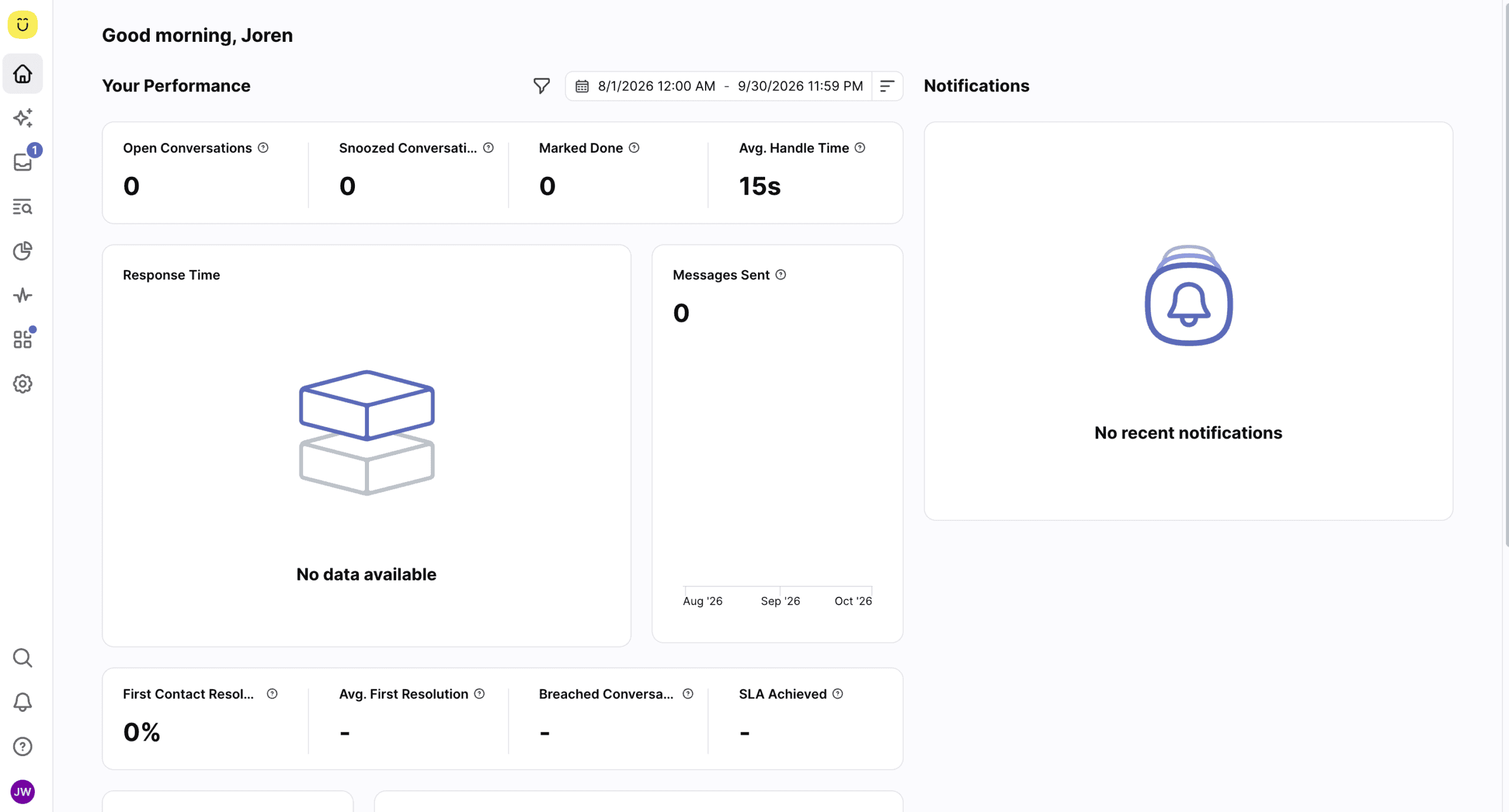
Kustomer at a Glance
Here are the most interesting features that I found in Kustomer while testing:
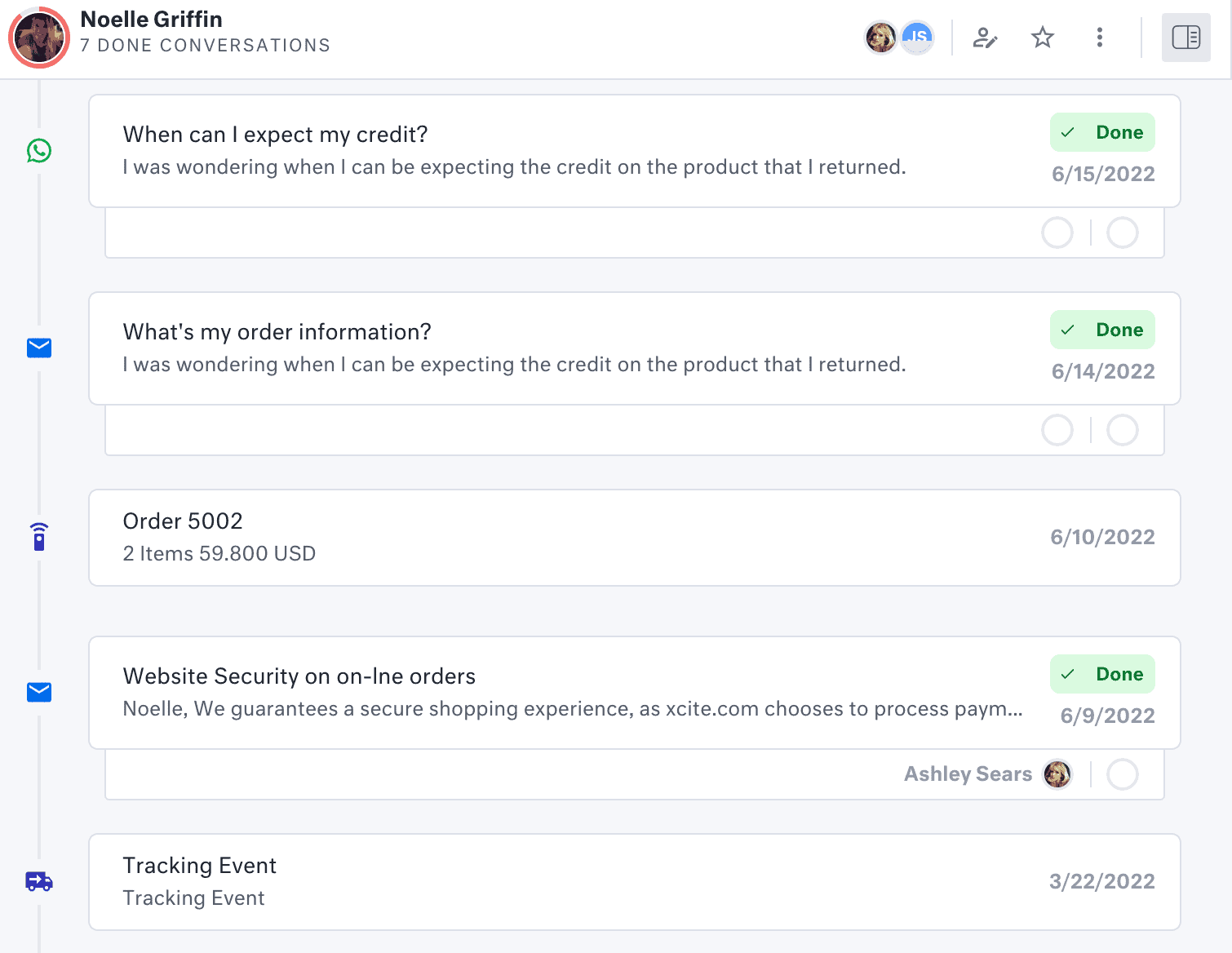
Unified customer timeline: See every WhatsApp message, email, order and shipping update from a customer in one timeline. So when a conversation lands with your team, they already have the whole picture:
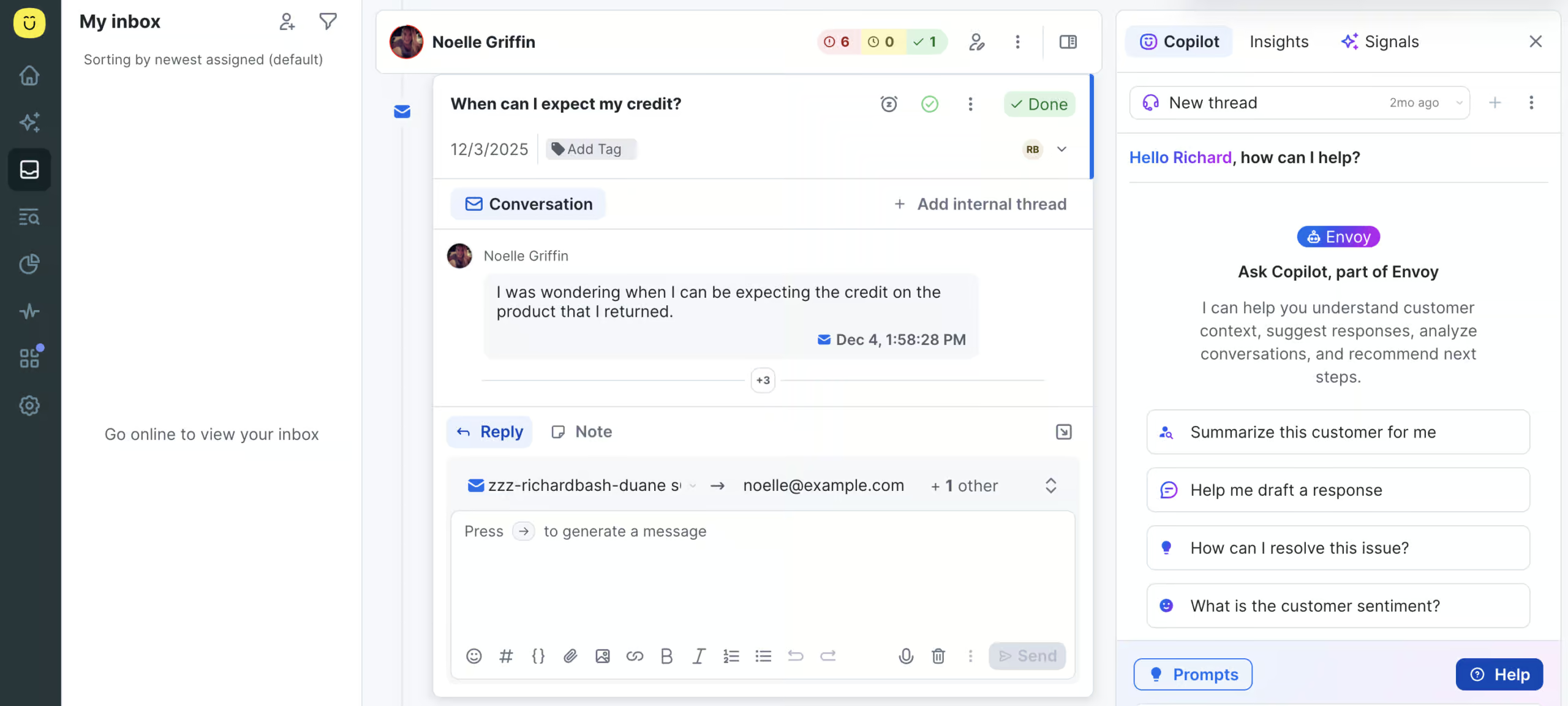
Original source: Kustomer Copilot: Your support agents can ask Copilot to summarize a customer or draft a reply for them:
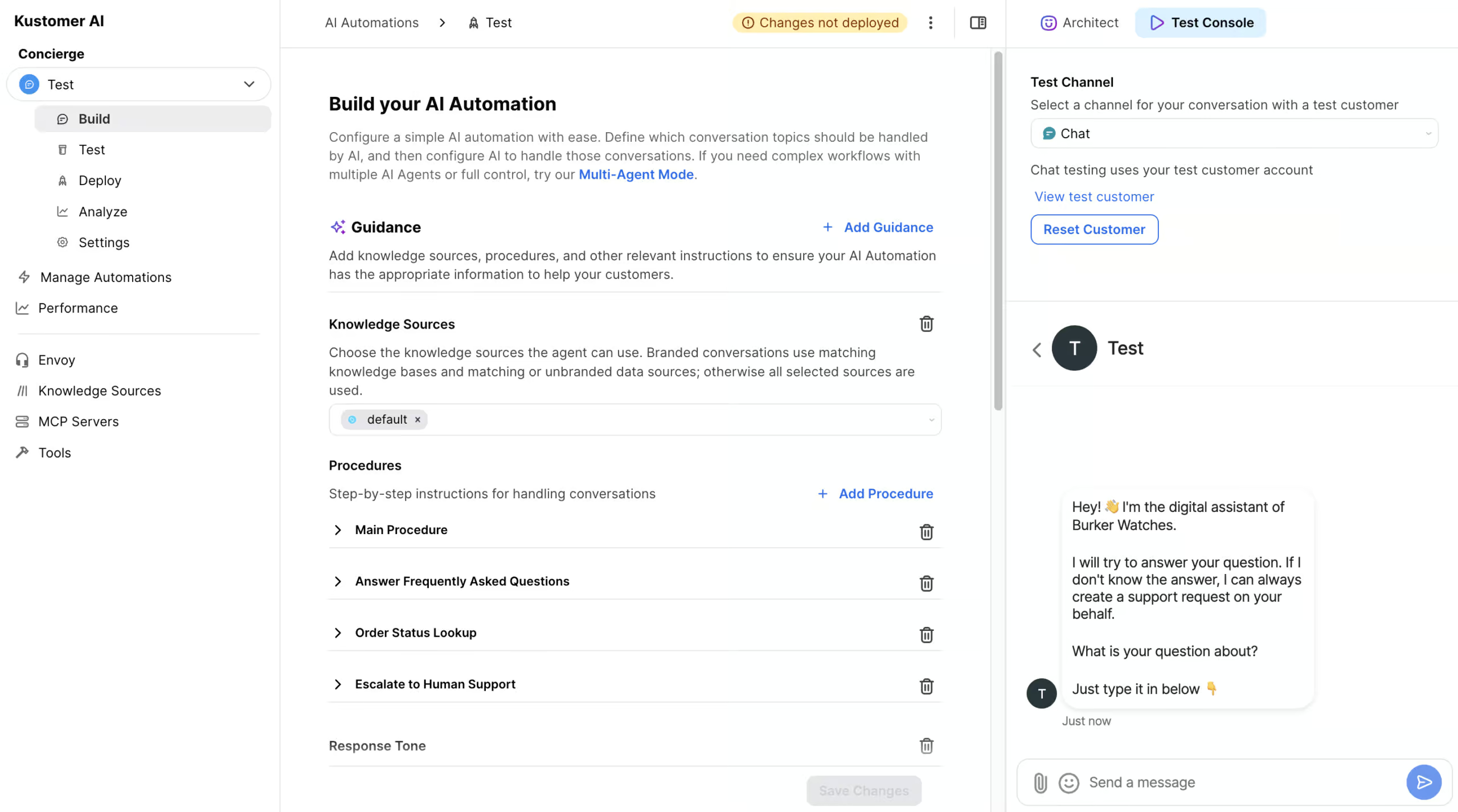
Original source: Kustomer Kustomer AI: Build an AI agent, train it on your own knowledge, and test it right away:
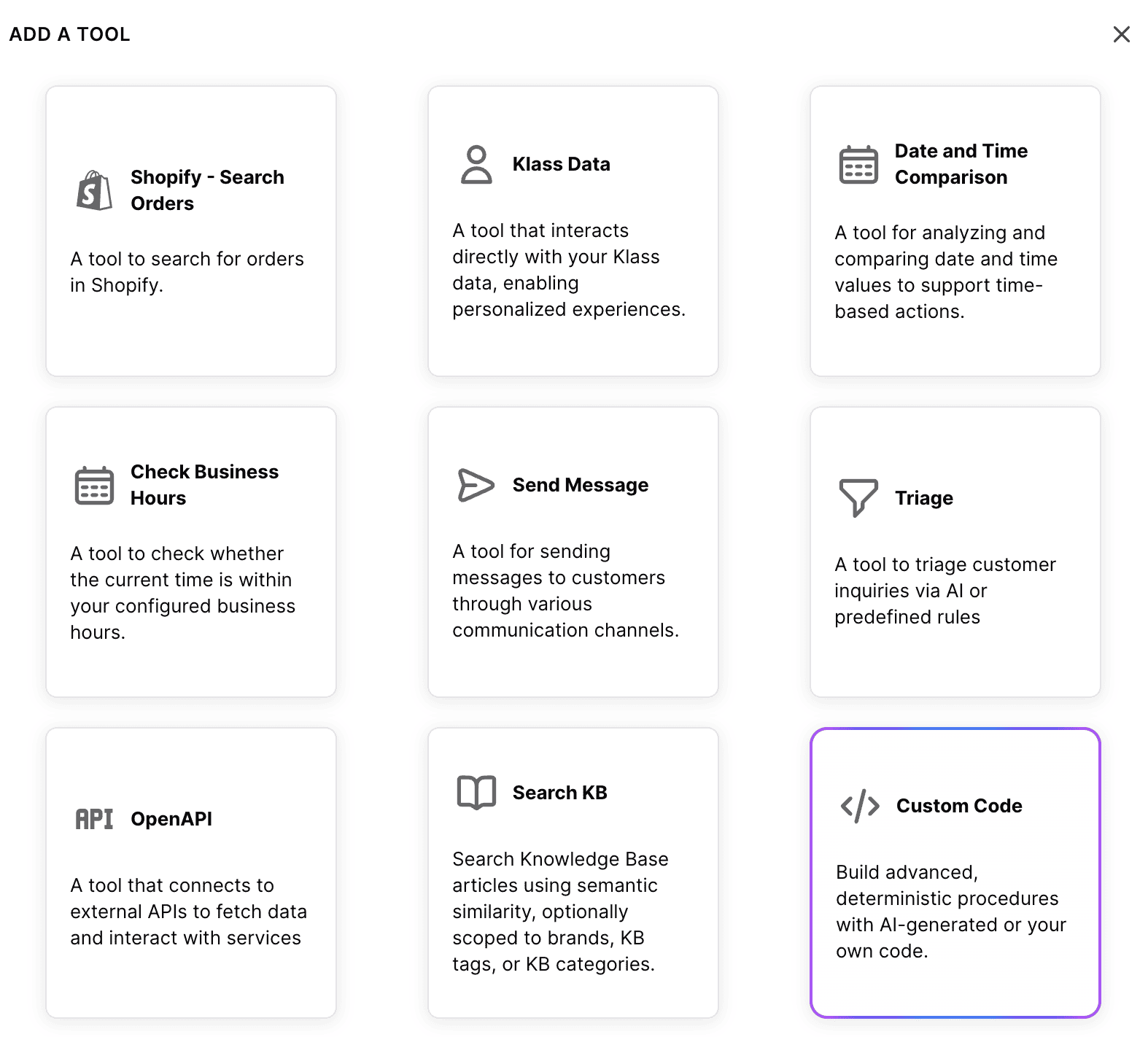
AI actions: Connect your AI agent to your other tools, so it can take action there for you:
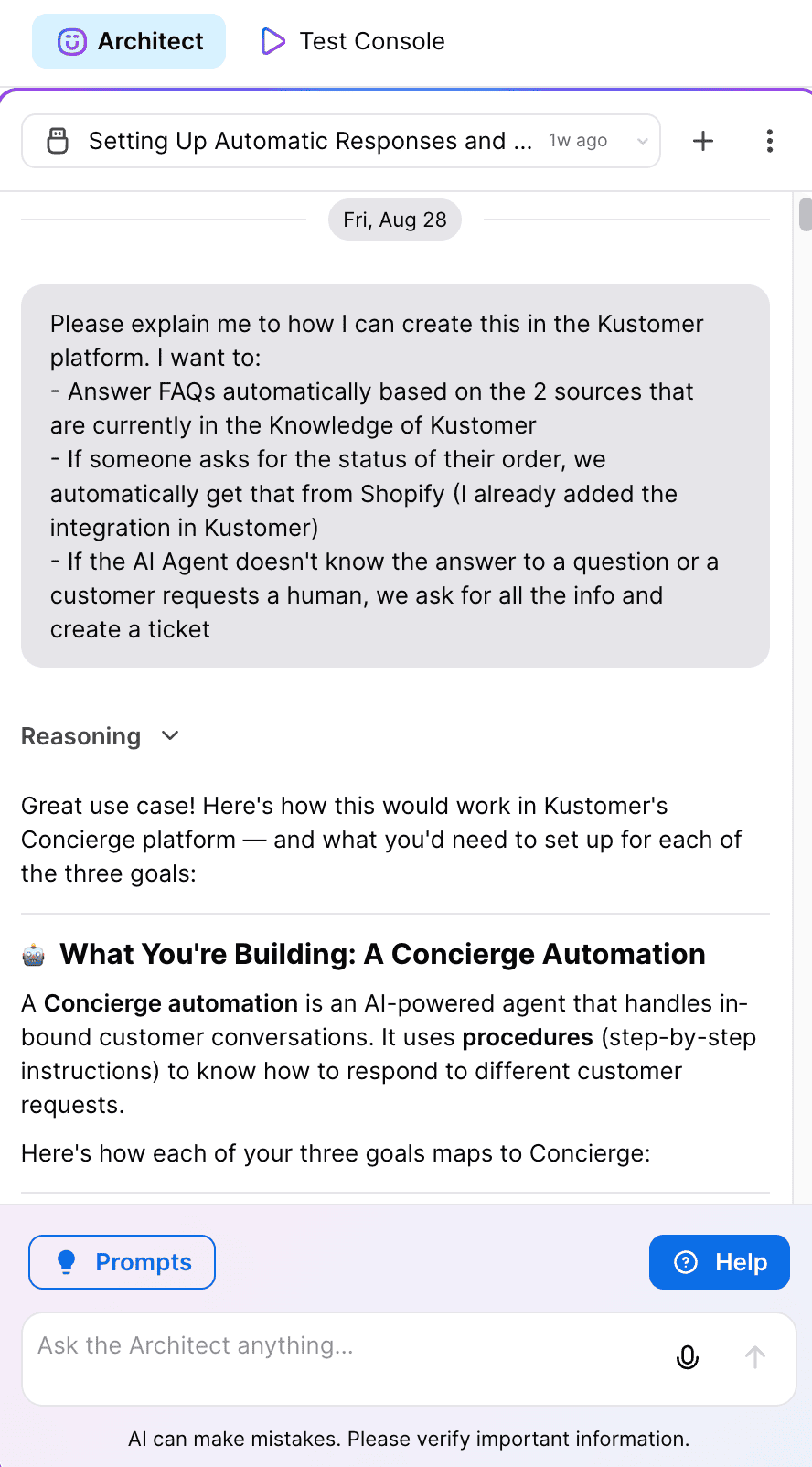
AI Architect: An AI that sets up your AI. You tell it what you want, and it builds it for you:
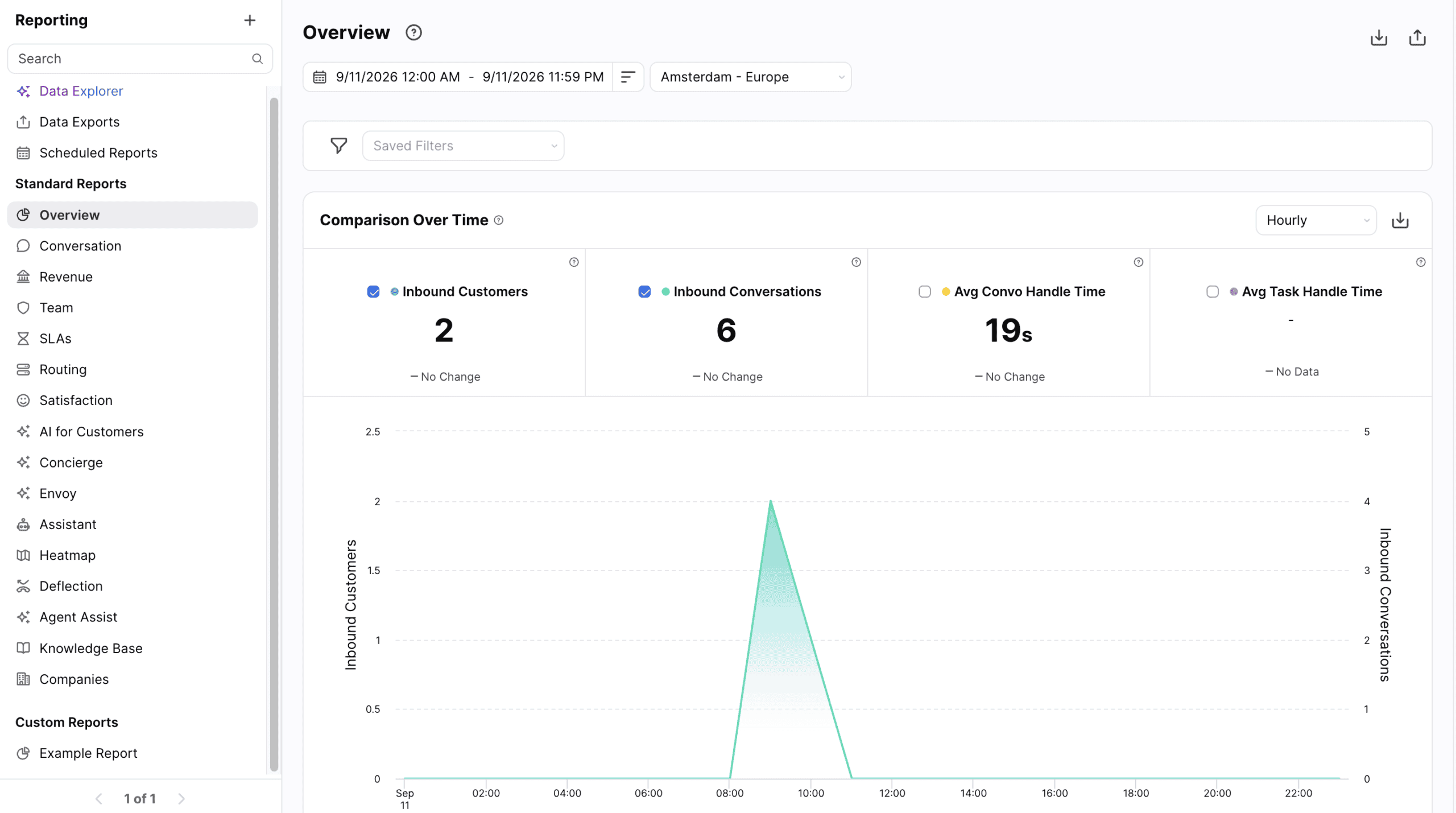
Reports: Kustomer has a standard report for almost anything you can think of. And if one is missing, you build your own:
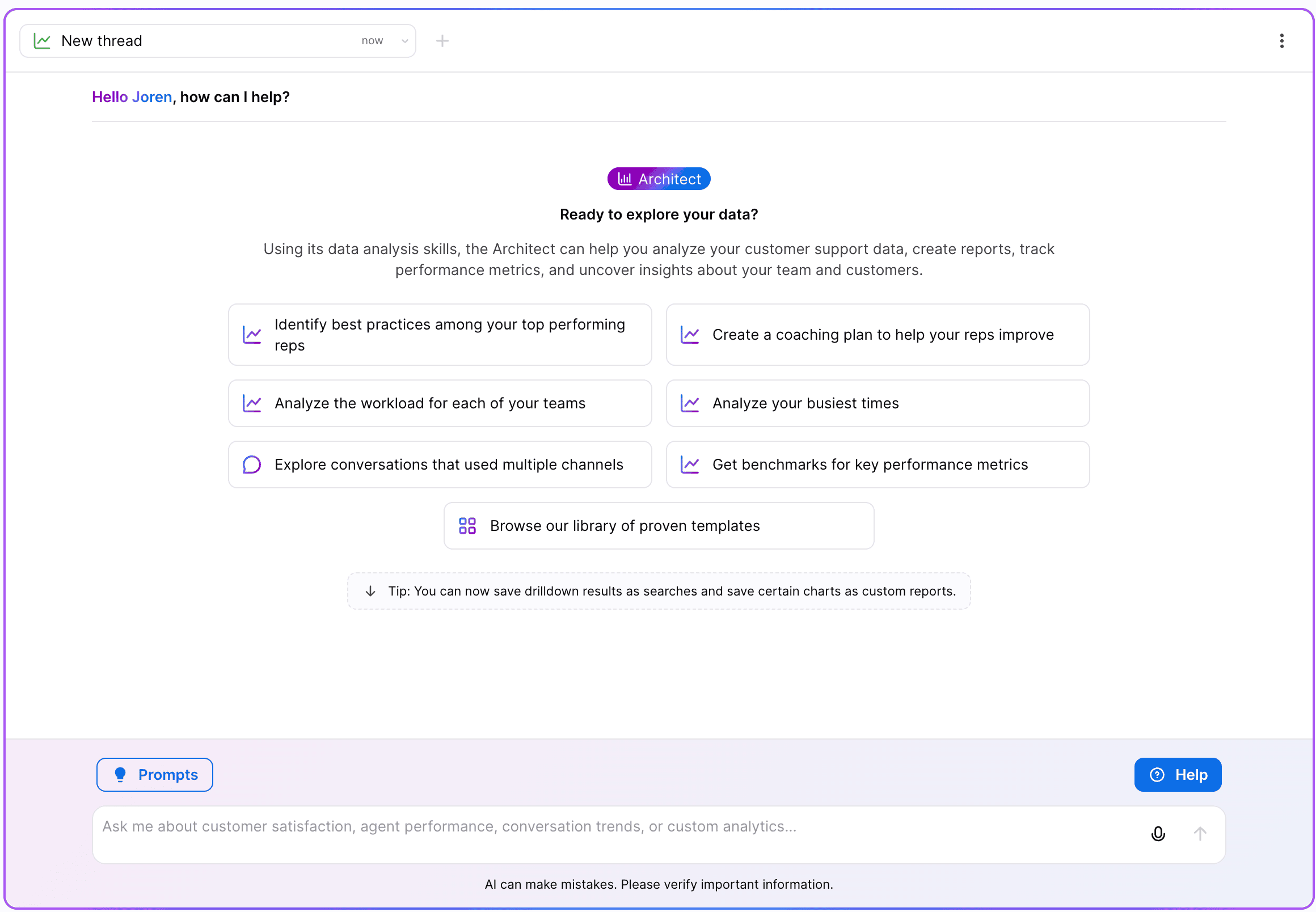
Data Explorer: Ask a question about your support data, like how many conversations were about order status, and you get the answer right away:
How to Get Started with Kustomer
Kustomer itself is easy to use, and getting a basic AI agent running is simple. The hard part comes later, when you connect it to the rest of your tools.
The Kustomer dashboard
When you log in, you get a menu on the left side of the screen with everything in one place:
- Home: Your starting point in Kustomer
- Kustomer AI: Where you build, test and launch your AI agents
- Inbox: The conversations assigned to you
- Searches: Lists of specific conversations, like all open chats
- Reporting: All your reports, plus Data Explorer
- Team Pulse: How many agents are working right now, and in which queues and skills
- Apps: The tools you connect to Kustomer
- Settings: The settings for your account and your team
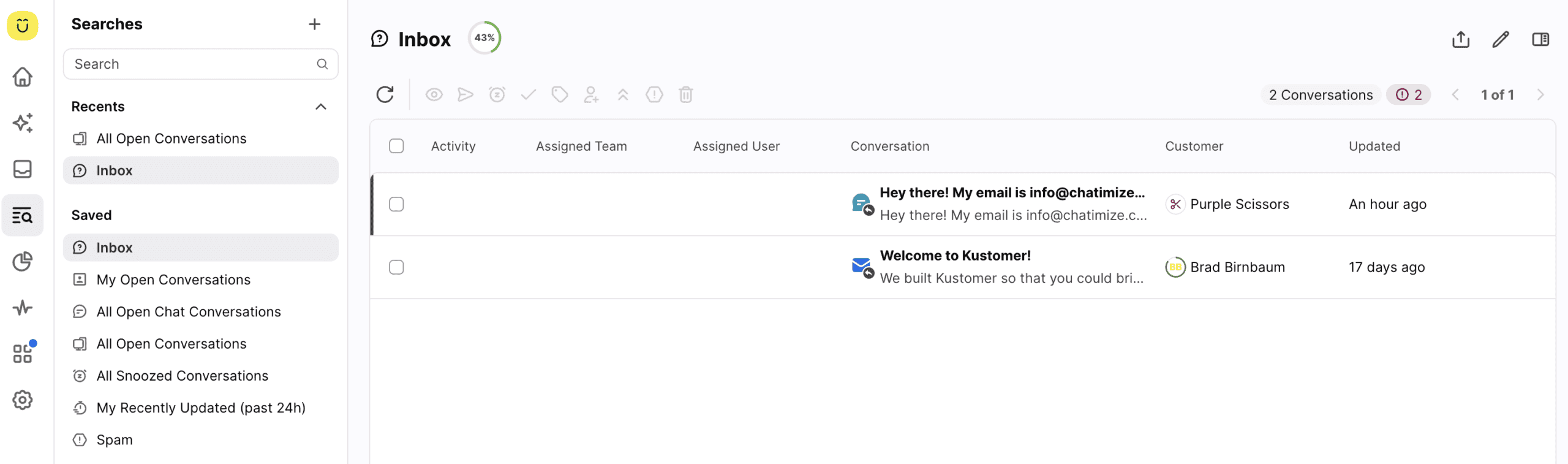
Under Searches, you can open a saved list like your inbox and see every open conversation at once:
Build your first AI agent
Nowadays, you start with AI. So the first thing you create in Kustomer is an AI Automation.
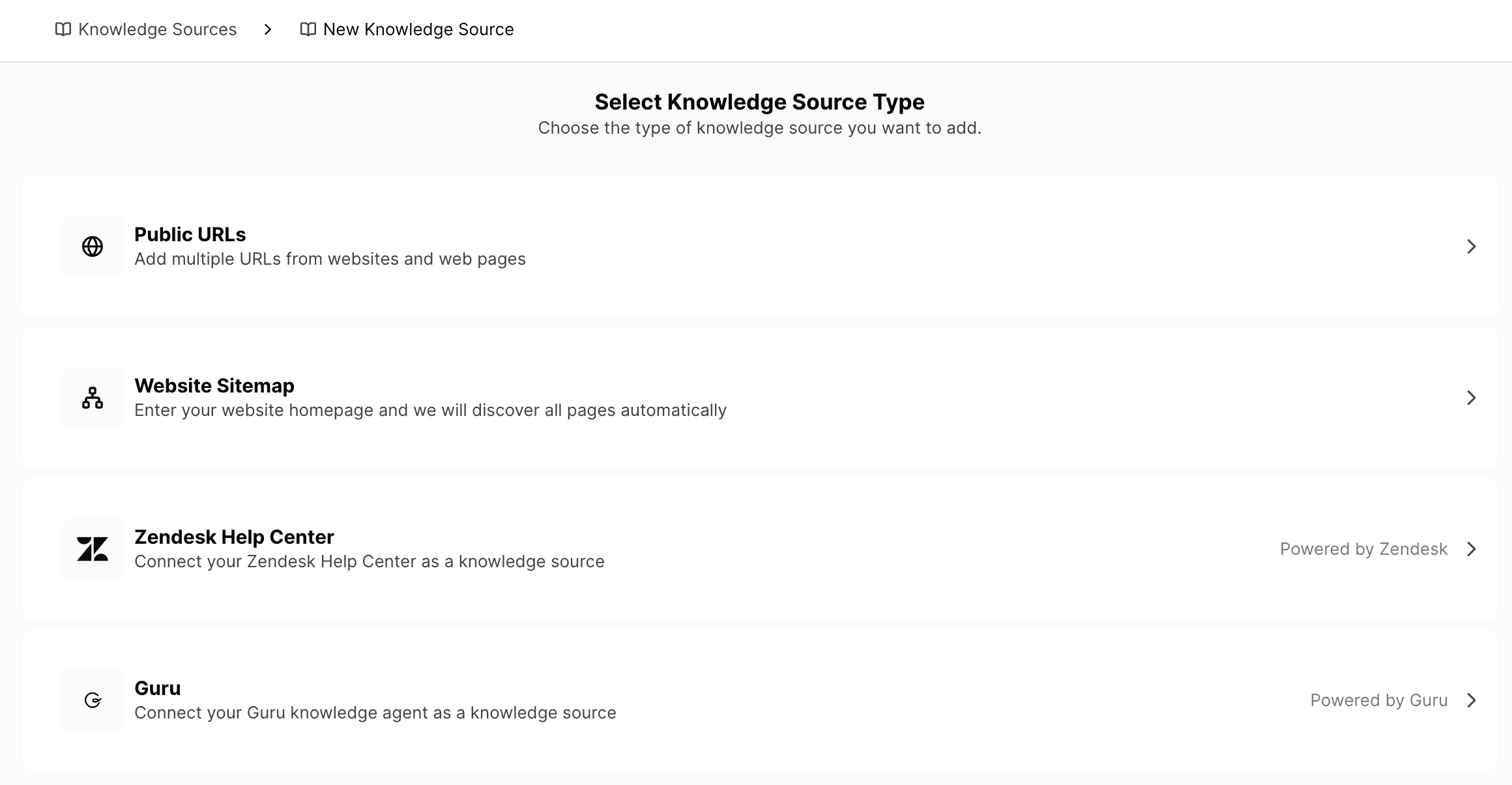
You begin by giving your AI agent knowledge. Just add a knowledge source, like the URL of your website, and Kustomer trains the agent on it:
The next step is to build the agent itself. You pick a response tone, add guardrails for what it should and shouldn’t do, and write a main procedure that tells it how to handle conversations.
And on the right, there’s a test console, so you can start talking to your agent right away:
This part works well. With the default settings and your own knowledge, you get an AI agent that answers questions in no time.
Where it gets harder: connecting your other tools
Kustomer is not a plug-and-play tool. Many users online say that the average setup takes two months. And I found out why when I tried to connect Kustomer to my Shopify store.
Kustomer has a default Shopify app for this, so I set up a procedure to look up the status of an order.
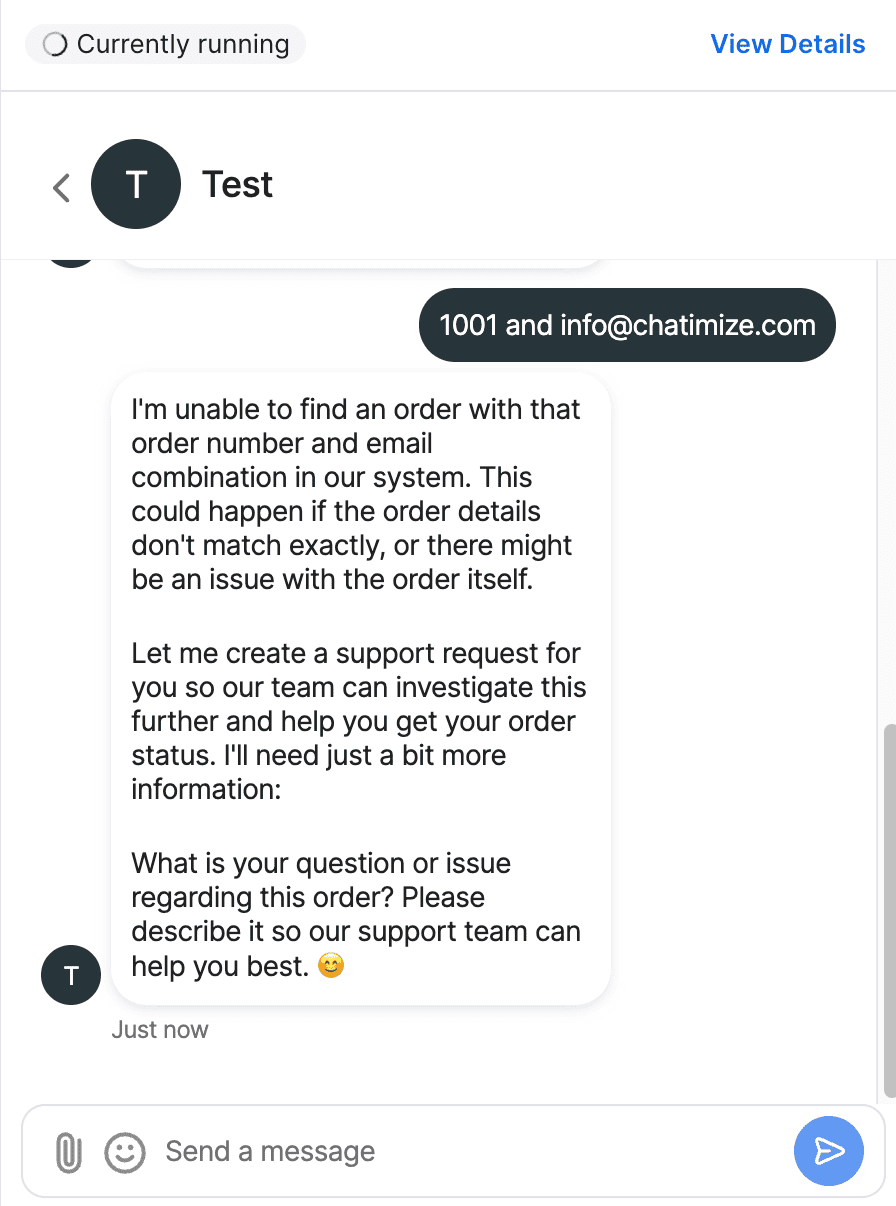
But I couldn’t get it to work in my test. Every time I asked for my order status, the AI agent asked for my order number and then couldn’t find the order:
I understand that custom setups take work. But when even a default app doesn’t work out of the box, that’s a real drawback.
Flow Builder Create chatbot dialogs with a visual flow builder. Create chatbot dialogs with a visual flow builder. | |
| Ease of useHow easy is it to use the platform? On a scale of 1 to 5. | 4.5 |
| Ease of setupHow easy is it to set up your chatbot? On a scale of 1 to 5. | 2 |
| Test chatbotIs it possible to test the chatbot before putting your new flows or changes live? |
Want to compare Kustomer with 32 other chatbot platforms? Compare them here →
Kustomer Timeline
The customer timeline is what Kustomer is known for, and I think it’s one of the best things about the platform.
The unified customer timeline
When you open a customer in Kustomer, you see everything they did in one timeline. So you see their WhatsApp message, then an email, then an order and then a shipping update, in the order it happened:
This is super useful for your support team. When the AI agent hands a conversation over to a human, that person already knows everything the customer did. So they can help them in the best way.
You can also reply to a customer’s email straight from the timeline:
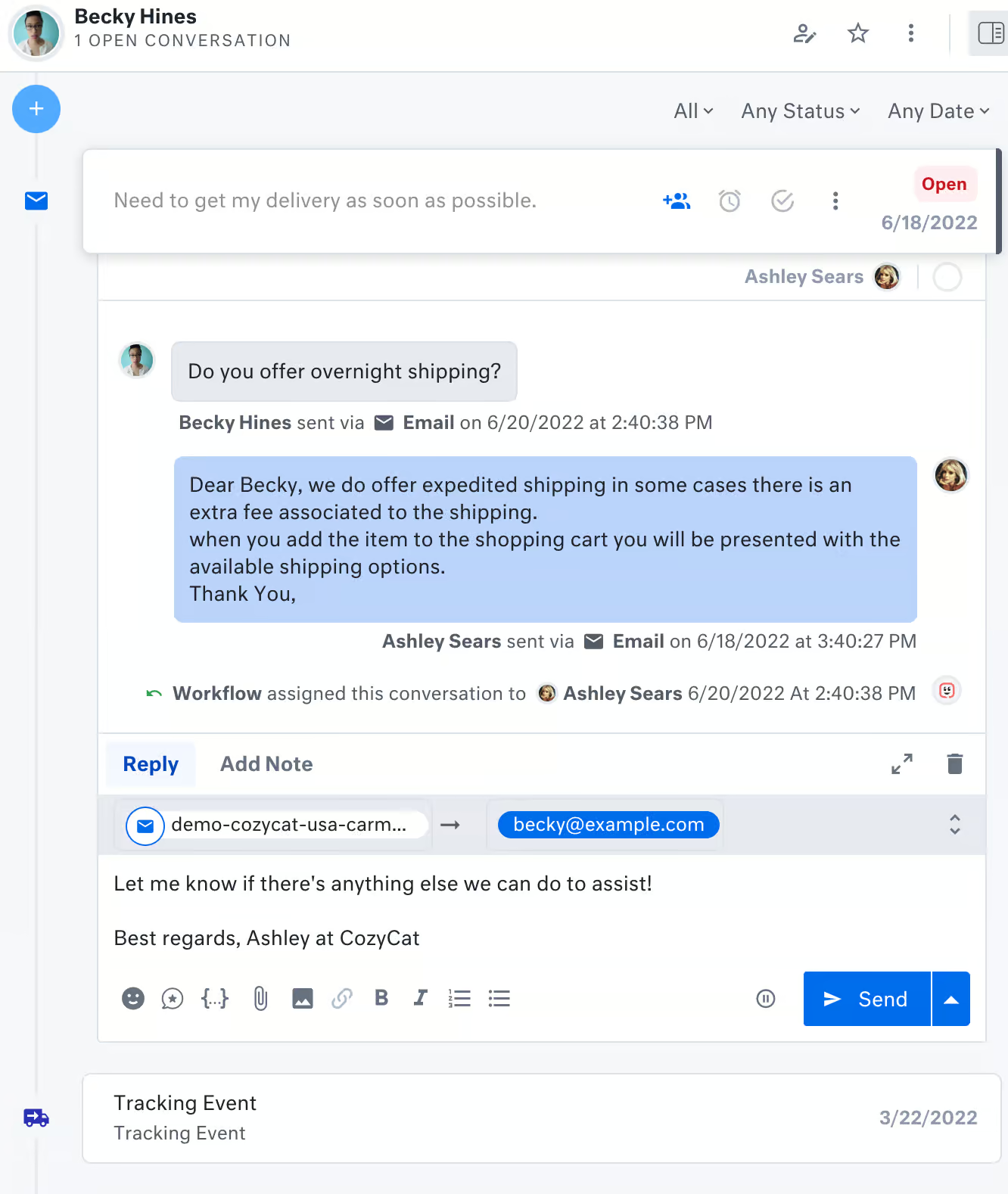
And on the right side of the timeline, you see all the information you have about that customer.
Copilot
To help your support agents work faster, Kustomer has Copilot. It’s an AI assistant that sits right next to the conversation and helps your agents reply to customers.
Your agents can ask it questions, like “Summarize this customer for me” or “Help me draft a response”:
Copilot is a paid add-on, which I cover in the pricing section below.
Business rules, routing and queues
Kustomer also has all the help desk tools a big support team needs. You can set up business rules, routing rules, skills, service level agreements and queues. That decides which conversation goes to which agent.
For example, queues collect conversations from every channel and send them to the agents who are available:
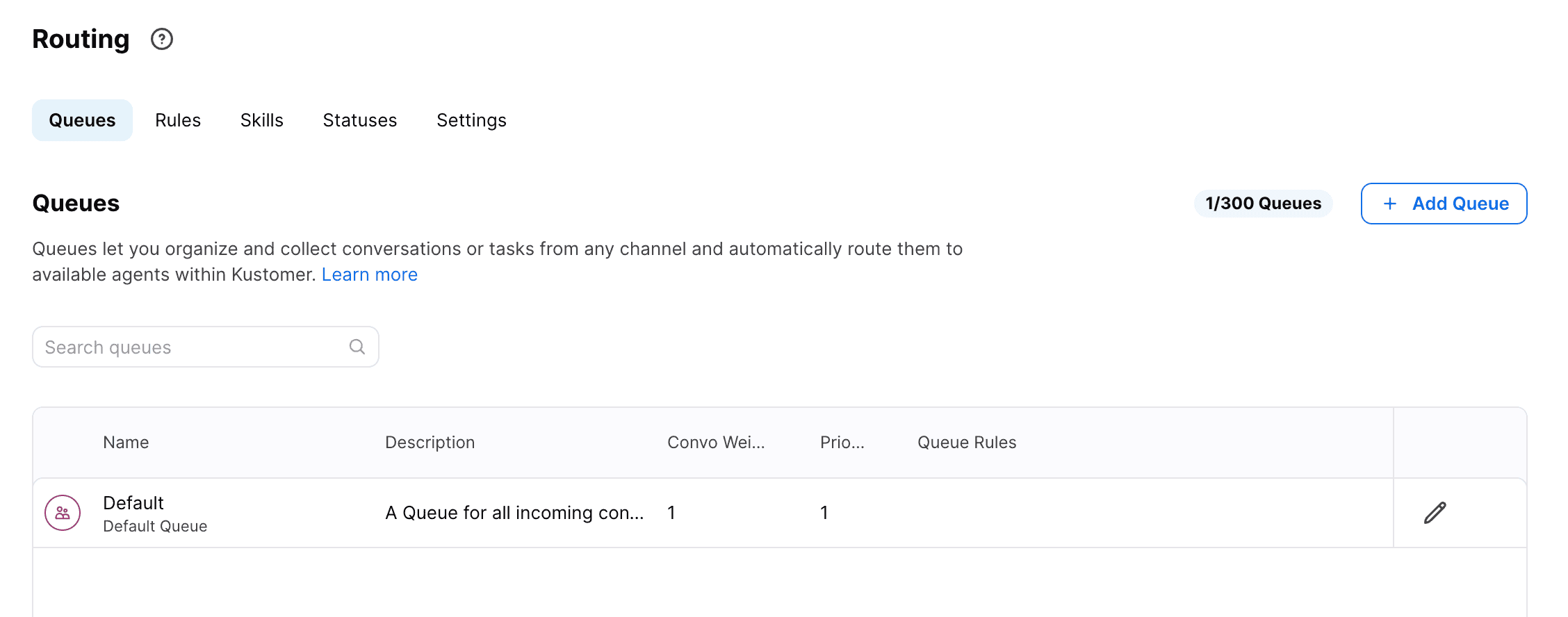
These are the same kind of tools you get in help desks like Zendesk, Intercom and Gorgias. I cover that in my Zendesk review, Intercom review and Gorgias review.
If you run support for an enterprise, you really need these tools. And Kustomer has all of them.
Kustomer AI Agents
Kustomer’s AI agents learn from your knowledge, follow your instructions, and take action in your other tools. And if you don’t want to set it all up yourself, the AI Architect does it for you.
Setting up Kustomer AI
Setting up your AI agent in Kustomer has four parts:
- Knowledge sources
- Procedures
- Response tone
- Guidances
Knowledge sources are what the agent learns from. You can add public URLs, your website sitemap, a Zendesk Help Center or Guru.
But you can’t train the AI on your documents. That’s a big drawback, because a lot of companies keep their information in documents.
Procedures are step-by-step instructions for what your agent does in a certain situation. For example, I wrote a procedure for an order status question: the agent asks for the order number and email address, and then looks up the order in Shopify:
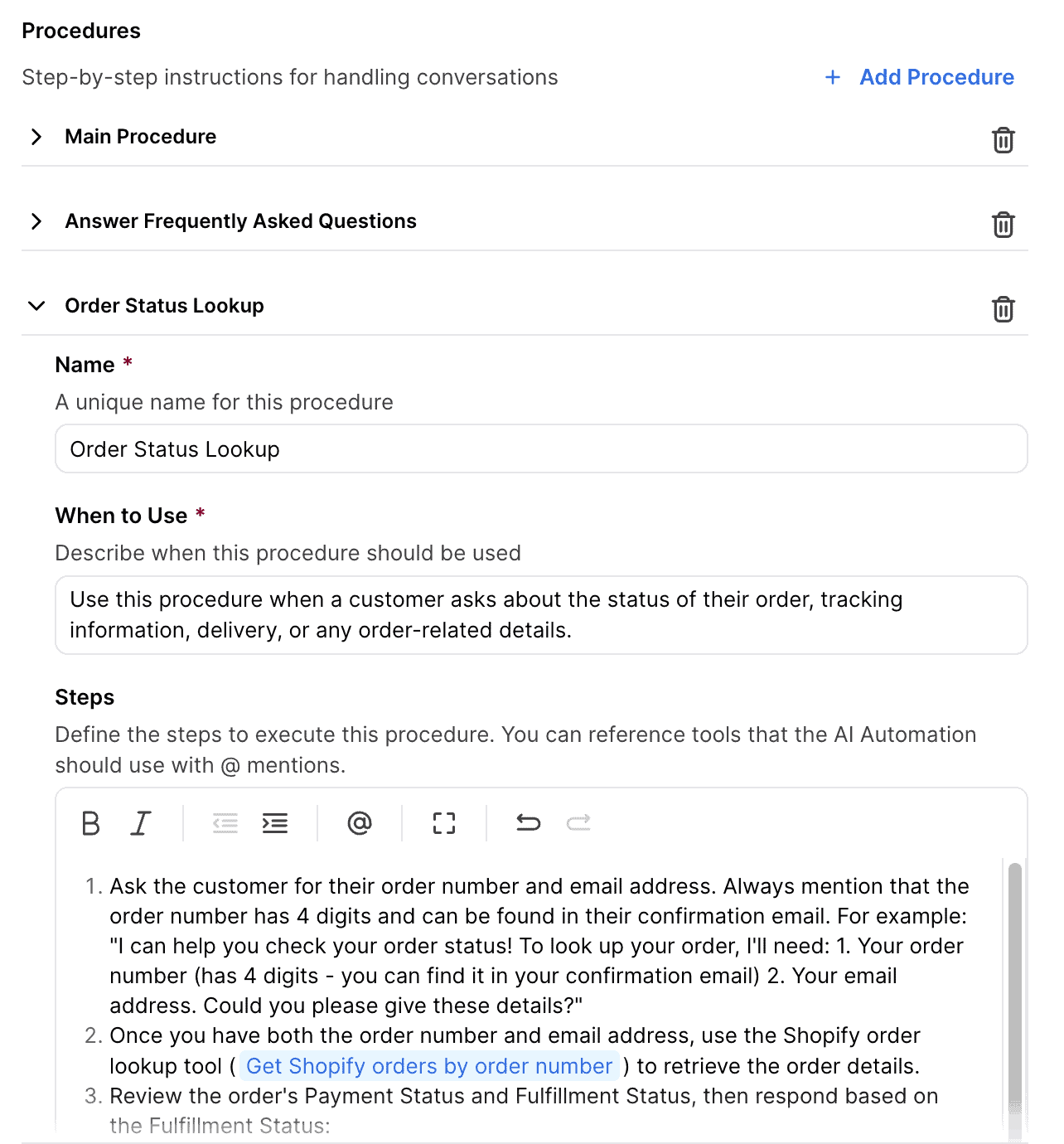
One conversation can go through several procedures. Someone asks where their order is, the order turns out to be late, and then the conversation goes to a human agent. Each of those steps has its own procedure.
You can also connect a procedure to a tool. That’s how your agent gets data out of another app or sends data to it, like the Shopify order lookup above.
With the response tone, you decide how your agent talks to your customers. And with guidances, you give it extra rules to follow, like never promising a refund.
Once your agent is set up, you can also test it automatically, which is really useful for enterprises. Every time you create a new version of your AI agent, you can test it against a set of conversations you saved before.
That way, you check whether the new version still handles all your scenarios, like delivery issues or refund requests:
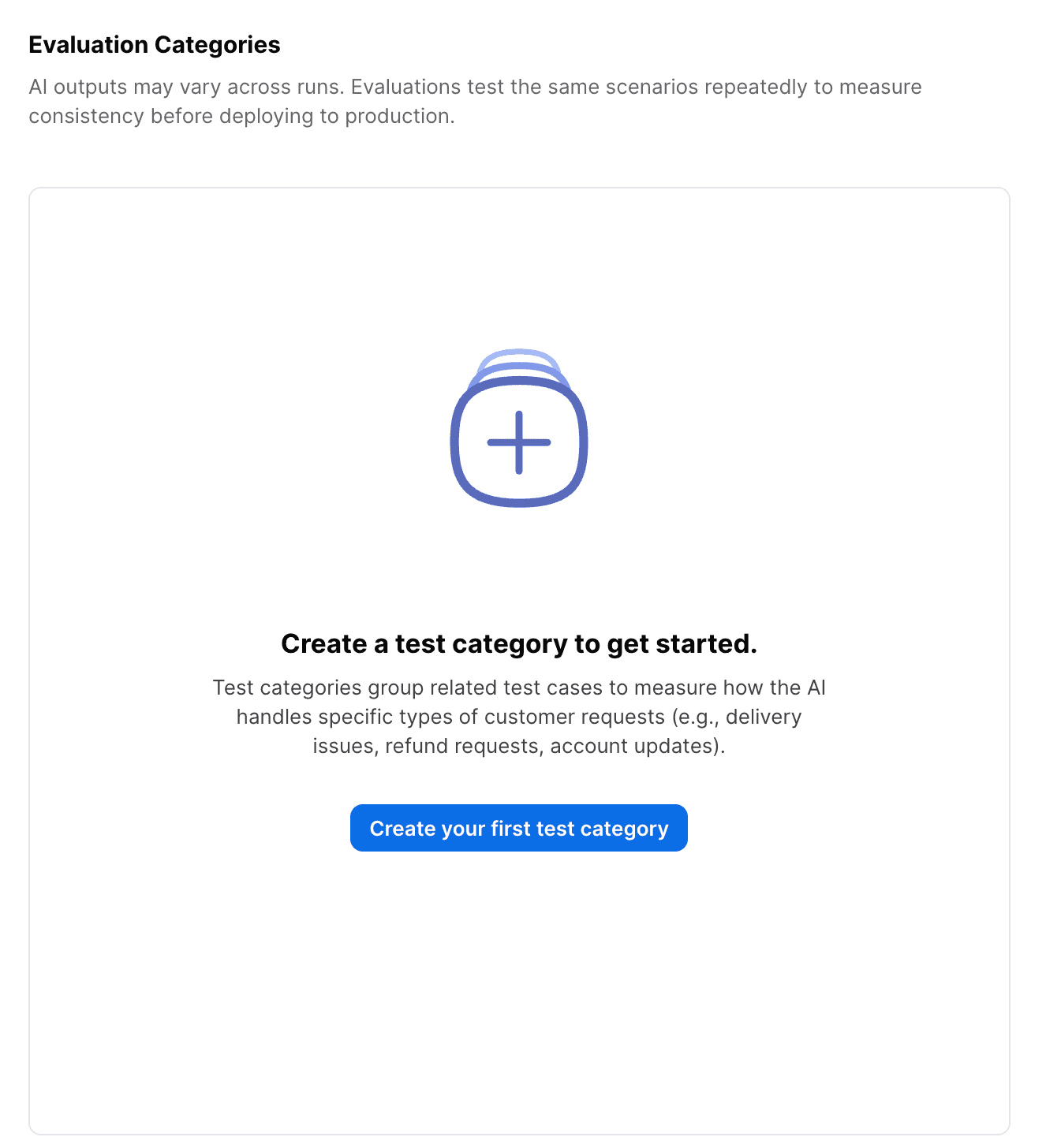
This is most important when your AI handles lots of different topics, because one change can break something somewhere else. And once your new version passes the tests, it’s easy to put it live.
How Kustomer AI agents use tools
The AI actions in Kustomer are the tools your agent can use. A tool lets your AI agent take action in another platform, like searching for an order in Shopify.
Kustomer has built-in tools for this, and you can also create your own custom tools:
But this is also where Kustomer gets hard. Setting up custom tools often requires help from Kustomer’s support team. And more advanced connections usually need code.
So if Kustomer doesn’t have a default integration for one of your tools, you’ll need either Kustomer’s help or someone on your team who can code.
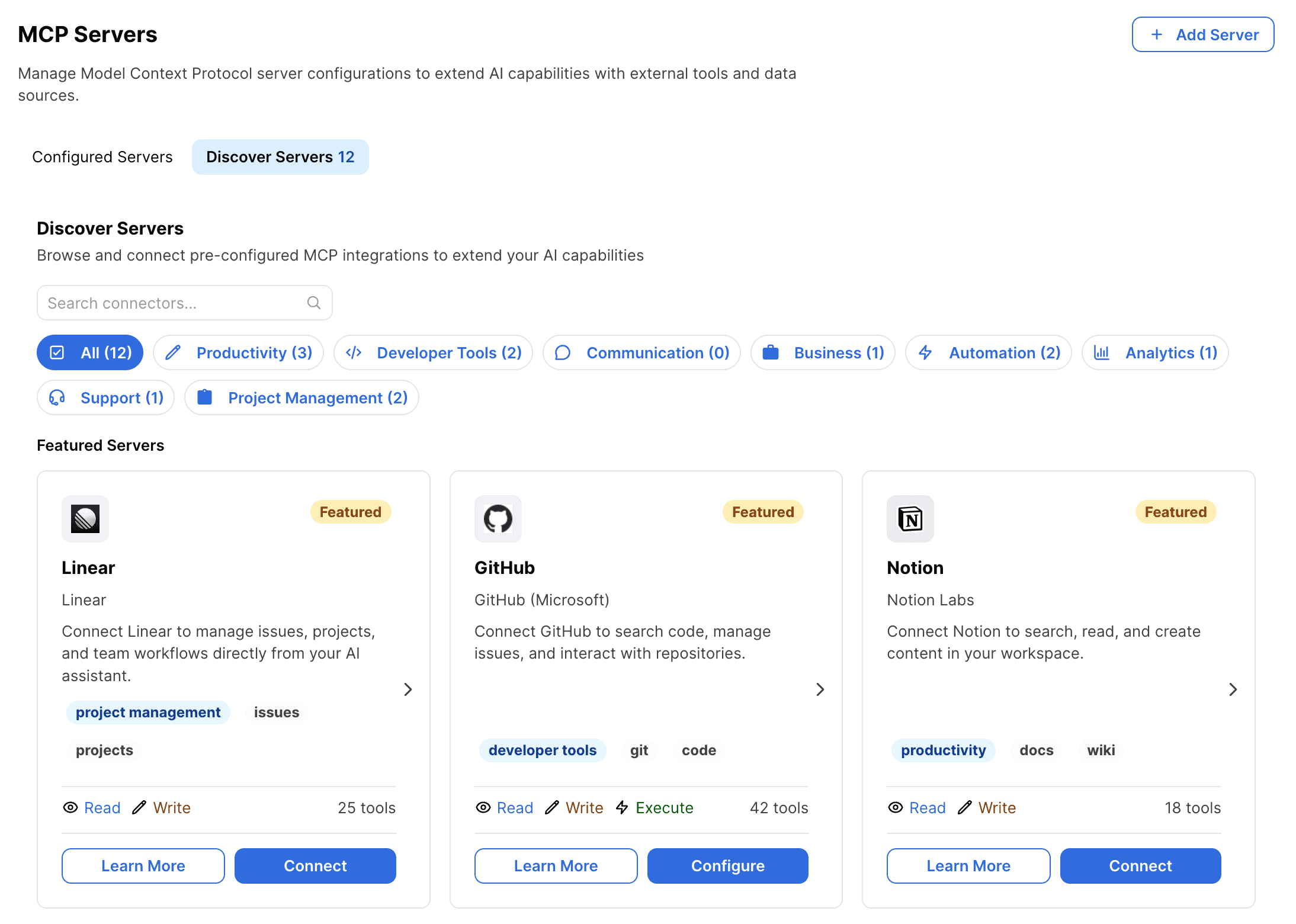
You can also connect Model Context Protocol (MCP) servers to Kustomer. That way, your AI agent can use the tools from those servers directly, like Notion, GitHub or Linear:
AI Architect
The AI Architect is one of the most useful features in Kustomer. It’s an AI that sets up your AI for you.
You tell the Architect what you want, and it sets it up, so you don’t have to do it by yourself. For example, I asked it to:
- Answer questions from my knowledge
- Get the order status from Shopify
- Create a ticket when the agent can’t help
The Architect then walked me through every step. It added my knowledge sources, built the Shopify integration, and wrote the procedures for handing a conversation over to an agent.
I never clicked anything in the interface myself. I only approved each step and tweaked the parts I wanted differently.
That saves you hours of work. And more importantly, you don’t need to know where every setting in Kustomer lives to get your AI agent running.
| Keyword recognitionTrigger chatbot flow based on certain words or phrases a user says to the chatbot. | |
| IntentsTrigger a chatbot flow by understanding the intent of the user. | |
| EntitiesCapture specific information from sentences. For example, if a user says “veggie pizza”, the chatbot can understand it’s not a regular pizza, but a veggie pizza. | |
| AI Knowledge BaseCan you train your chatbot on a knowledge base (like your website or articles) and then your chatbot automatically answer questions about it? | |
| NLP integrationsDoes it have a direct integration with NLP platforms, such as Dialogflow? | |
| LLM integrationsDoes it have a direct integration with LLM platforms, such as ChatGPT and Claude? |
Kustomer Pricing Plans
The base platform fee is unclear. Kustomer doesn’t show its current prices on its pricing page. So the prices below come from its older Professional and Business plans:
Add-ons and usage fees
On top of your plan, Kustomer charges for two add-ons:
- AI Agents for Reps (Copilot): $40 per user per month
- HIPAA compliance: $25 per user per month
And depending on the channels you use, you also pay usage fees:
- Kustomer Voice: From $0.02 per minute
- WhatsApp: Meta’s template fee, plus 20% on top for Kustomer
- Outbound messages: $0.025 per message
- Data storage: $50 per GB per month
So before you talk to Kustomer, work out how many agents, AI conversations and messages you expect each month. The more your team handles, the more those usage fees add up.
| Free trialDoes the chatbot platform provide a free trial? | |
| Free planDoes the chatbot platform provide a free plan? | |
| Price per monthWhat is the lowest price per month to create a chatbot with this platform? In US Dollars. | $830 |
| Monthly pricing available?Is it possible to pay monthly? | |
| Money back guaranteeIs there a money-back guarantee in case you are not satisfied with the platform? |
Kustomer Channels & Integrations
Kustomer connects to seven channels, so your team handles every conversation from one place:
- Website chat
- SMS
- Phone calls, with Kustomer Voice
Because every channel ends up in the same timeline, Kustomer works well as an omnichannel chatbot. A customer can send you a WhatsApp message today and an email tomorrow, and you see both in one place.
I should mention that you can’t use AI in Kustomer Voice. So your AI agent can’t answer phone calls.
Website chat widget
Kustomer’s chat widget for your website looks really nice. And you can change the design and the icon to match your brand: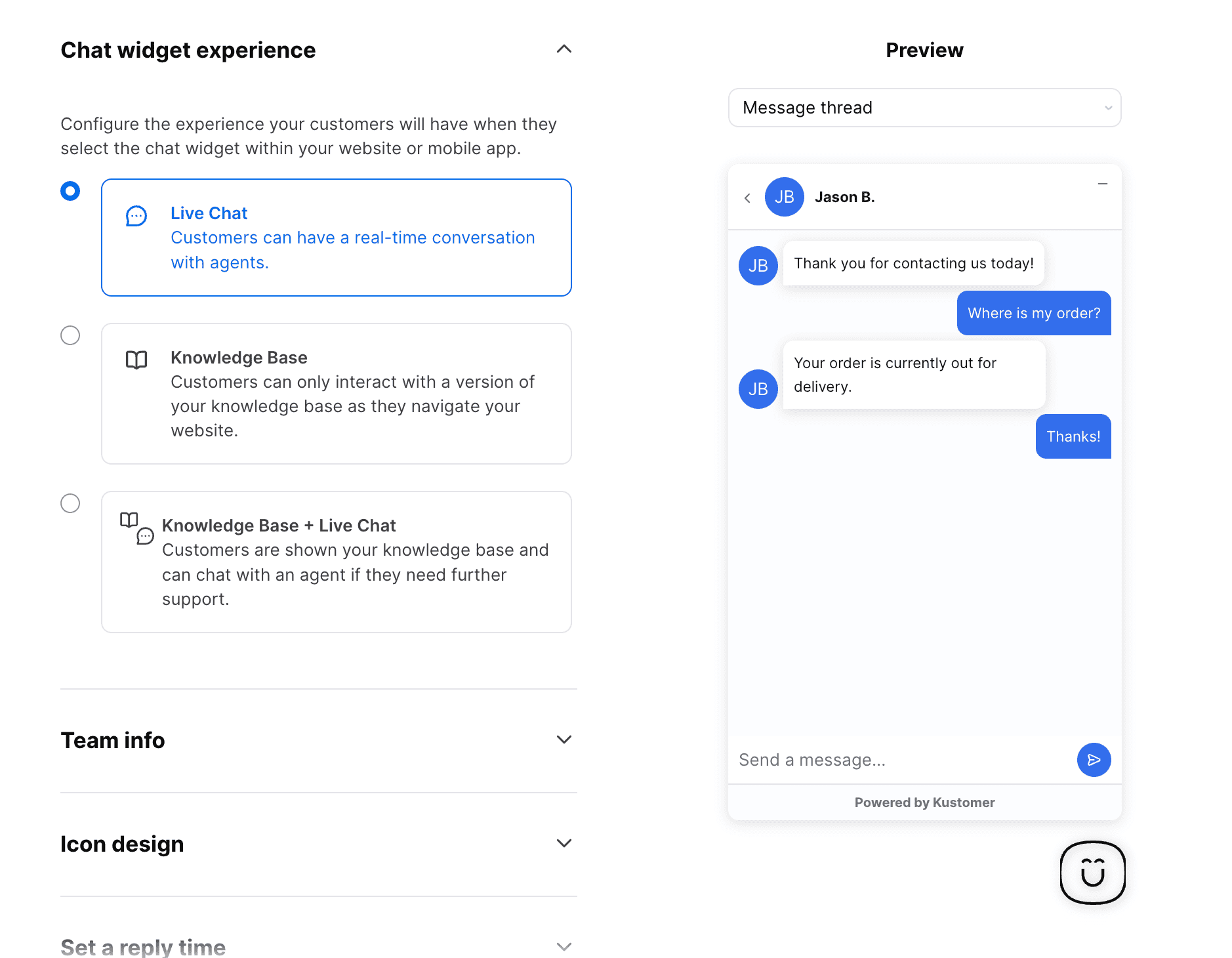
No marketing automation on Facebook, Instagram and WhatsApp
Kustomer connects to Facebook, Instagram and WhatsApp, but it has no marketing automation on these channels.
For example, you can’t automatically reply to Facebook or Instagram comments with AI. For an all-in-one enterprise platform, I expected that to be possible, so it’s a real drawback.
Integrations
Kustomer has 75 built-in integrations with other platforms, and you find all of them inside their app store: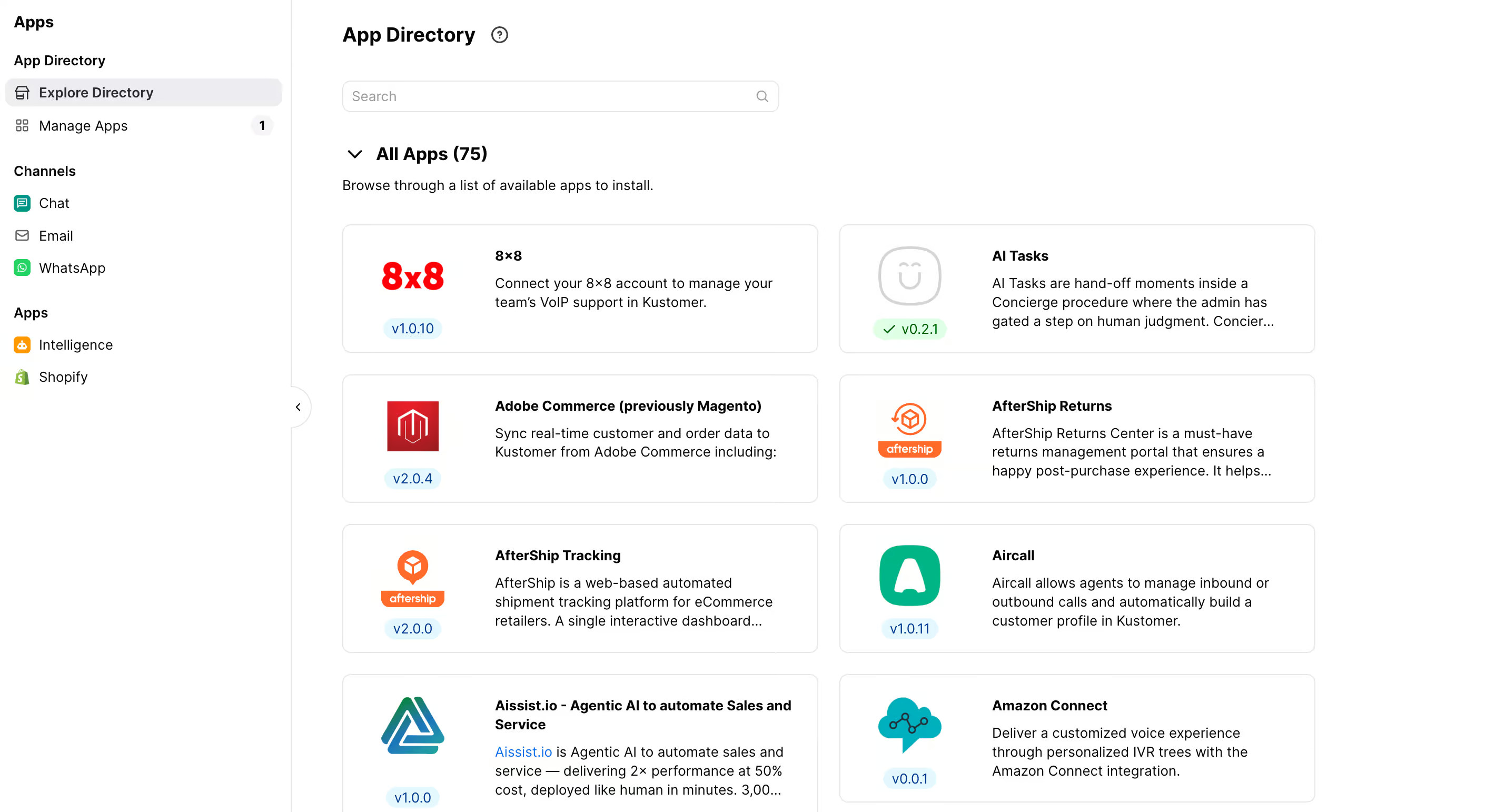
And if your tool isn’t in there, you can still connect it with Kustomer’s API or with webhooks.
But for tools without a built-in integration, you need some technical experience, as I explained in the AI actions section above.
Kustomer Reporting & Data Explorer
Kustomer has a huge number of reports. Almost any report you can think of, Kustomer already has, and you can go much deeper into your data than on most platforms.
Standard and custom reports
You start with a long list of standard reports, like conversations, team, routing, satisfaction and deflection. And if the report you need isn’t there, you can build your own custom report.
I really like how deep you can go. The Overview report gives you the big picture, like how many customers and conversations came in:
From there, you click on a number to see the conversations behind it. So you can drill down to a very specific level, which a lot of platforms don’t let you do: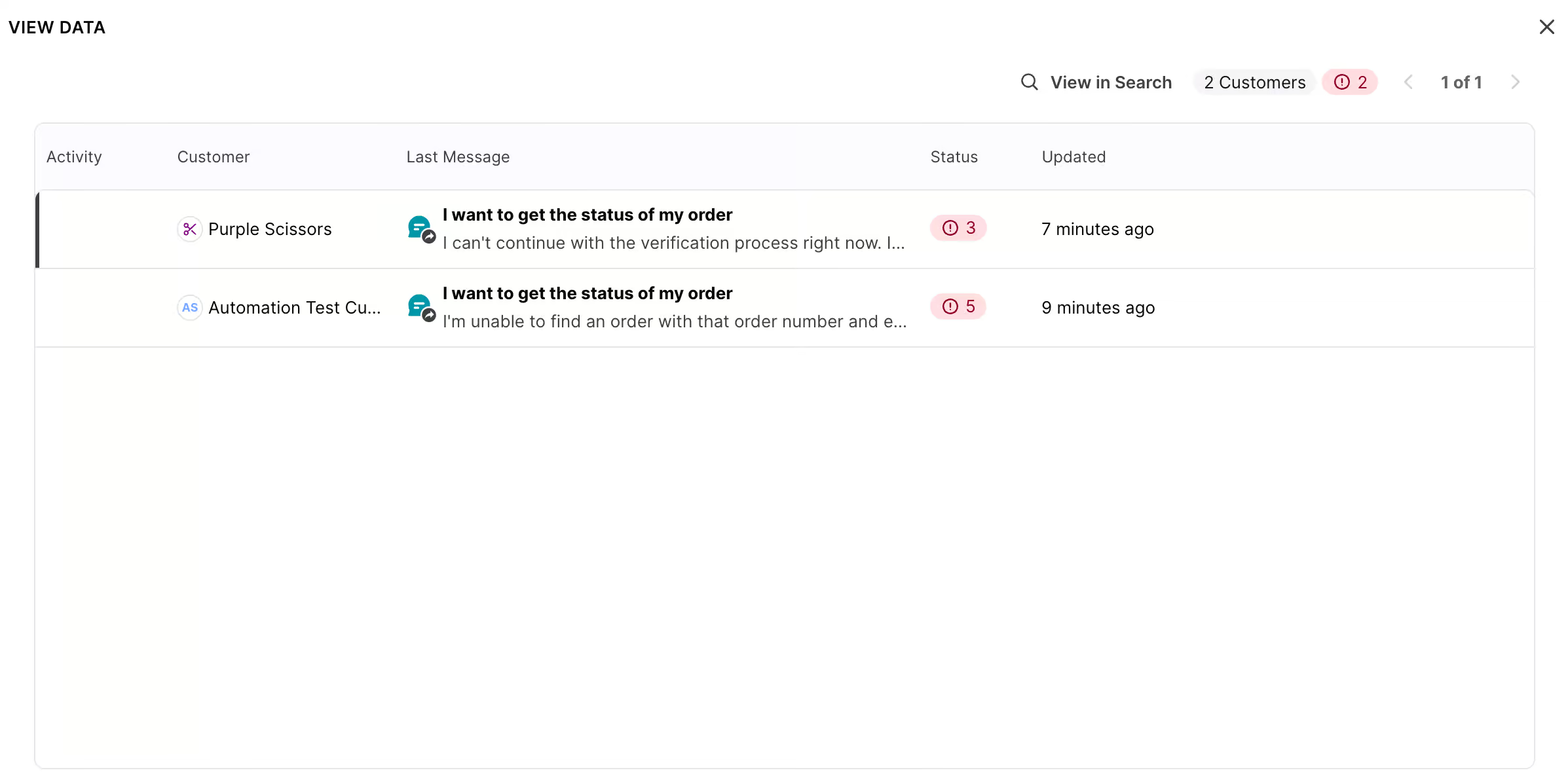
That’s where the real value is. You get to read what your customers actually say to your agents, and you see exactly where things go wrong, which most support teams never do.
So instead of guessing why a number went up or down, you look at the conversations behind it.
AI performance
Your AI agents get their own AI Performance report. It shows your AI resolution rate and how many conversations the AI resolved: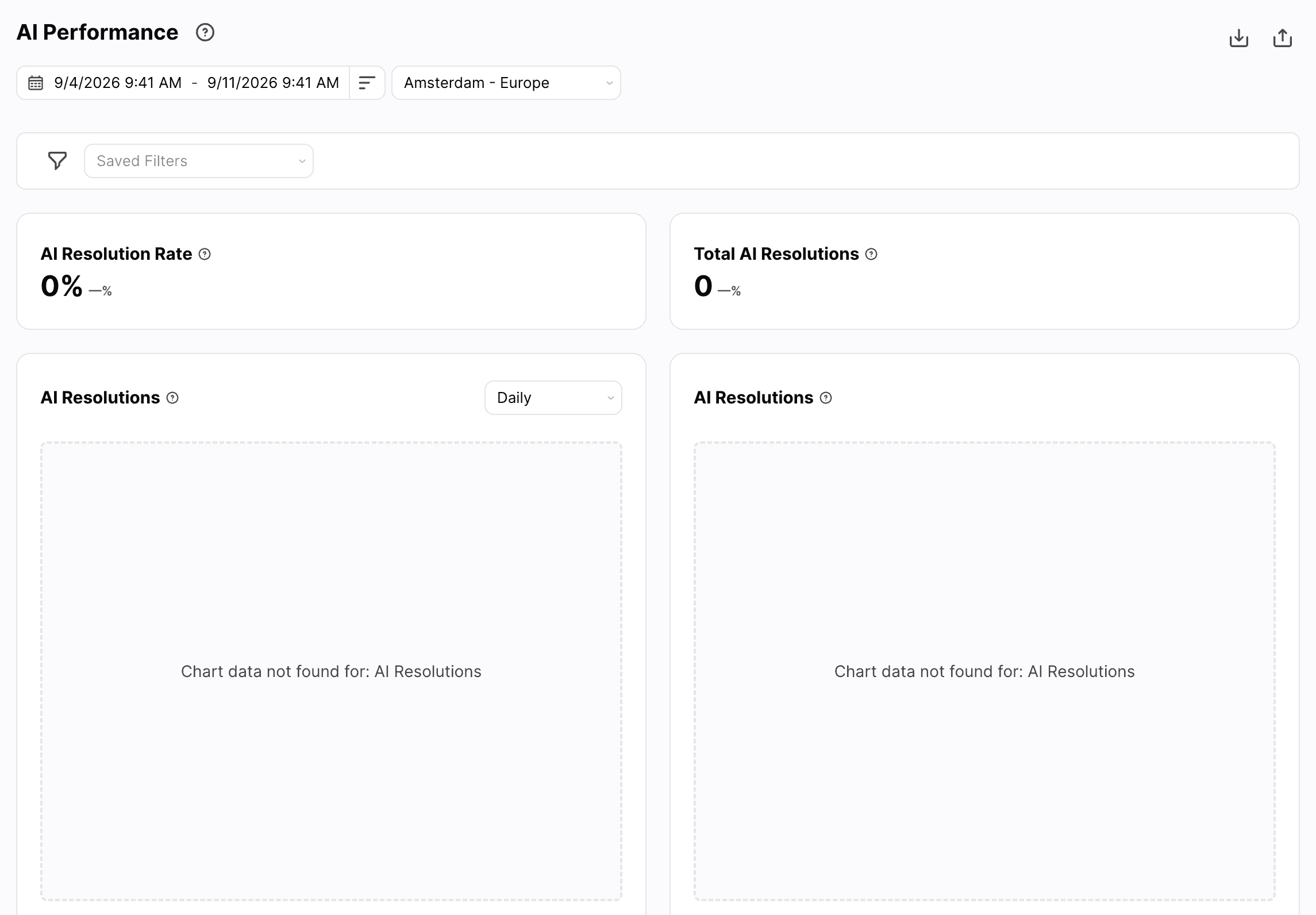
That resolution rate tells you two things. It shows you where your AI agent still needs work, and it shows you how much time it saves your team.
Because every conversation your AI resolves is a conversation your agents don’t have to pick up.
Data Explorer
I was really impressed with Data Explorer. Instead of building a report, you just ask a question about your data.
You type your question in the chat, or pick one of the suggested prompts, like analyzing your busiest times:
So you can ask how many conversations were about order status, and it gives you the number right away. Talking to your data like that is really useful.
What G2 and Capterra Users Say About Kustomer
For an enterprise platform like Kustomer, reviews from real users matter a lot. Some problems only show up after months of daily use, and these reviewers have been through exactly that.
On G2, Kustomer scores 4.4 out of 5 from 566 reviews. On Capterra, it scores 4.7 out of 5 from 80 reviews, with 4.6 for ease of use and 4.7 for customer service.
What users praise
On G2, the tags that come back most in positive reviews are ease of use (56 reviews), features (42), helpful (37), efficiency (30) and automation (20).
G2’s own summary of those reviews points at the unified timeline, and the reviewers on Capterra say the same thing in their own words. They like seeing the full customer history in one place, they like how much you can customize, and they like how the interface works.
That matches what I found while testing. This reviewer calls Kustomer an all-in-one support hub, with chat, email, calls and social media in one place, plus the queues and agent performance you need to run a support team: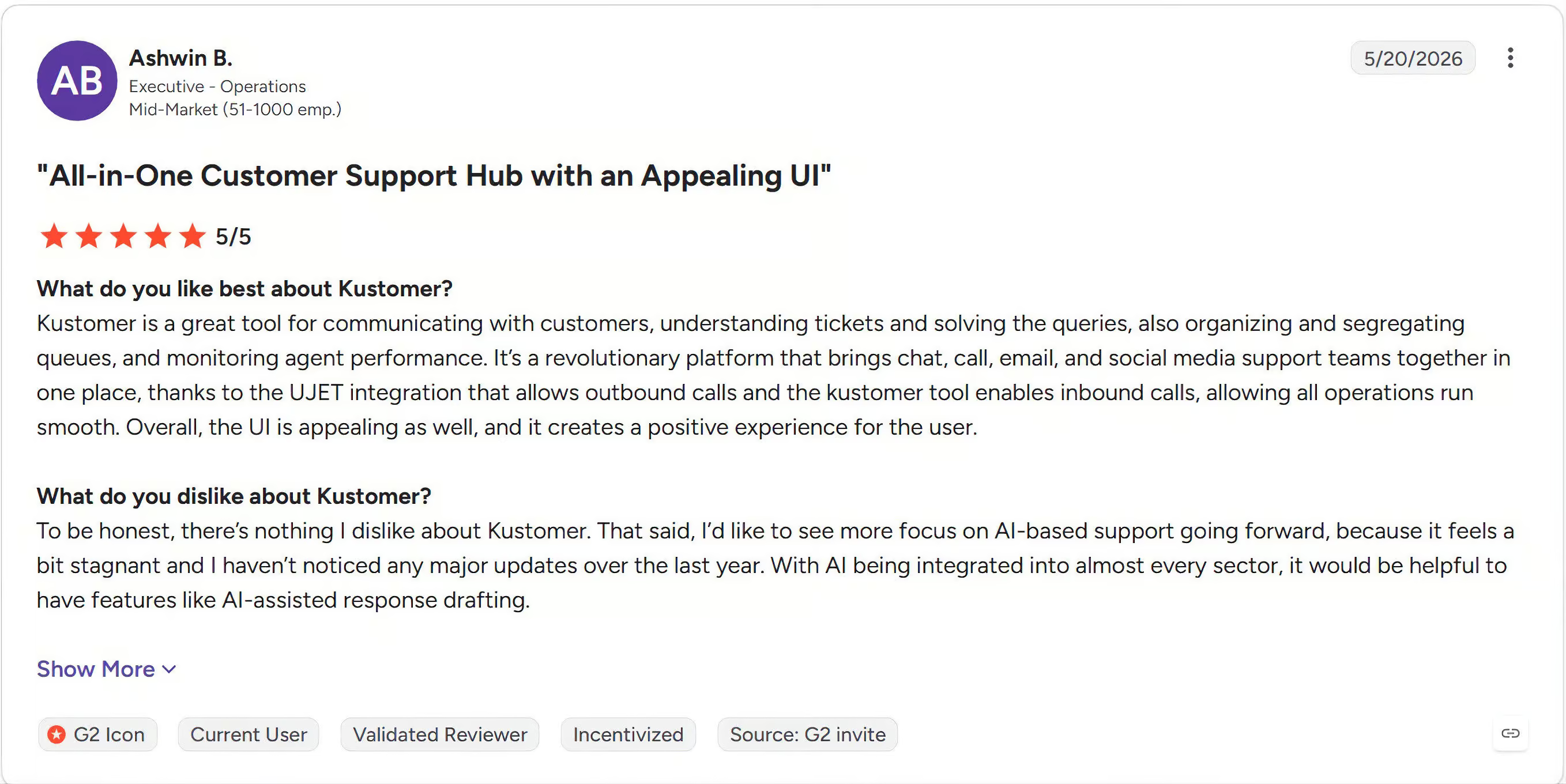
What users complain about
The most common complaints on G2 are slow performance (21 reviews), slow loading (17), the learning curve (16), complexity (14) and the platform not being intuitive (13).
G2’s summary also mentions that Kustomer lags once your volume goes up.
On Capterra, people bring up the cost for smaller teams, a few integrations that don’t work as expected, the same lags and the same learning curve: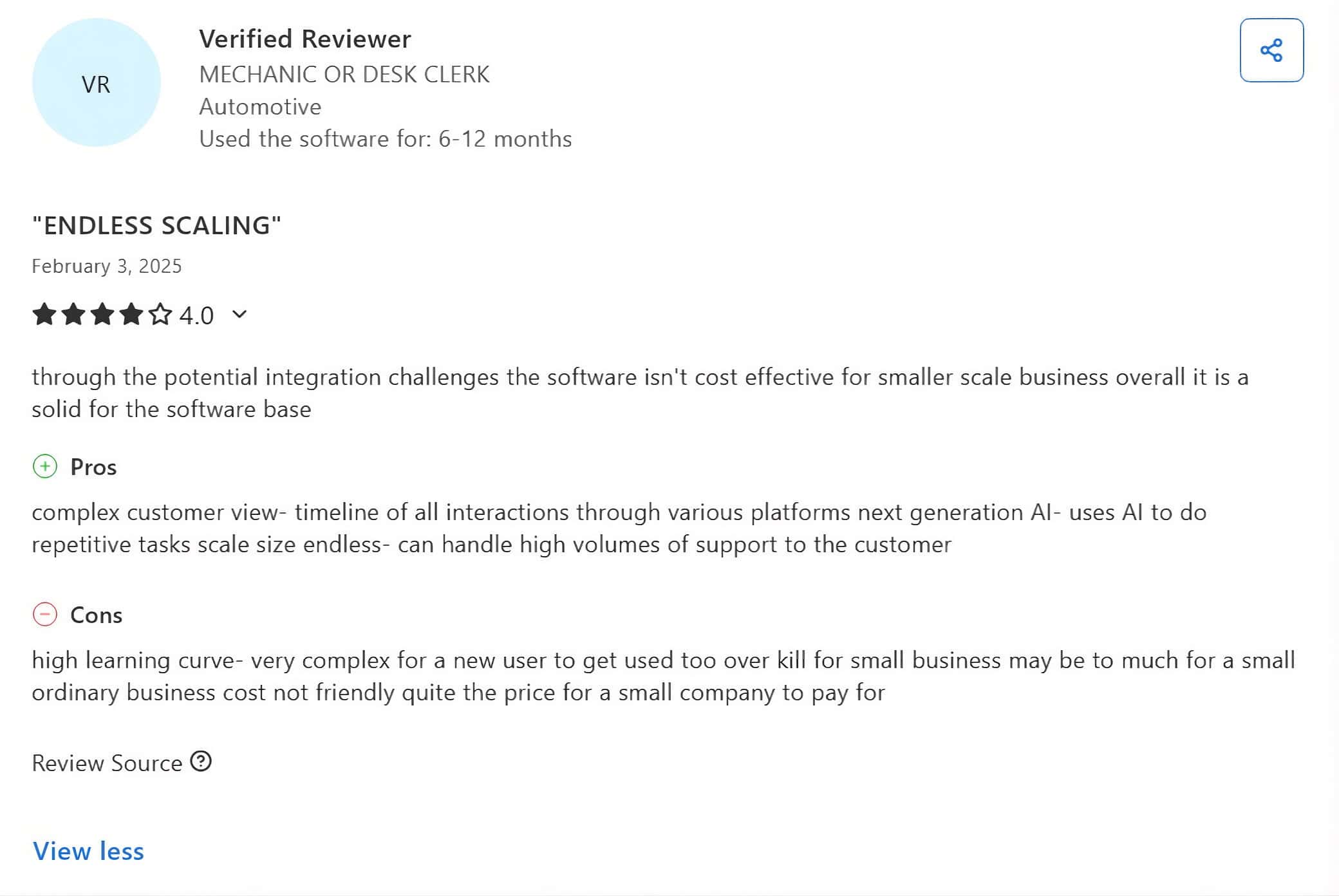
And G2 lists the average time to implement Kustomer as two months: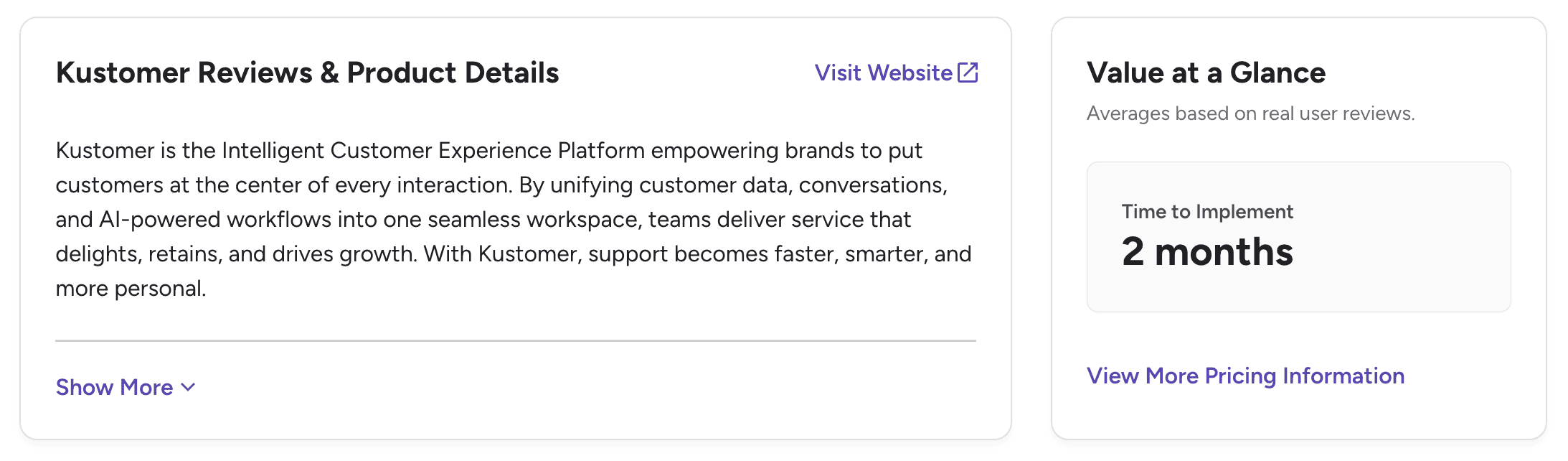
That’s exactly what I ran into. Working inside Kustomer is easy, but connecting it to my Shopify store took a lot more than installing the default app.
So plan for a real setup period, and give your team time to learn the platform. Once you’re through that, the reviews turn positive fast.
Is Kustomer Worth It?
So, should you use Kustomer?
After testing it, I can say yes. But only if you run an enterprise support team with the time and technical help to set it up.
If you’re a small team, need to go live fast, or want to automate your Facebook and Instagram comments, it’s not a great fit.
Once it’s set up, you get:
- A unified timeline with every conversation and order from a customer
- AI agents you train on your knowledge and connect to your tools
- A Copilot that helps your agents reply
- An AI Architect that helps you set up the whole platform
- Data Explorer, so you can talk to your data
If that sounds like what your team needs, click the button below to go to Kustomer:
But Kustomer has a few drawbacks you should know about:
- It takes time to set up. The average setup takes two months, so it’s not a plug-and-play tool
- You need technical help to connect it to other tools
- You can’t train the AI on your documents
- The minimum investment is $10,000 per year, with at least 4 seats
- There’s no marketing automation on Facebook, Instagram or WhatsApp
If those drawbacks don’t stop you, the next step is to try Kustomer for yourself. Book a demo on their website, and ask them to show you how it connects to the tools you already use.